Resource/Misc

Use Windows 7 Presentation Setting Before Every Presentation

If you present with PowerPoint and use Windows 7, you need to be familiar with the PRESENTATION SETTINGS option. To access, open the MOBILITY CENTER (see 03/22/11 post) by clicking the Windows + X keys. Then click projector icon.

In the PRESENTATION SETTINGS dialog in the “WHEN I AM GIVING A PRESENTATION” section be sure:

1. The TURN OFF THE SCREEN SAVER option is active.
2. The SET VOLUME option is active (I set volume to 90%). This option overrides the mute control.
3. I size the event theme graphic to the monitor resolution and set that image as the desktop background when presenting. For that “just in case” situation, so if all fails the audience sees something related to the event (I have seen kids, puppies, girlfriends, vacation pictures, etc. show up on screen – all not good options).

Note: At the top the I AM CURRENTLY GIVING A PRESENTATION option is also turned on and off through the Mobility Center.
– Troy @ TLC

By |2016-08-16T10:23:25-07:00March 24th, 2011|Resource/Misc, Tutorial|

Use Windows 7 Mobility Center Before Every Presentation

Windows 7 is great – running on virtually every computer here. There are a number of hidden features that are very important to presenters. The WINDOWS MOBILITY CENTER is one of them.

To open the Mobility Center, hold down the Windows key and the X key

I use this as a quick check for:
1. Confirm computer volume
2. Confirm plugged into to power (not on battery)
3. Confirm Maximum Performance power setting (vs. battery saving low power option)
4. Wireless network turned off
5. Computer sees an external display/projector
6. Presentation Settings are active (covered in next post)

Everything seen here can be accessed separately, but this is an easy 1-stop view of them all.

– Troy @ TLC

By |2016-08-16T10:23:46-07:00March 22nd, 2011|Resource/Misc, Tutorial|

Manage Multiple Time Zones with Windows 7

Last week, when working on the East Coast, a different time zone than home, I was asked how I managed to keep track of things in the different time zones. Windows 7 has a great little feature to add multiple time zones to the clock.

1. Click the time in the lower right on the task bar and click “CHANGE DATE AND TIME SETTINGS”

2. In the DATE AND TIME dialog, go to the ADDITIONAL CLOCKS tab and setup 1 or 2 additional time zones and name them

3. Now the taskbar shows both (or all three) time zones

4. If you click on the time in the task bar, you now see clocks for both time zones active there as well

– Troy @ TLC

By |2016-08-16T10:26:28-07:00February 22nd, 2011|Personal, Resource/Misc|

Hmmm, SlideRocket’s latest promo seems off track to me

Last week, SlideRocket, which I like a lot, announced their “It’s ‘Say No To PowerPoint’ Week” promo. But the tagline really got me wondering how they define a presentation.

“SlideRocket is celebrating national “Say No to PowerPoint Week” by challenging people to say “yes” to stunning presentations. It’s time to say rest in peace to presentations 1.0 and embrace a new way of presenting that engages the mind and senses. To help drive a stake through the heart of “Death by PowerPoint,”…”

In the now famous Edward Tufte statement about “Death By PowerPoint,” a huge generalization was made – that all PowerPoint created presentations are bad. Definitely not a true statement, as presentations developed by applications other than PowerPoint can be bad too. The reality is, not all presentations are bad – not all presentation good. Not all presenters are bad, and not all presenters are good.

The SlideRocket promotion bothers me in that it also wants to generalize that all PowerPoint created presentations are bad (wrong) and that all SlideRocket created presentations are good (wrong).

– Troy @ TLC

By |2016-08-16T10:27:29-07:00February 20th, 2011|Personal, Resource/Misc|

Blank Screen or Static Logo ?

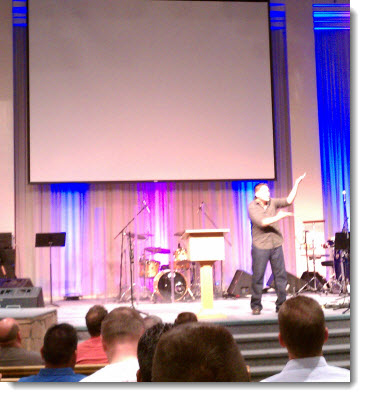
At a recent event I attended, one speaker was dynamic, engaging and a very good speaker. He did not have a PowerPoint presentation and did not need one to hold the audience attention. But it was distracting to have the large blank screen above him.

Distracting black or event theme graphic? A static theme graphic becomes part of the staging, blends in and does not draw attention to a screen that the audience is looking for something on it.

– Troy @ TLC

By |2016-08-16T10:29:38-07:00February 10th, 2011|Personal, Resource/Misc|

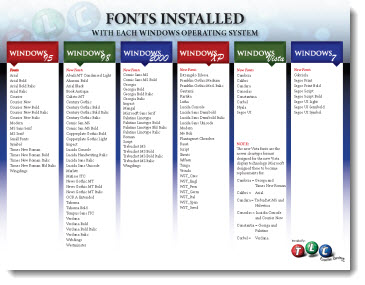
Fonts Installed With Each Operating System – Since Windows 95

Some things should be easy to look up, find and reference. Some things are not easily found. Such was the case when I needed to answer a simple question – “Is that font installed with Windows 2000?” Of course, I could not reply with my first thought (“Why are you using Windows 2000!”) as that would most likely not create a good relationship with a new client. And because I no longer have any Windows 2000 computers to check, I did a quick web search. An hour later, I was frustrated with using an hour of my day to answer a simple question, that I should know the answer to.

So, several more hours of research and design and I am confident I can avoid this situation again. Here is my solution, a list of fonts installed with each Windows Operating System since Windows 95 (and yes, Windows Millenium is missing – I purposefully chose to skip over it):

Note: No guarantee that nothing is missing, especially if using a non-English install.
Download the PDF here.

– Troy @ TLC

By |2016-08-16T10:31:13-07:00January 31st, 2011|Personal, Resource/Misc|

Everyone Knows How To Use PowerPoint, But Using It Well…

I like the Brainshark application. And I like the presentation philosophy of Andy Zimmerman, Brainshark’s VP of Product Marketing. On the last day of 2010 Bloomberg Businessweek’s tip was by Mr. Zimmerman and I could not say the opening line any better:

“[Everyone] knows how to use PowerPoint software. Using it well can be a different story.”

Read the full story, which is brief and has good presentation recomendations, here.

– Troy @ TLC

By |2016-08-16T10:40:53-07:00January 7th, 2011|Personal, Resource/Misc|

“Backstage” Defined

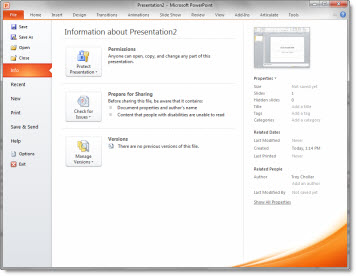
In PPT 2010 when you click the upper left button the Backstage opens.

On a recent call with the Microsoft PowerPoint team I heard this quick definition of the backstage area that is great:
“Backstage has things you do to a document” (such as save, print, convert, etc.).

– Troy @ TLC

By |2016-08-16T10:43:55-07:00November 27th, 2010|Resource/Misc|

GREAT Deal on Video Backgrounds from Footage Firm

One of the Technical Directors I work with sent me a link to this great deal over the weekend (thanks Paul!). The company, Footage Firm (as in film footage), is doing a special promo and basically giving away a selection of their DVDs (approx. $9 each in shipping vs. regular price of $139 each).

With PPT 2010 supporting video and audio as embedded and ability to add content on top of them, this is a great opportunity to expand your video library with professional footage. Only 500 copies of each DVD is available on the promo (now 499 as I purchased a full set). Here is the webpage with details.

– Troy @ TLC

By |2016-08-16T10:48:09-07:00November 22nd, 2010|Resource/Misc|
Go to Top