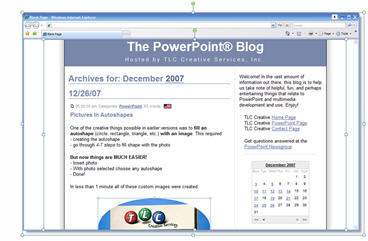
Resource/Misc

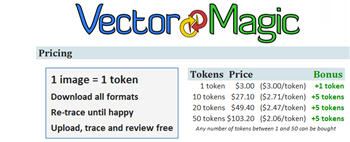
Vector Magic website


So I recently discovered a truly amazing online tool – Vector Magic! This web 2.0 app will convert virtually any image to a true vector graphic. It is the result of research by a team at Stanford and I have been really impressed with it!

1. Go to www.vectormagic.com

2. If it is your first time, watch the quick tutorial video

3. Click the BROWSE button and find a image on your computer you want to convert to vector format

4. With the image selected click UPLOAD

5. VectorMagic analyzes the image and makes a recommended setting about the type of image selected. You can change the selection now or later (after seeing render results)
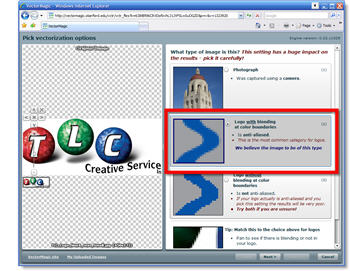
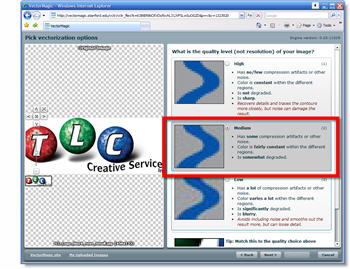
6. Next is the quality setting, which defaults to MEDIUM. Here you can change the setting now or later after seeing the render results.
7. The fewer colors the smaller the image and VectorMagic wants to make small images, so the default is to use a color palette of 12 colors.
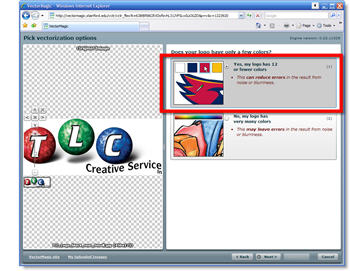
8. The image is then analyzed for colors (this is part of the incredible programming!)
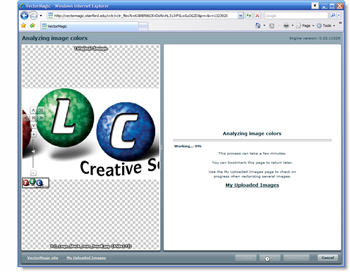
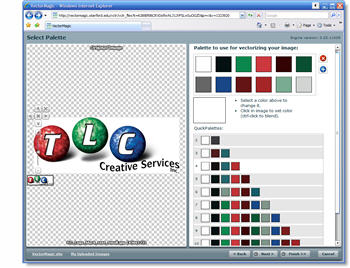
9. Based on it analysis you have color options from 1 to 12 colors – select the one that looks to work with your original artwork. Because the TLC Creative logo has lots of subtle colors I selected the full 12 color palette.
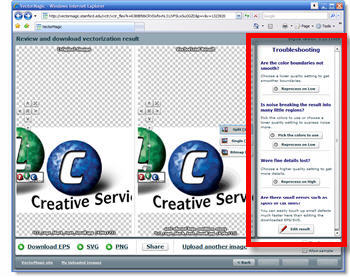
10. VectorMagic then renders your image and displays a Before and After image.
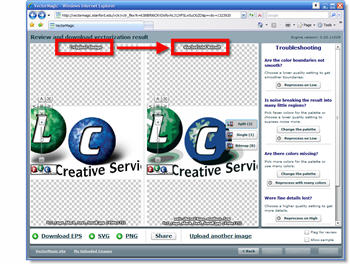
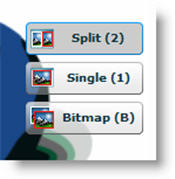
11. Again, another great feature (especially for a web-based application) are the 3 preview options. When in single image it shows the vector version and when you click it shows the raster version. There is also a Google Earth style zoom tool on the left.
12. Here is the resulting vector image of the TLC Creative logo. I would say this is on par with some very expensive plug-ins I run for Illustrator.

13. On the right side are TROUBLE SHOOTING options which allow you to change any of the earlier selections.
For my image, the results are impressive but not really usable. So I changed the color palette to use MANY COLORS, which means not be limited to 12.
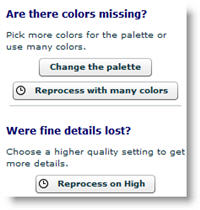
14. VectorMagic rendered my image again and this time the results are really incredible!

15. I went to the Trouble Shooting section one more time and rendered the TLC Creative logo on HIGH QUALITY vs. the medium setting – WOW!

16. When you have the image you want, there are 3 save options: .eps, .svg, .png

.EPS and .SVG can be converted in a vector application such as Adobe Illustrator or CorelDraw to a .wmf (windows meta file), which is a vector format that PowerPoint recognizes. And .png is not a vector format, but is a format that PowerPoint recognizes.

– Troy @ TLC

By |2016-11-17T13:24:51-08:00February 22nd, 2008|Resource/Misc, Tutorial|

What is “Vector”?

There are two types of graphics:
1. Raster, such as .jpg, .bmp, .png
2. Vector, such as .eps, .ai, .emf

Raster images are created in applications such as:
Adobe Photoshop, Adobe Photoshop Elements, Corel Paint Shop Pro and Painter

Vector images are created in applications such as:
Adobe Illustrator, Freehand, CorelDRAW, Microsoft Expression, and Flash

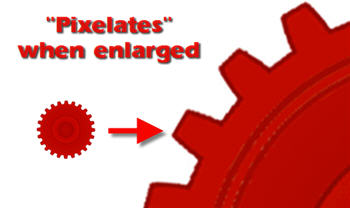
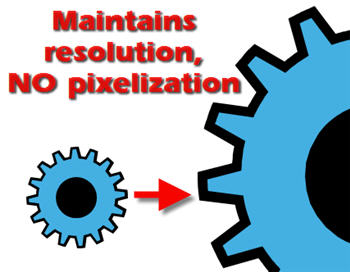
The Big Difference: the ability to resize without loss of quality. As example, if an image is going to cover the entire slide it needs to be a fairly large file size (eg. up to 3MB for the 1 image) to have enough resolution if a raster image (.jpg or .png). But a very small vector image (eg. only 20k) can be resized to fill the entire slide and still look perfect.

Here is a raster graphic (.png) resized to be larger

Here is a similiar graphic (.wmf) resized to be larger

There are times when a vector graphic makes sense, can save file size and be of value. But vector graphics are not photos, so they lack shading, semi-transparency and many other visual traits.

– Troy @ TLC

By |2016-11-17T13:25:53-08:00February 20th, 2008|Resource/Misc, Tutorial|

PPT2007 Reflections

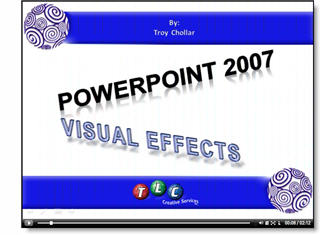
In a few weeks I am doing a webcast on PPT2007 Visual Effects put on by Eli Research’s AudioSolutionz. Basically I covering the whole range of new graphic tools and options in the 1 hour webcast – so I will be talking fast! Here is a quick screencast of just one topic that I have been making extensive use of lately – reflections:

Click the image to open the screencast (and forgive the poor audio quality). You can check out details about the webinar at this page on the AudioSolutionz website here.

– Troy @ TLC

By |2016-11-17T13:27:08-08:00February 15th, 2008|PowerPoint, Resource/Misc, Tutorial|

Make a “Fake” Website

One of the common requests is to show a website on a slide, or create a mock-up of a website. With this request I first open one of my favorite applications SnagIt.

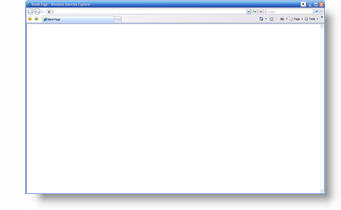
Then open a blank broswer and use snagit to create a .jpg which can be inserted into the slide. Here is one I like, which I added a drop shadow to for some extra pizzazz.

Then I can capture the needed website or add images to mockup. Here is my slide, note there are 2 images; the browser image and then website image (which I positioned and cropped to fit inside the browser). I can also add the URL with a PPT text box, which makes this clear and easy to read:

– Troy @ TLC

By |2016-11-17T13:27:31-08:00February 13th, 2008|PowerPoint, Resource/Misc, Tutorial|

Discount Code for iStockPhoto

So the more I utilize iStockPhoto (my latest was purchasing some fantastic vector art to integrate into a template) the more I am putting my budget toward it vs. maintaining subscriptions to other services.

Of course things get even better when I discover a discount! Here are the details:
a. 20% off any $50+ purchase
b. Offer code: XARACOM
c. Note: only can be used 1x per account

– Troy @ TLC

By |2016-11-17T13:29:14-08:00February 11th, 2008|Resource/Misc|

Text Message from Email

So my pre-teen daughter has become the text message princess. Lori uses text messaging with her best friend and to get a hold of me while I am on on showsite. But what surprised me lately was that many are unfamiliar with how to send a text message to a cell phone from their email – it’s easy!

Just make the subject line:

Alltel
PhoneNumber(with_area_code)@message.alltel.com

AT&T
PhoneNumber@mobile.att.net

Nextel
PhoneNumber@messaging.nextel.com

Sprint
PhoneNumber@messaging.sprintpcs.com

T-mobile
PhoneNumber@tmomail.net

Verizon
PhoneNumber@vtext.com

Note 1: if more than 160 characters it will be received in multiple text messages.

Note 2: if the receipient does not have text messaging as a feature of their cell plan they will be charged.

– Troy @ TLC

By |2016-11-17T13:34:05-08:00January 30th, 2008|Resource/Misc|

Unlimited Clip Art for $30/yr.

If you use clip art in presentations, or any design application, then this may be a good deal for you. The venerable ClipArt collection from IMSI (who remembers purchasing the 30+ CDROM sets….) is entirely online – and searchable! Of note this is just the vector clipart, not any of the photos, fonts, sounds, etc. and is at a clip-art only site iCLIPART.com.

Special pricing drops the year subscription from $99 to $29. Although I do not make use of much clip art these days, I do have need of it (in vector format) when developing custom graphics or template backgrounds.

Thought some people could make use of this.

– Troy @ TLC

By |2016-11-17T13:37:39-08:00January 25th, 2008|Resource/Misc, Software/Add-Ins|

Webinar on Creating Graphics in PPT2007

Most of December was posts highlighting many of the great graphics tools in PowerPoint 2007. I have been contracted by Eli Journals to do a live 1 hour webinar covering all the new PPT2007 graphic tools and lots of tips-and-tricks. You can check out the details at this page on the AudioSolutionz website here.

– Troy @ TLC

By |2016-11-17T13:38:33-08:00January 23rd, 2008|Resource/Misc, Tutorial|

Gates and Keynote ???

Yesterday I was looking at the news headlines and this one immediately jumped out!

Does it mean that Mr. Gates is using Apple’s presentation application Keynote for his CES speech… Of course the answer is no – but this is a journalist faux pas as “keynote” refers to Mr. Gates keynote speech, not the software used.

Hmmm, yet another good marketing move from Apple.

– Troy @ TLC

By |2016-11-17T13:45:35-08:00January 7th, 2008|Resource/Misc|

PowerPoint 2007 Examples, Tips & Tricks

PowerPoint 2007 has been out for a while now and I have finally caught up with things. Actually I have spent the past months working extensively in it. To be honest, my list of “issues” is really long, but those annoyances almost balance out with my list of praises.

Over the next few weeks I have cued up dozens of examples of the visual effects possible with PPT 2007 as well as many real slides and some tips on maximizing the new capabilities!

– Troy @ TLC

By |2016-11-17T14:51:56-08:00November 9th, 2007|PowerPoint, Resource/Misc|
Go to Top