Resource/Misc

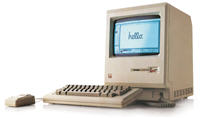
Steve Jobs 1984 Presentation

I prepare lots of presentations for company executives, for lots of big events. The presentations are like mini-Hollywood productions: animations, photography, precise timing to coordinate with the speakers script, wide-screens, multiple screens (up to 160′ of screen!), etc.

But take a journey back in time and it is almost amazing to me what was high-tech and “unbelievable.” Click here to view Steve Jobs original keynote speach unvieling the Macintosh computer.

Note: the computer display during the presentation is not connected to anything but shot with a camera that is projected.

– Troy @ TLC

By |2016-11-17T13:51:49-08:00May 30th, 2006|Personal, Resource/Misc|

Bitmap and Vector Graphics

My friend, and fellow PowerPoint MVP, Geetesh over at Indezine just added a very good article on his website on what bitmap and vector graphics are. It is a very quick read and provides a good understanding of how these two formats vary, which is important when resizing images in a presentation. Click here to read it.

-Troy @ TLC

By |2016-11-17T13:54:22-08:00May 18th, 2006|Resource/Misc, Tutorial|

Minimum Laptop Specs – My opinion

Earlier in the week I posted a reply on the PPT Newsgroup (A resource everyone using PowerPoint should take advantage of) on a fairly common question – “What should I buy for PowerPoint Presentations?” Of course my answer is ‘the biggest, fastest and most powerful’ but I realise that is not the most budget appropriate answer… So here is my recommendation on the minimum specs for a new computer:

  • A lot really depends on your PowerPoint use, if using animation and video playback, and if you will be running more than one application at a time. Here would be my minimum requirements for a laptop today:
  • – Intel DuoCore, P4 or Centrino CPU (eg. not a celeron), I do not use AMD but the equivalents.
  • – 1 GB of RAM
  • – 64 MB of Video RAM (and that is the minimum, with 128-256 MB being highly preferable)
  • – On video ram there is a big difference in shared vs. dedicated memory. For PowerPoint to playback animation, flash files, movies and even audio the computer really needs to have dedicated memory (this allows the use of the ‘Hardware Acceleration’ feature). It should be by ATI or Nvidia.
  • – Everything else is just a matter of what is offered. I prefer a wide screen for a laptop. Having a physical on/off switch for the wireless is
    desirable and you cannot have enough USB ports.


Hope that is helpful.
– Troy @ TLC

By |2016-11-17T13:56:37-08:00May 12th, 2006|PowerPoint, Resource/Misc|

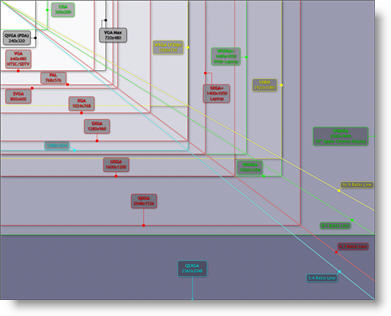
Display Standards Chart

While researching an upcoming article I found this incredibly detailed illustration of the various display standards out there. Understanding the various display sizes is important when designing a presentation that will viewed on a non-standard aspect ratio (eg. wide screen).

Video Standards Chart

This chart comes from the Wikipedia section of Answers.com when searching “Display Resolution.” Click here to view a full resolution version (2560x2048px).

Troy @ TLC

By |2016-09-16T11:48:33-07:00April 26th, 2006|PowerPoint, Resource/Misc|

How many people are suppose to be at this meeting…

Okay, for most this will not apply. But I am in meetings at convention centers and resorts every week. It is always a bad day when someone miscalculated and to many people are squished into to small of meeting room. Here is an interesting online calculator that estimates how big a room should be reserved based on the seating type, and type of table used, and number of people attending. Check it out here.

-Troy @ TLC

By |2016-09-16T11:40:50-07:00April 10th, 2006|Personal, Resource/Misc|

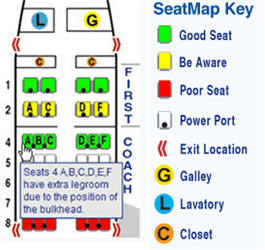
Is it a Good Seat? Find Out on SeatGuru.com

I travel to a different show virtually every week, so I am constantly on airplanes (this week L.A., next week New York for the NY Auto Show). Of course with a cross country flight I want to make sure I have a good seat, preferably with a power port.
Seat Guru .com
You may have noticed that some seats seem better than others – I have. After booking my flight, my first stop is SeatGuru.com. With your airline and flight info, look up the seating chart for that airplane, make sure you do not have a ‘yellow’ seat, check if it has a powerport and make sure you have the best seat in your category!

– Troy @ TLC

By |2016-09-16T11:40:02-07:00April 8th, 2006|Personal, Resource/Misc|

Infocomm Int’l Presentations Professional Survey

How Do You Compare with Your Peers…
• What types of organizations do Presentation Professionals work in?
• What areas of expertise and background do Presentation Professionals have?
• Do you outsource your content development/delivery/overall communication strategy/technology/visual/graphic development, or do you do it in-house? How often does your organization contract with outside production firms for presentation development?
• What types of challenges do Presentation Professionals experience today, and how concerned are they about these challenges?

Find out by participating in InfoComm International’s Presentations Professional Survey. This online survey should only take you about 10 minutes to complete.

To be sure your responses are included; please complete this survey by April 28, 2006.
https://www.surveypro.com/TakeSurvey?id=18853

(more…)

By |2016-09-16T11:36:00-07:00March 27th, 2006|Resource/Misc|

What are the “Other” Programs?

As a final thought on this three-part series, here is my top 10 list of the “other” programs that are a part of my arsenal of tools for developing PowerPoint presentations that are converted to something other than a presentation:

SnagIt: almost to many uses to list! There are plenty of screen capture applications out there, this one is my preferred because it does so many things, so easily.

OfficeFX, Professional: Moves presentations to the next level of visual dynamics and also has frame accurate video rendering.

PFCMedia: If you use video in your “traditional” presentation, the ‘Plays For Certain’ application is what you need to make it work! (and we are all looking forward to a Professional edition of this application)

Camtasia Studio: Used for everything from online video tutorials found on the TLC Creative website, to converting PowerPoint lectures to webcasts.

Articulate Presenter, Professional: a solid contender for converting presentations to a distributable format.

Flash: Big learning curve, but it creates things from custom elements in a presentation to specialized user interfaces for many of the conversion projects.

DVDIt! 6.0+: My choice for professional DVD authoring.

Vegas Video: My choice for professional video editing, which has become a large part of PowerPoint conversion projects.

DreamWeaver: Webcasts, login portals, download pages, etc. are all a part of distribution projects and Dreamweaver is my web development application of choice.

Magix Audio Cleaning Lab 10: probably the lowest cost software in the list and the newest addition to our arsenal of software. Professional narration and clean up of live video audio is a big part of many projects.

Note: if you are looking for some more great tips & tricks, stay tuned I have been putting the finishing touches on a number of new tutorials and video samples that will be posted over the next few weeks!

-Troy @ TLC

By |2016-09-16T11:33:51-07:00March 25th, 2006|Resource/Misc|
Go to Top