
Save AND Apply PowerPoint Chart Styles
Formatting the visual styling of charts can be… tedious. When a presentation has a number of charts, all needing the same visual styling, saving a chart template can be a huge time saver!
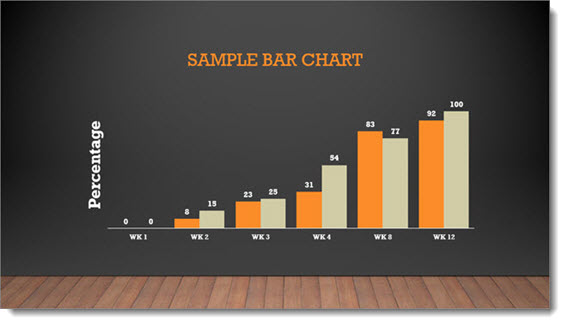
- Format a chart with all of the visual styling. Here is the sample stylized chart for this tutorial.
-
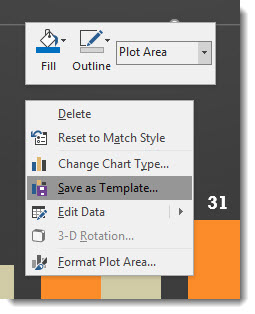
Right click the chart and select SAVE AS TEMPLATE
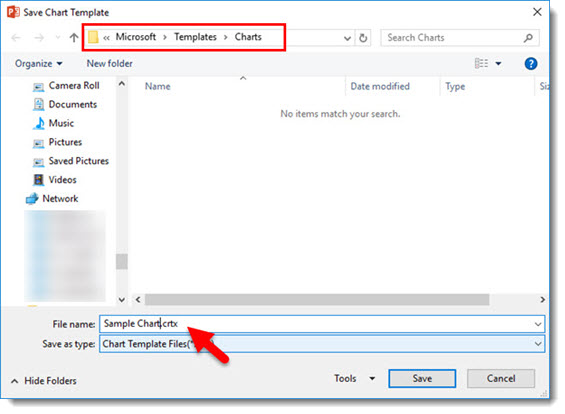
- In the SAVE CHART TEMPLATE dialog, give the chart template a (short) name that helps identify the styling (ie. project name, type of chart, colors used, etc.). The Chart Template is automatically saved into the Microsoft/Templates/Charts folder (and must be in this folder for PowerPoint to use it).
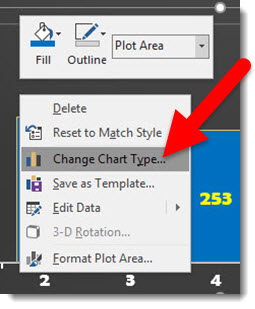
- To apply the chart template styling to a chart, select a chart, right click and select CHANGE CHART TYPE
- In the Charts dialog, select TEMPLATES and the custom template to apply
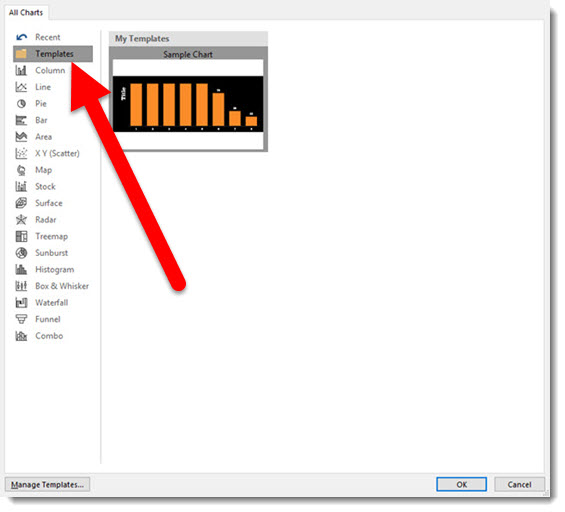
- Click OK and done!
Here is an unformatted chart.
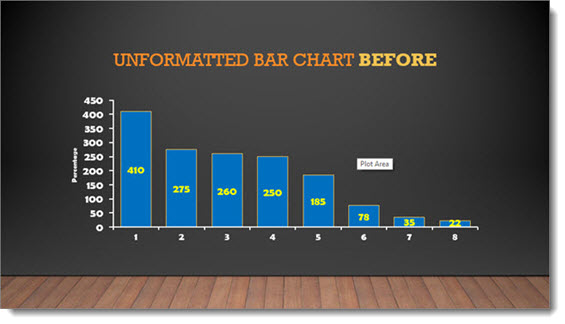
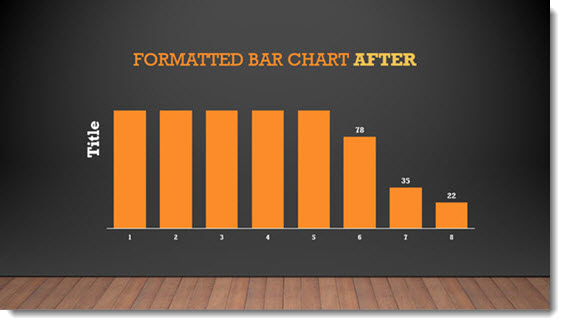
And here is the same chart with the above chart template (4 clicks and formatted!).
NOTES:
- Chart Templates are local to a computer, they DO NOT travel with a presentation.
- Chart Template thumbnails are very limited in the visual and description, so if you have many it can be difficult to tell them apart.
- Right-click to Save Template was introduced with an Office365 PowerPoint 2016 update, I have not tested in previous versions.
Troy @ TLC
The Presentation Podcast Episode #20 Released Today!
A new episode from The Presentation Podcast with Troy, Nolan, and Sandy is available today! Check out their latest discussion, “Holiday Edition,” and add to your favorite Podcasts on iTunes, Google Play, Stitcher, SoundCloud and more at The Presentation Podcast.

Happy Holidays PowerPoint Template (Free!)
Many thanks to Amber on the TLC Creative design team for developing this festive Christmas Holiday themed PowerPoint template! Enjoy!
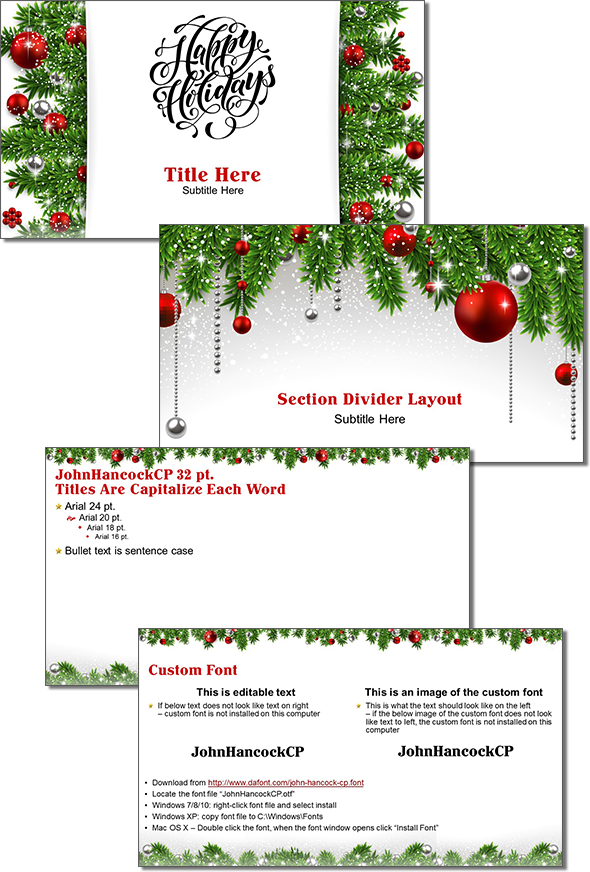
Download the full template HERE.
Note: this template uses a custom font, slide 3 has instructions on how to install and a link to download the free font.
Troy @ TLC
2017 Color of the Year – “Green”
The Pantone color of the year was recently announced – Pantone 15-0343 Greenery.
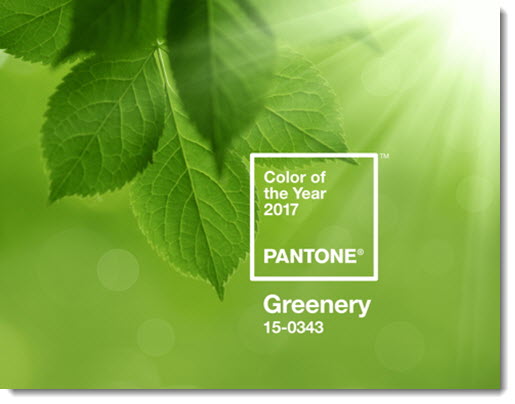
Pantone’s webpage on the 2017 color here.
Troy @ TLC
Yes, We Can Copy PowerPoint SECTIONS!
PowerPoint’s Sections are not new (introduced with PowerPoint 2010), but they are very unutilized. Just this past month, the updates to PowerPoint (for Office 365 subscription version) included the ability to copy sections to another presentation, or different location in the same presentation. While there are more improvements needed to help PowerPoint Sections become a truly easy to use and helpful organization resource, this is a great improvement (and it lets us know the Microsoft Dev Teams are looking at Sections and making progress on improving them!).
As an example, if there are sections in the deck, copying the entire section is easy.
- Find the Section name either in Slide Sorter View or the left thumbnail Panel
- Click the section, which highlights all the slides in the selected section
- CTRL + C to copy the section
- Go to other presentation (or other location in same presentation) and CTRL + V to paste in the section name and all of its slides!
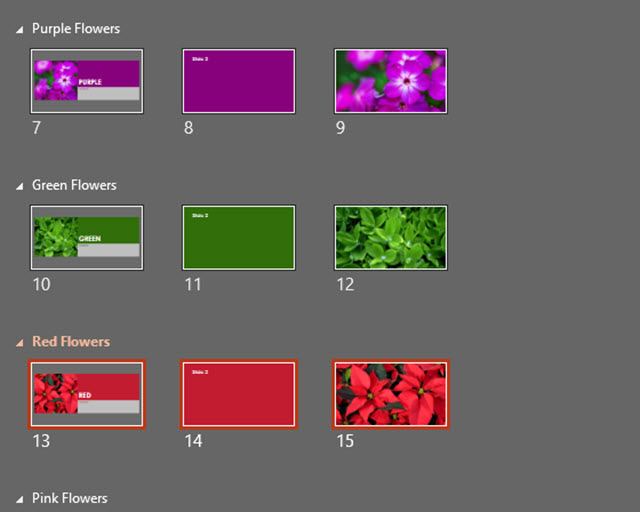
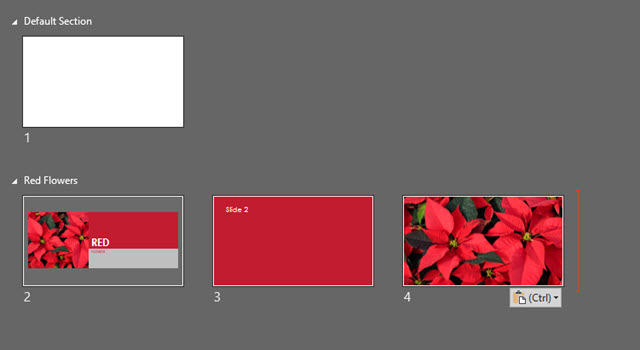
Here is my sample presentation with sections. I am going to copy the RED FLOWERS section into a new presentation.
Notes:
- Right-click dialog on a section name does not have copy or paste commands, so must use keyboard shortcuts. But you can right-click the insert location and use the standard PASTE OPTIONS in the right-click dialog.
- Drag-and-drop copying does not work (yet)
- Currently only able to select one section at a time
- If pasting into a presentation that does not have sections added, the pasted in section – and its name – are added to presentation and all slides above go into an automatically created section. But all slides after the insert point are added to the new (pasted in Section)
Troy @ TLC
The Presentation Podcast Episode #19 Released Today!
A new episode from The Presentation Podcast with Troy, Nolan, and Sandy is available today! Check out their latest discussion on “Data Viz and Presentations” and add to your favorite Podcasts on iTunes, Google Play, Stitcher, SoundCloud and more at The Presentation Podcast.
Quickly Open The Windows Task Manager
Keyboard shortcuts are fantastic time savers. Recently, I was reintroduced to a Windows keyboard shortcut while I have been watching the PowerPoint performance on some animation/image/video heavy presentations. What I want is the Windows Task Manager to be open on one screen so I can see how the computer is processing the presentation.
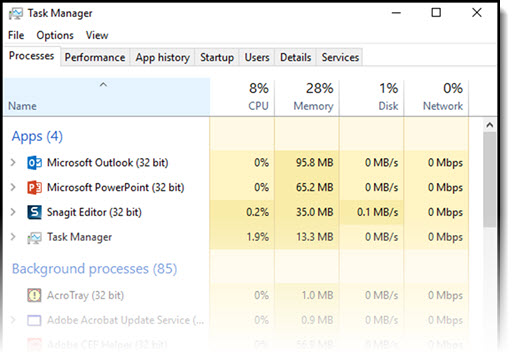
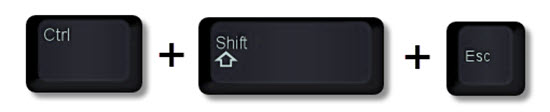
The fastest way to open this dialog box is with a 3 key, keyboard shortcut: CTRL + SHIFT + ESC
-Troy @ TLC