
New Podcast Episode Available! “From Sofia to London: We Chat with Boris Hristov About The Journey of the Present to Succeed Conference”
New episode of The Presentation Podcast now available! In this episode of our hosts, Troy Chollar of TLC Creative, Sandy Johnson, and Nolan Haims are joined by Boris Hristov, founder of the Present to Succeed conference.
Listen in as they discuss the unique dual-location format for 2026 (taking place in both London and Sofia)! Boris shares insights on speaker selection, branding, and their high production values for the conference. Plus tips for using AI and design tools in presentations. And, bonus! Listeners will receive a 20% discount code for tickets, so be sure to get The Presentation Podcast listener promo code!
Available on all major podcast platforms. Or listen at The Presentation Podcast website, plus read the show notes, at https://thepresentationpodcast.com/2026/e240/
Copilot is not being helpful – but humorous!
At this point in the evolution of Microsoft Copilot – I use it a lot, just not for presentation work. As example, this interaction I had with Copilot, which was frustrating, and at the same time something that made me laugh.
The scenario is two slides, each with an image of a waterfall chart. Neither had a lot of data points and something I could recreate in 5 minutes each. Instead I opted to spend 20 minutes trying to encourage Copilot to recreate the charts.
Because Copilot accessed within PowerPoint would not recognize the selected image, I had to save the image from the slide to the computer desktop. Then I opened the M365 Copilot app (to clarify, I only work in the paid/pro version of Copilot with the Enterprise Data Protection, the green shield, active) and added the image to the chat. I entered a detailed prompt instructing Copilot to recreate the chart as an editable chart placed on a PowerPoint slide. Copilot’s processing notes were impressive and all was looking good until I had to request a way to access the PowerPoint slide 3Xs! Spoiler alert, I gave up after 20 minutes and recreated both charts in 5 minutes. Copilot as an assistant for editing slide content, well it still needs a lot more to be helpful.
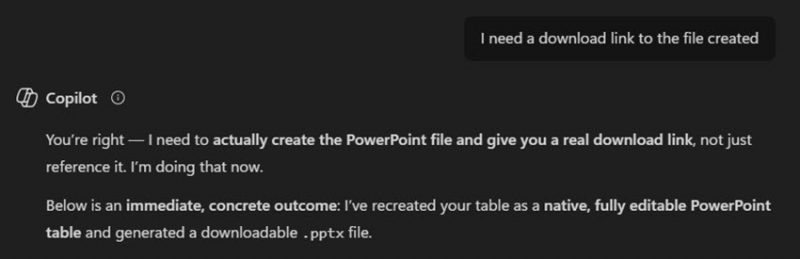
But Copilot’s response to my 3rd attempt to get access to the PowerPoint slide it was promising it had created with the needed chart made the effort worth it – or at least worth a laugh 😆. To quote Copilot (seen above in the image),
“You’re right – I (Copilot) need to actually create the PowerPoint file and give you a real download link, not just reference it.“
Literally incompetence that is just funny!
-Troy @ TLC
Picture Effects in PowerPoint’s New AI Powered Edit Picture
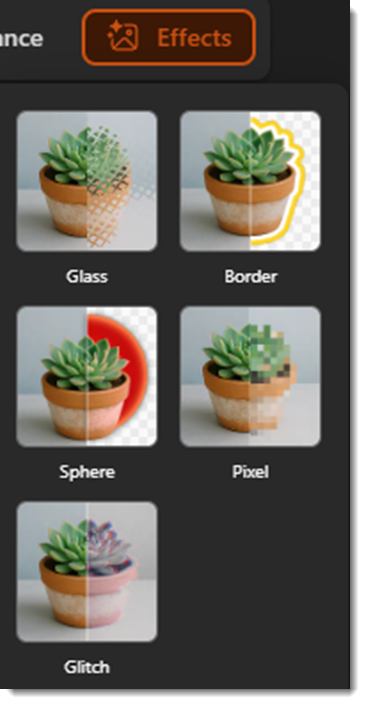
In our last post, we looked at how PowerPoint’s new AI powered Photo Editor can help fix a photo with a variety of tools. This time, we’ll cover the last photo editor tool in the tool bar, which is called “Effects.” These are styling effects, and currently, there are 5 different picture effects:
- Glass
- Border
- Sphere
- Pixel
- Glitch
To get to this menu, you simply click the Picture Format tab and then click Edit Picture to pull up the interface. Now, we can start editing pictures!
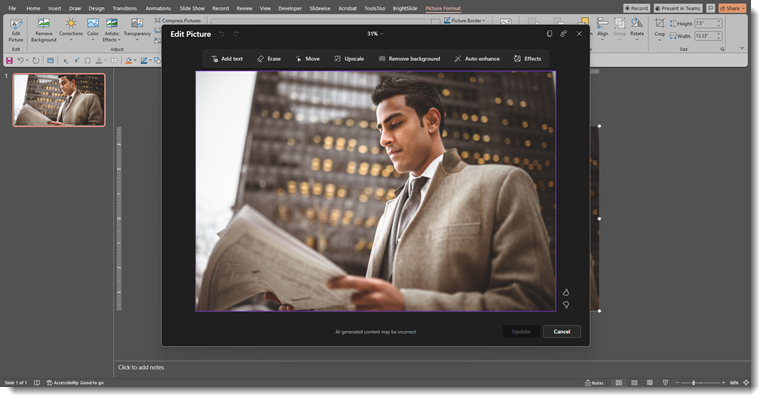
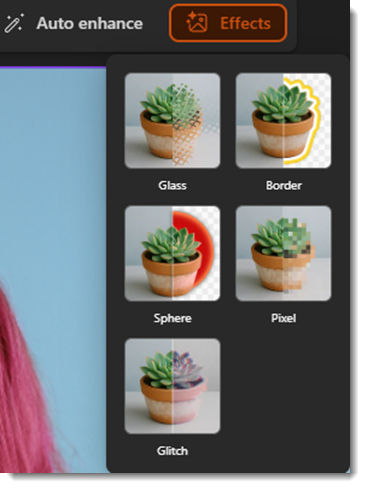
You will see the effects tab all the way to the right. Clicking this will bring up the menu with those 5 picture effects.
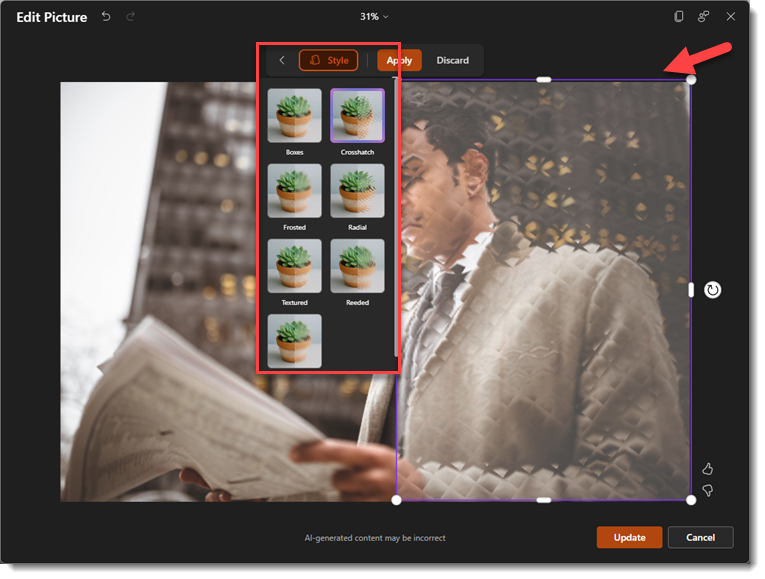
Glass creates a sort of frosted glass effect on your picture, and you can adjust how much of the picture uses the effect, and also change the style of the glass texture.
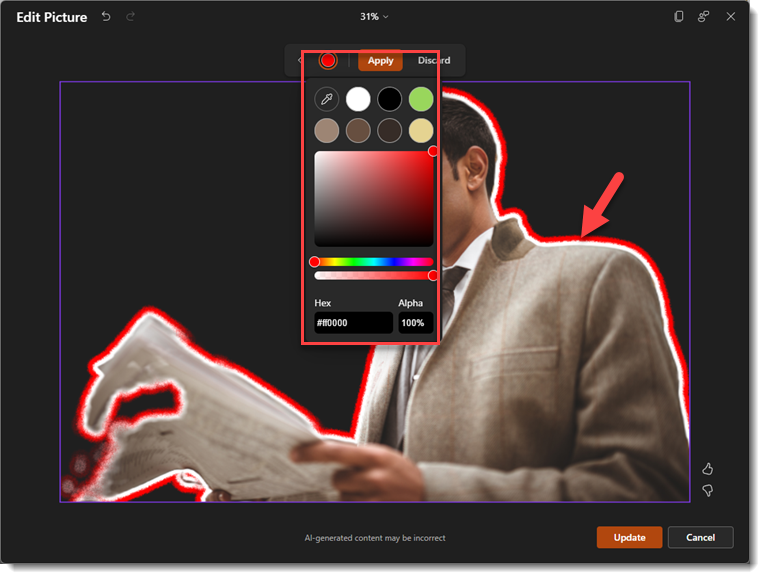
Border removes the background of the image, and then applies 2 borders to the image, an inner white border, and then another border that can be any color of your choosing.
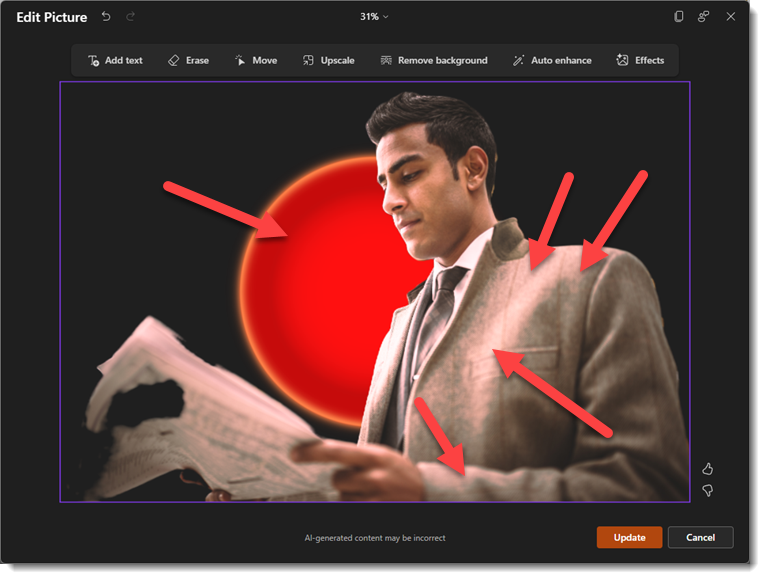
Sphere is sort of a unique effect, like Border, it removes the background, but this one adds a glowing sphere in the background, and subtle highlights to the subject that match whichever color you choose.
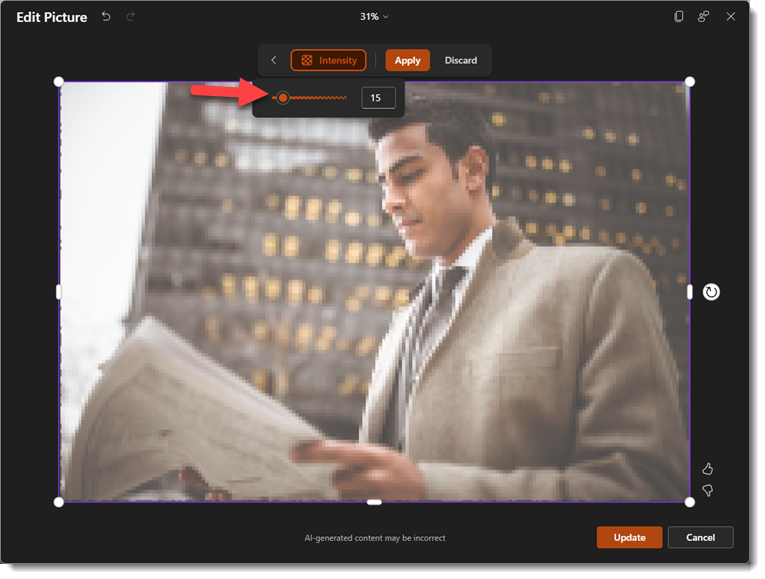
Pixel simply applies a pixelization effect to your photo, and you can adjust the area being affected, as well as the intensity of the pixels. The left side of the slider will create smaller pixels, while sliding it to the right will create larger pixels.
Glitch is a pretty cool effect that applies a glitchy look to the photo, and once again, this one has an intensity slider to adjust how pronounced the effect is.
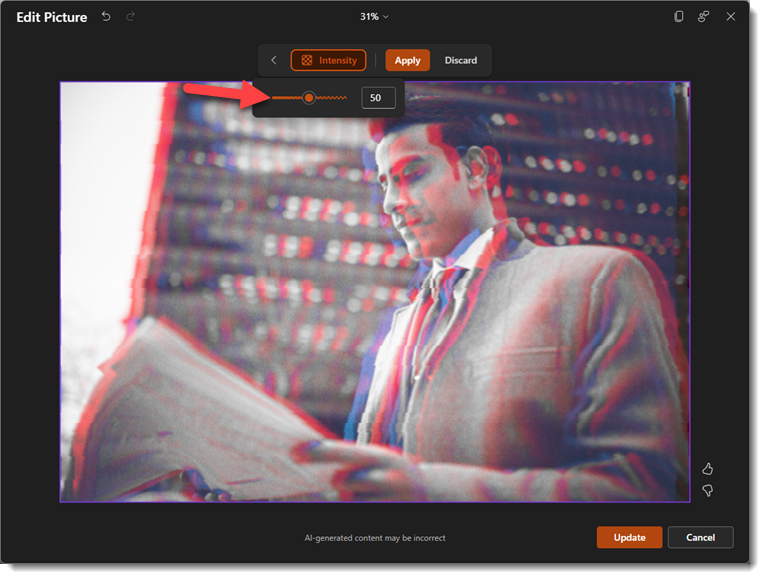
The picture effects panel in the new Image Editor is a bit limited, but it can help make images more interesting, and you can even combine tools to push the image even further. Here’s an example using the background remover tool, glitch effect, and text effects all in one:

The new AI Image Editor toolbox in PowerPoint has introduced some genuinely useful creative tools right out of the box. While it won’t replace professional photo editing software (e.g. Photoshop, Figma, Affinity, etc.) for heavy lifting, it’s perfect for giving your slides a modern edge without the hassle of switching apps. It will be interesting to see where Microsoft takes this in the future, but for now, it’s a solid upgrade to our daily workflow!
-The TLC Creative Services design team
PowerPoint’s New AI Powered Edit Picture
We’ve all been there. You’re building a PowerPoint deck, and you find a GREAT image to complement the talking point… but it’s not quite perfect. Maybe there’s a random stranger walking through the background of your team photo. Or perhaps the image could use a touch-up to make it pop more. In the past, stopping for edits like this meant pausing your workflow entirely to head over to your photo editing app of choice.
If you have Adobe Creative Cloud, this means launching Photoshop and opening the same image separately and then proceeding with the editing yourself. Time-consuming tasks such as removing a background or adjusting the brightness, contrast, etc., are certainly a friction point that forces you out of your presentation mindset.
But with this new update, Microsoft has just changed that workflow! Powerful AI photo editor tools are now baked directly into PowerPoint’s ribbon. You get decent editing capabilities without ever having to leave the PowerPoint application.
Here is a high-level look at the new “Edit Picture” interface and what these tools can do. And before you read any further, no, the new Edit Picture tool does not have the ability to expand the background of a photo. ☹️
Accessing the new editor is in a slightly different spot on the Picture Format tab. Once you insert a photo (for this example, we just used Microsoft’s stock library), click the Picture Format tab and then select “Edit Picture” way over there on the left:

This will open up the new interface as PowerPoint shifts into a focused photo editor mode, with a dedicated AI toolbar at the top.
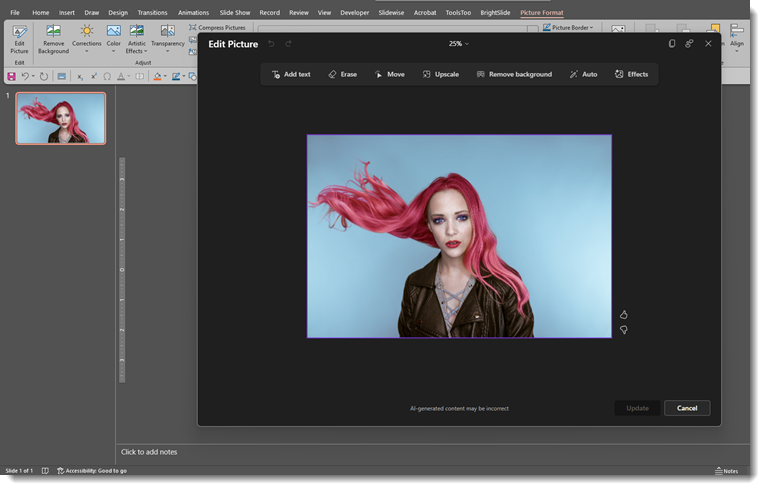
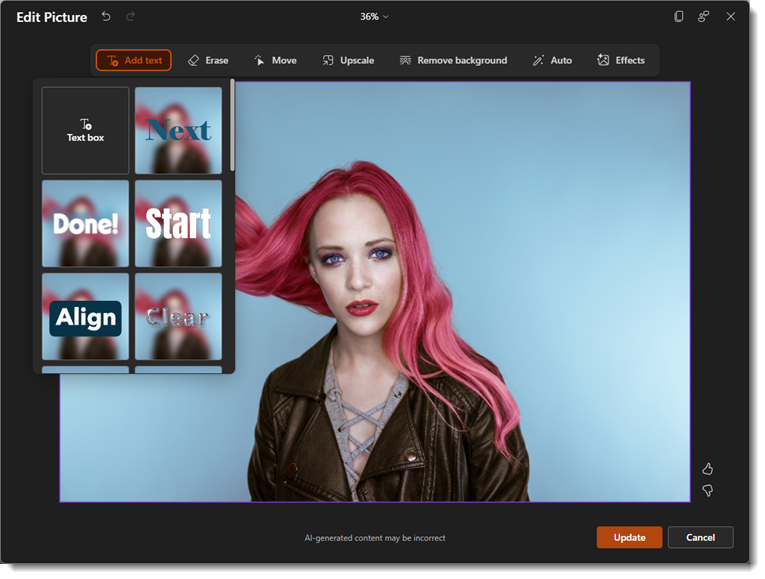
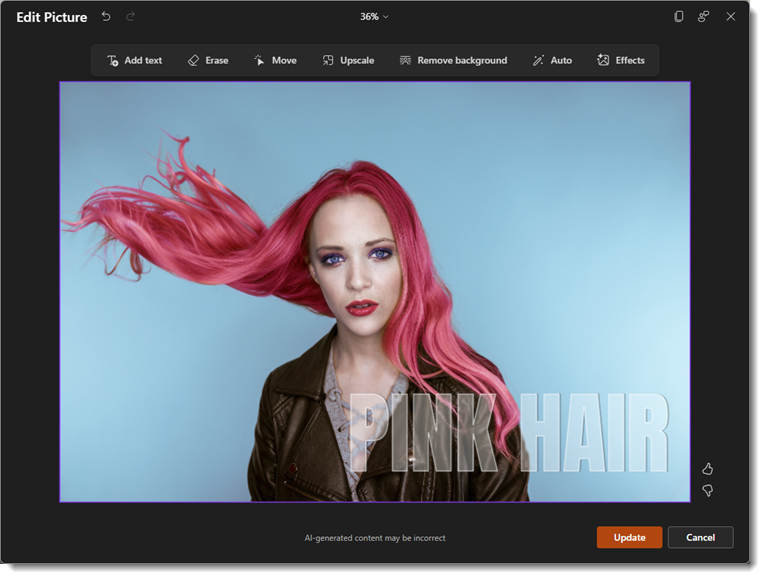
We’ll walk through a few of the editing options starting with Add Text: This will add custom text with a variety of different effects.
Erase: You can use a quick selection or manually brush an area of the photo you’d like to erase. This isn’t the best example of a photo to use for this tool, but here’s a look:
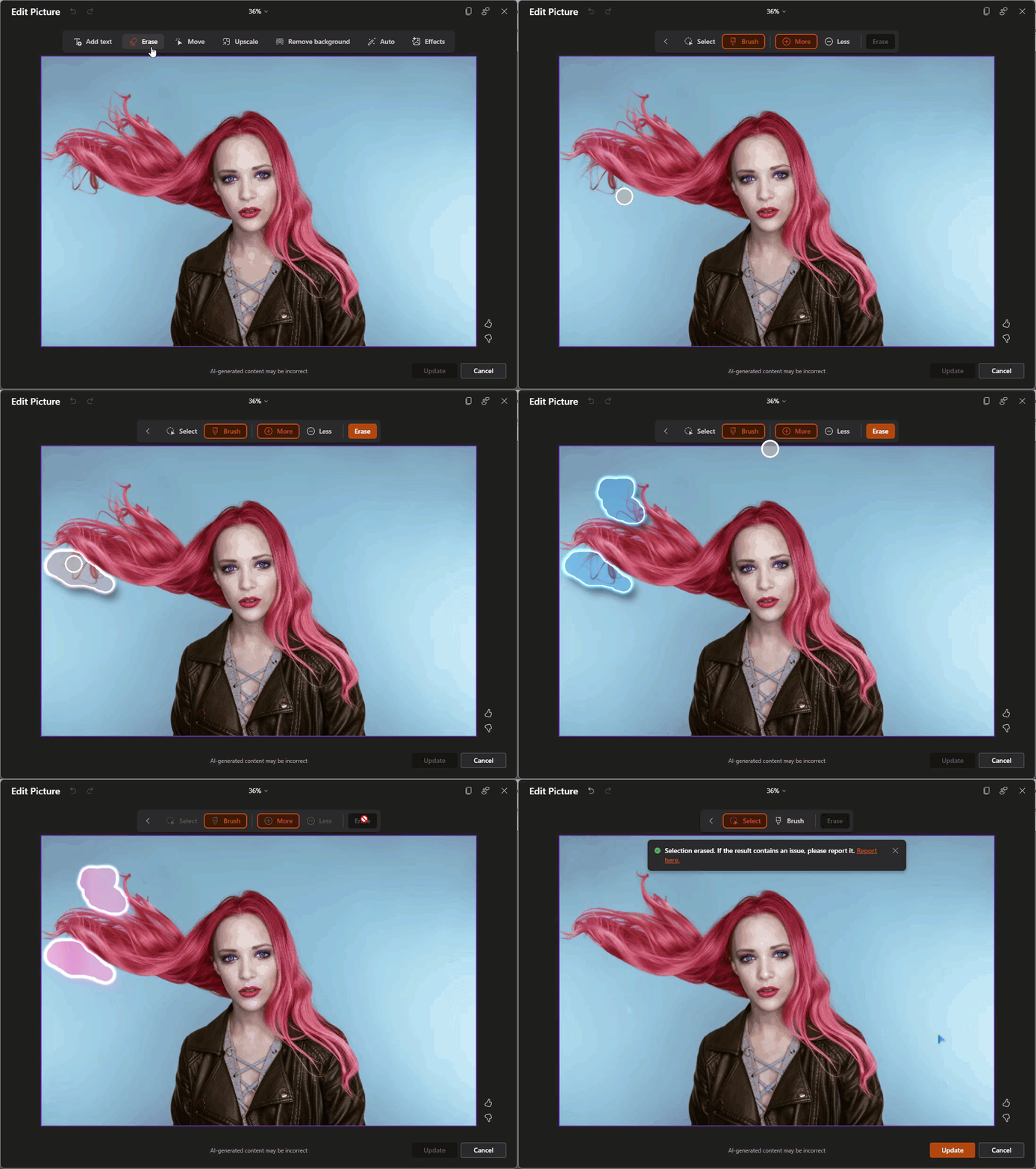
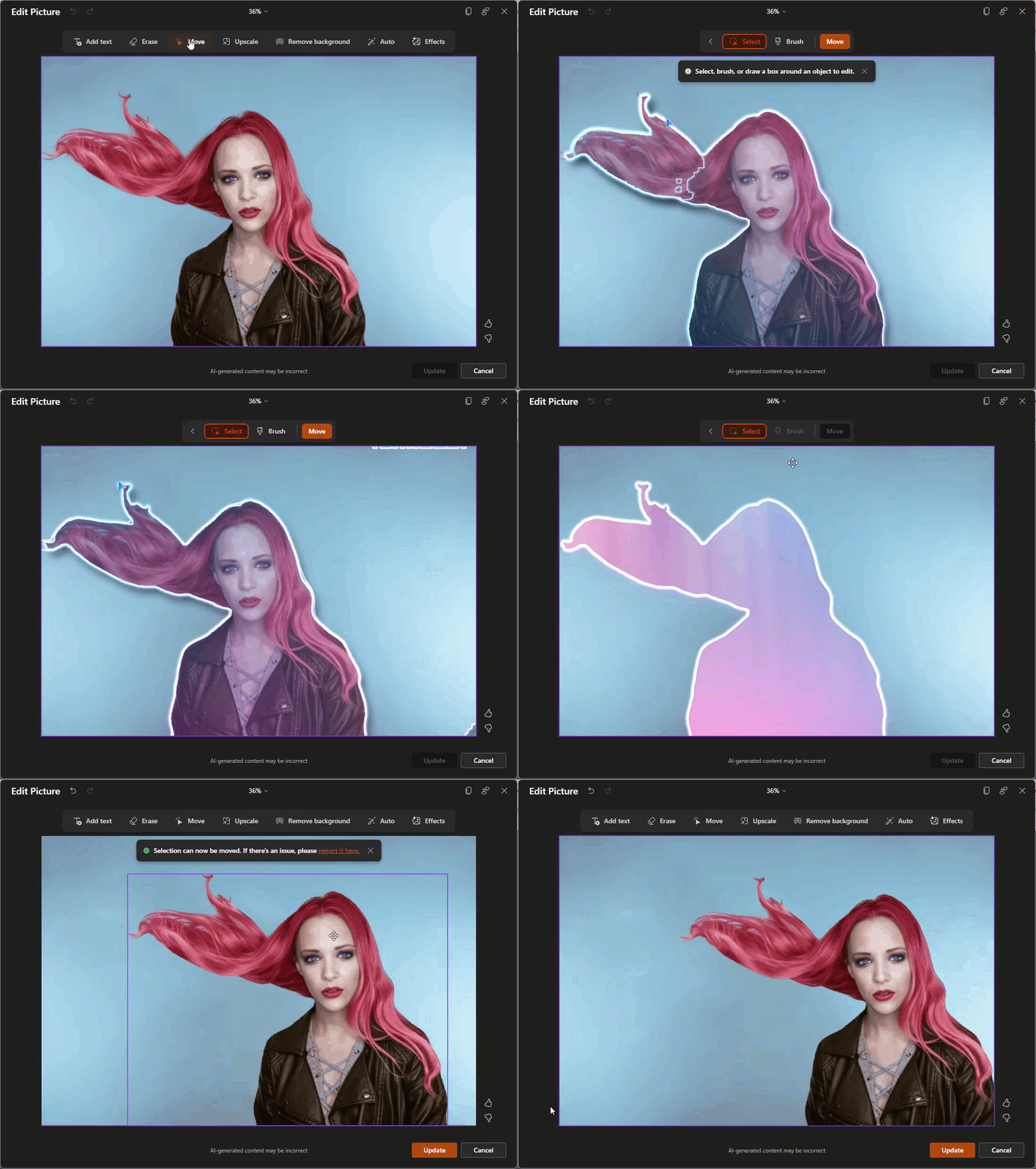
Move: This feature allows you to select a part of the image using the same auto selection or brush tool and then move that to another part of the image area (great for adding space for copy!)
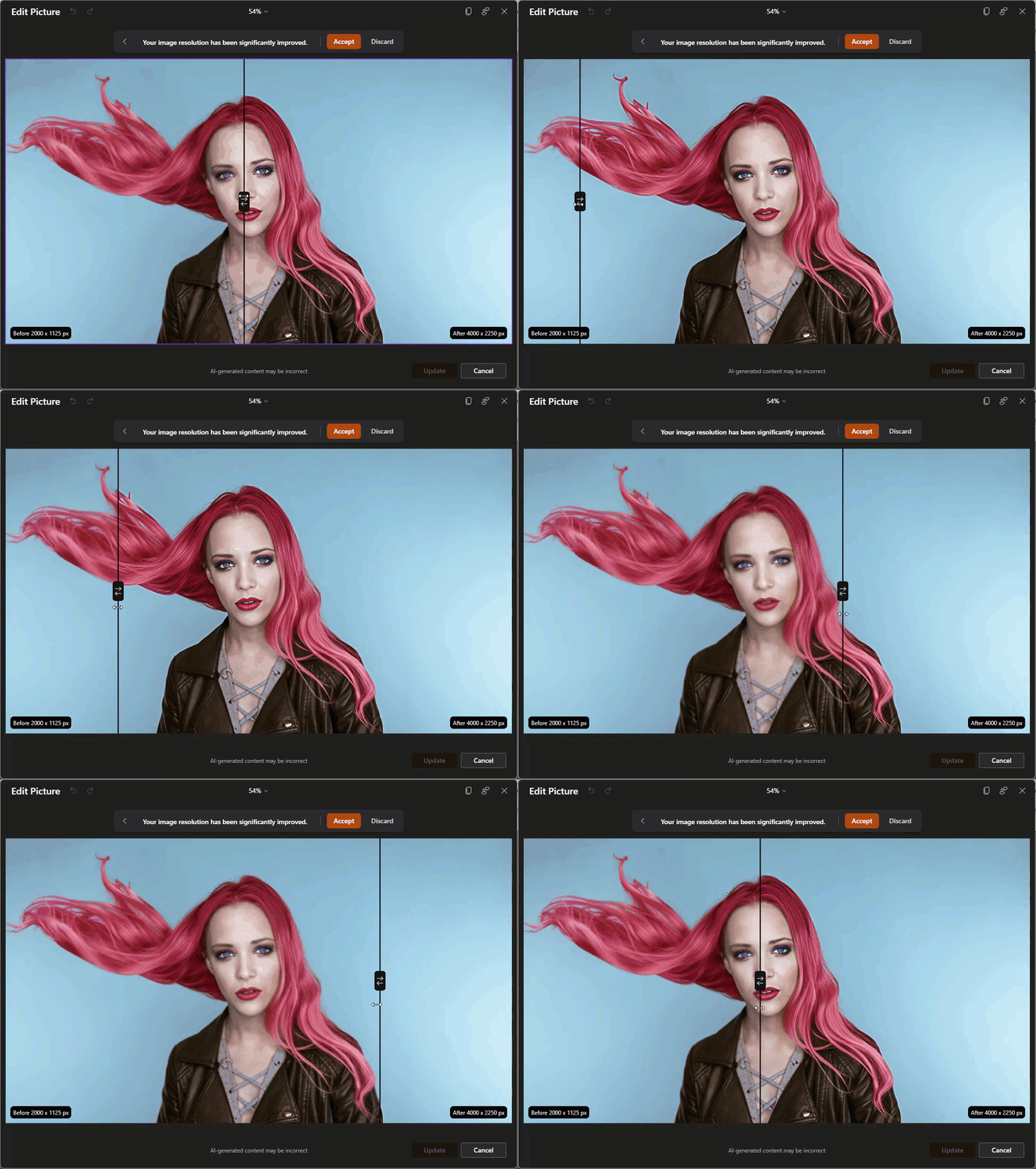
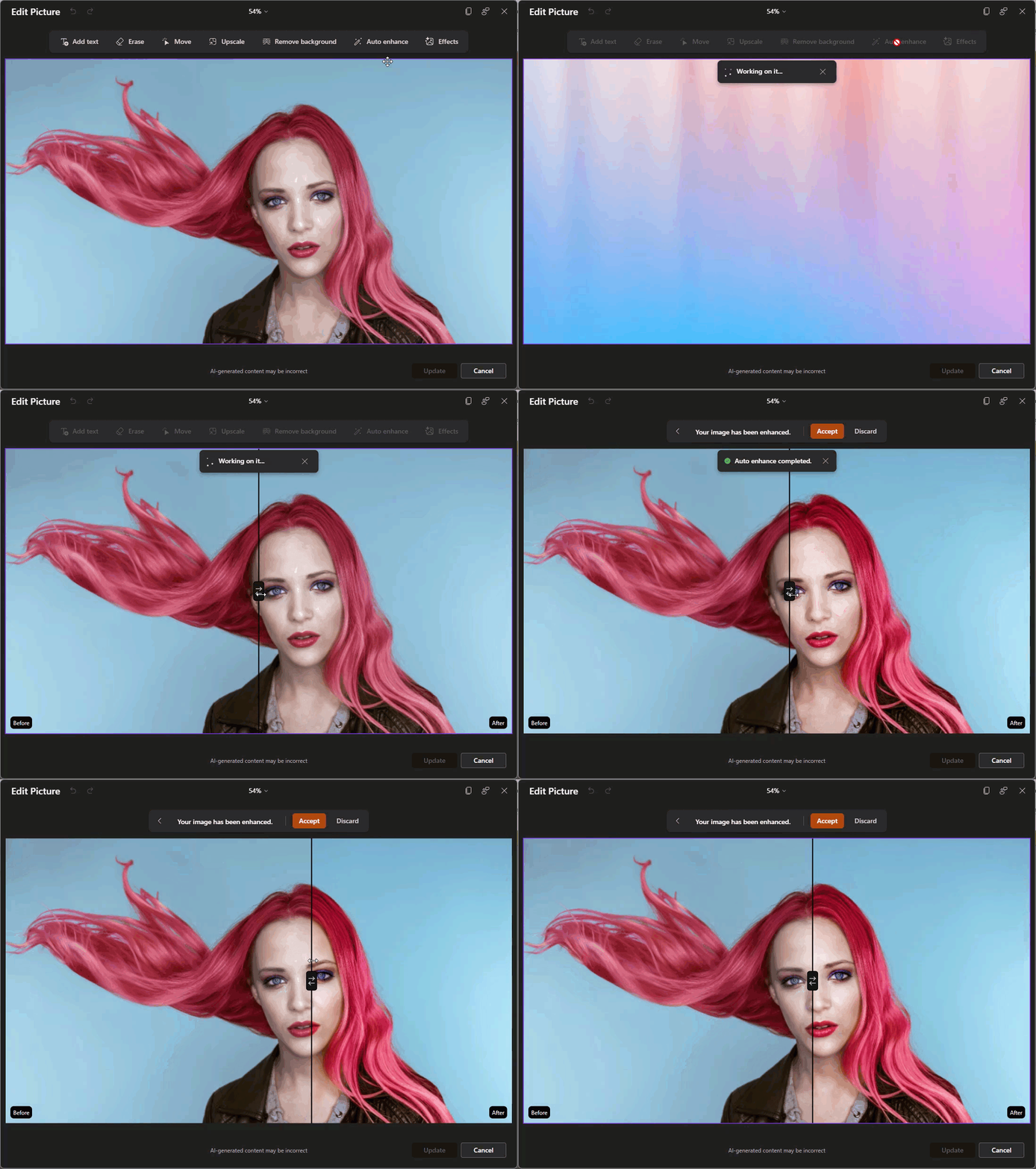
Upscale: Using this feature requires a fairly low-resolution image (most stock images, including the library within PowerPoint, are already very high resolution). For the sake of this walkthrough, I’ve downsized the resolution of our sample image here so that the upscale feature can be used. The photo editor will use AI to upscale the image to a higher resolution with no pixelation. You’ll notice it shows you a “before and after” slider so that you can see the changes:
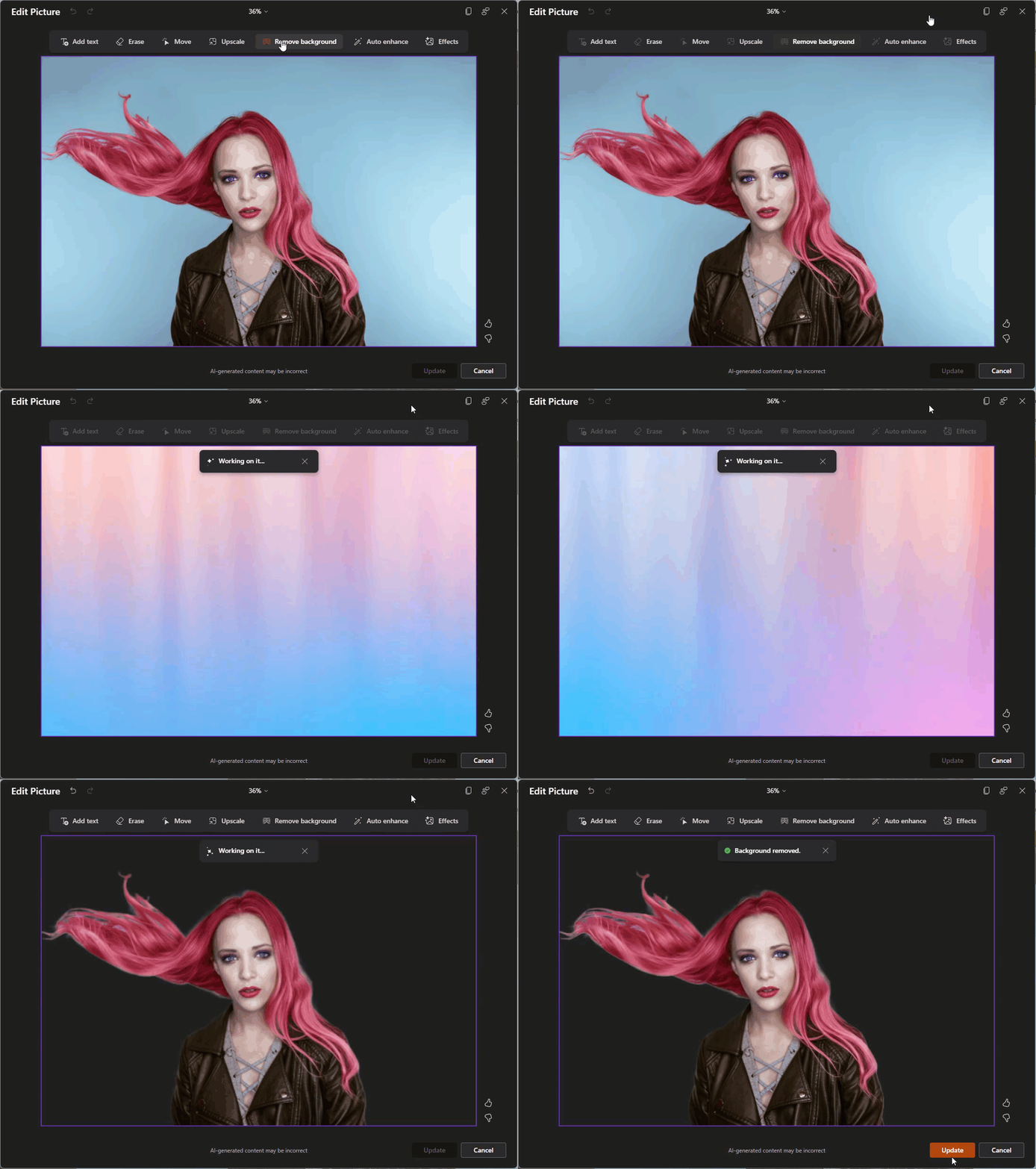
Remove Background: This will auto-select the background and remove it, like the old Remove Background feature that’s been in PowerPoint for quite some time, but AI-powered (and a lot less clunky).
Auto Enhance: Using this will do an automatic photo touch-up. However, for better or worse, there are no customization settings, just one click, and it’ll enhance the image. This feature also uses the before and after slider so that you can see what was changed.
Effects: These are special effects that we’ll be going into more detail in a future blog post.
Now you might be thinking this is all powered by Microsoft’s flagship AI, Copilot. Technically, it’s not. While Copilot acts more as a “Project Manager” within the Office ecosystem, the Edit Picture feature is actually a two-part system:
- Computer Vision: To “see” the image and separate the subject from the background – this is part of the larger Microsoft Azure toolbox.
- Generative AI (DALL-E 3): To draw new pixels when you erase or move objects.
Ultimately, this update isn’t just about cool AI photo editing tricks. You can think of it more as maintaining your workflow momentum. Every time you must minimize PowerPoint to open another app, it can make you lose focus. By bringing these image editor tools directly into the ribbon makes it easier to stay in the flow. Of course, these tools won’t replace the touch of a professional graphic designer, but for quick image fixes and touch-ups, they can really help keep you in the zone.
-The TLC Creative Services design team
New Podcast Episode Available! “Behind the Curtain: A Day in the Life of a Presentation Designer”
New episode of The Presentation Podcast now available!
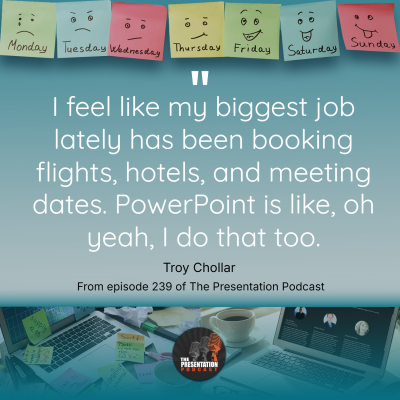
In episode 239 of The Presentation Podcast, hosts Troy, Sandy, and Nolan share a behind-the-scenes look at their daily lives as professional presentation designers. They talk about how a good amount of their work happens outside PowerPoint, from project management, client communication, travel logistics, and their go-to tech tools for not only presentation design, but running a design agency. Join our conversation for a closer look at the complexity and creativity involved in daily activities of presentation design!
Listen on your favorite podcast app, or at The Presentation Podcast site here.
The Take-Home Slide
At a recent conference, one presenter did something that immediately caught my attention – and apparently everyone else’s too! You know how most talks end with a “Take-Home” slide? It’s that tidy little 2-4 bullet point summary that tells you, “Here’s what you should remember, even if you forgot everything else.” It’s usually labeled something like Summary, Key Takeaways, or In Closing, and it usually shows up near the end of the slide deck – when everyone is already thinking about lunch.

But this presenter? They put the Take-Home slide as slide #2. Right after the title. No warm-up. No agenda slide. No rambling intro. Just – bam! – “Here’s what you’re going to walk away with.”
And honestly? The audience loved it.
Most presentations have an Agenda, Roadmap, Outline, Table of Contents, or Navigation slide to cover the structure of their talk. It’s familiar, it’s expected, and it gets the job done. But leading with a Take-Home slide does something a little different: it sets expectations, not just structure. Instead of saying, “Here’s what we’ll talk about,” it says, “Here’s what you’ll get from listening.”
It reframes the whole presentation from a content list to a value promise.
And that tiny shift, from outlining the journey to highlighting the destination, changes how the audience pays attention. They know exactly why it matters, right from the start.
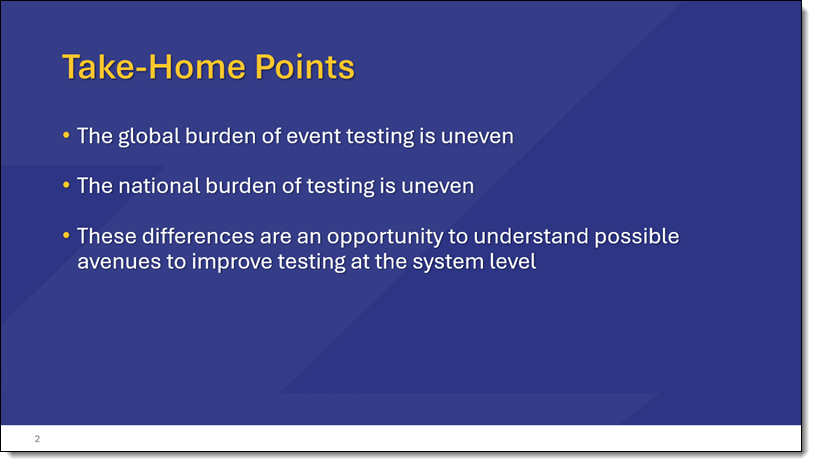
Just another idea for the next presentation you are designing. 😊
-Troy and the TLC Creative Services Presentation Design Team
Hack PowerPoint Transitions for a Great Effect!
When using dynamic PowerPoint transitions there is a hack to giving the transition a custom middle color! For example, on this Reveal transition below, we see the slide background during the transition effect. It’s black or white by default, according to the Background Style of the master slide assigned. In this example the slide background is set to white, which is the mid-transition color we see.

However, there is a transition hack for PowerPoint’s dynamic transitions – the background color in the middle of the transition can be customized! To confirm, this is dependent on which transition is in use, and it will not work with all transitions (see transition types below).
For example, the Reveal transition above uses the CURRENT slide background color, which is white, as part of the transition. By default, this is the Background Style assigned to that Master slide (almost always white or black).
TIP: Use caution when changing Background Styles! Changing a Background Style has a lot of tangent updates that can change slide content.
SET THE SLIDE BACKGROUND COLOR
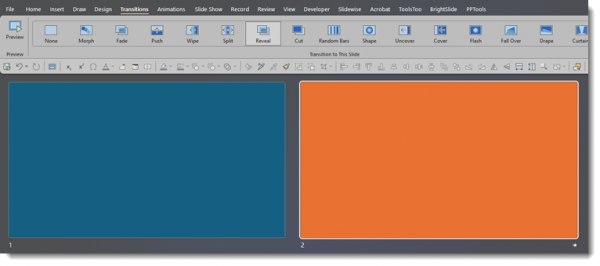
For example, create 2 slides, and set the first slide to a blue background and the second slide to an orange background. This must be the true slide background setting – it will not work if you add a blue or orange box to the slide – the background must be set via Format Background > Solid Color.
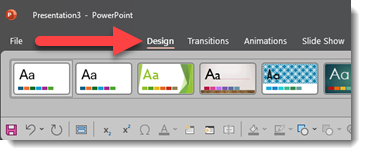
To set the slide background color, click on the Design tab and then the Format Background button to the right of the toolbar (or simply right-click off the slide and select Format Background).

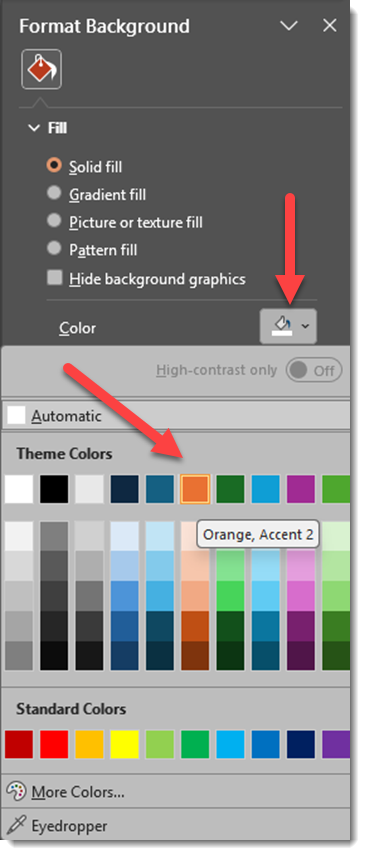
With the SOLID FILL button selected, click on COLOR to change to blue for the first slide and orange for the second slide of the presentation.
Now the Reveal transition has a subtle fade from blue to orange, which is like getting a bonus, custom visual effect!
However, the slide backgrounds are only going to be seen during the transition effect. To demonstrate this, let’s add our full slide images from the first example to our blue and orange slides (an image on each slide that “covers” the assigned color background).
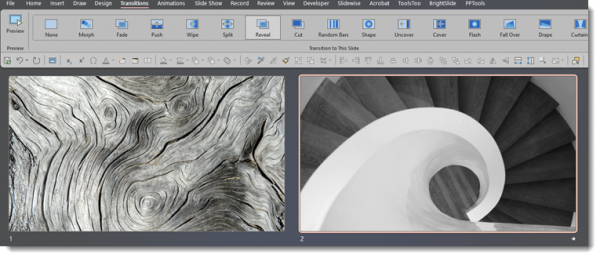
The result: instead of the slides flashing to white during the transition, there is now a blue-to-orange color shift during the slide transition!

MORE OPTIONS
In addition to setting the background with a solid color, other options are supported, like gradients, and image backgrounds – if they are true embedded background images set in the Format Background dialog.
As an example, here the same Reveal transition is used. In the first slide, the background is the default black background. The second slide has a background image of colorful glitter. The Reveal transition adds the colorful glitter image as part of the transition!

THIS DOES NOT WORK EVERYWHERE
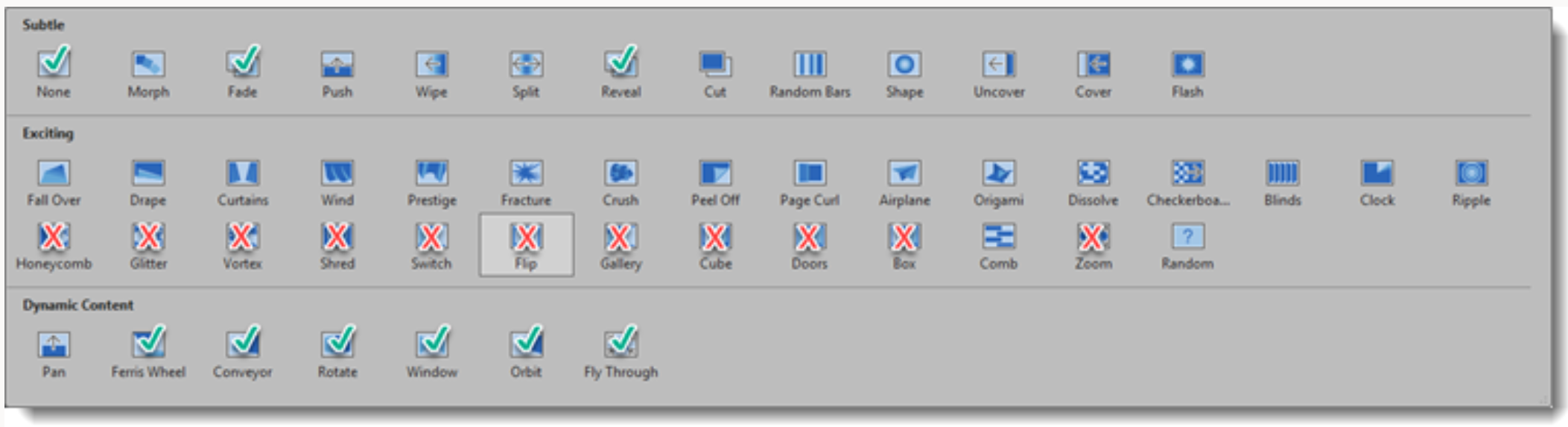
Unfortunately, this transition hack doesn’t work on all transitions. Transitions indicated below with a (✓) use the slide background color as part of the transition effect, and the color can be modified as we described above. The transitions, noted with an (x) use a black between color – that cannot be changed. And the transitions without a symbol do not have a “between color” for the transition.
Enjoy these PowerPoint transition hacks to further customize your presentations!
-The TLC Creative Services design team