
Using Color in a PPT Template
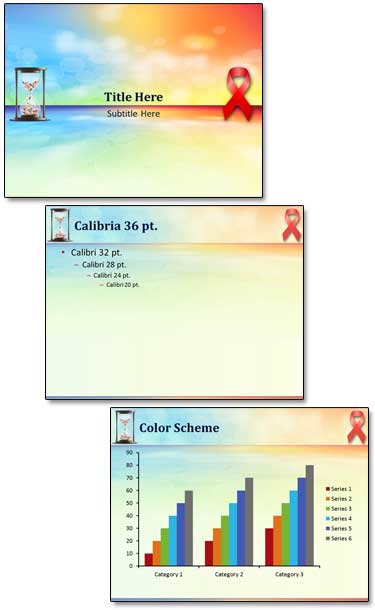
The goal of this template was to use bright and energizing colors and a horizon. Here is the client approved template.
– Troy @ TLC
Is that a Liver? PowerPoint Template
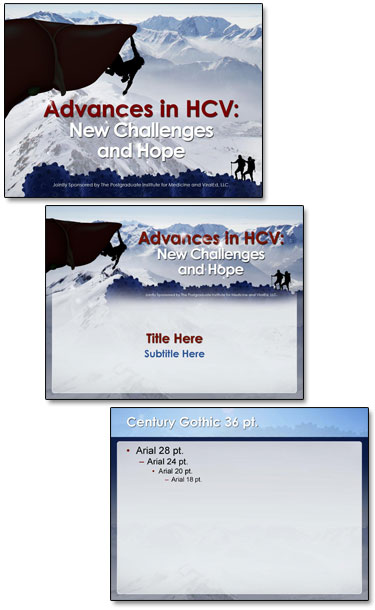
As this client proves, medical slides do not need to be the standard boring blue background white and yellow text. The topic is Hepatitis liver function and the challenges in treatment. And we were free to explore visual cues in developing the PowerPoint template. The final approved template used a rock climber facing a challenge, a cliff that is actually the human liver, a hiking ridge made of viruses, a blood red title and a vast open mountainscape for the background.
Here is the theme graphic, title slide and general content master layouts.
Here is the theme graphic, title slide and general content master layouts.
-Troy @ TLC
Toy Story Template – and Lots of Master Layouts!
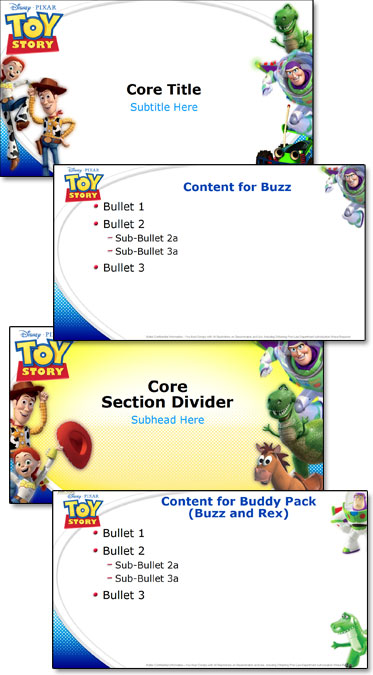
For Toy Story, I had lots of great character art to work with! The request for a white background and lots of character options made good use of the multiple master layouts in PowerPoint! I invested a full day in storyboarding the character combinations and slide combinations. The final template has 22 unique Master Layouts. Many of the layouts use the same placeholders and formatting, but different character art. The goal was to make it very easy to design a slide and reassign the Master Layout at any time to different characters without changing any of the slide content formatting.
– Troy @ TLC
Rapunzel PowerPoint Template
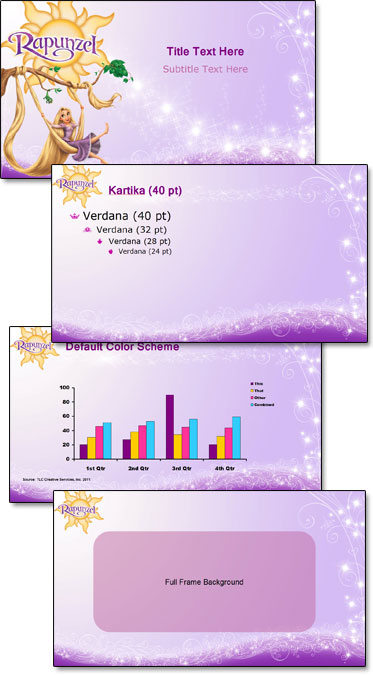
At the other end of the entertainment spectrum from the previous WWE post is Disney’s Rapunzel. Using great animation art as the focal point for each master slide layout and adding plenty of princess glitter, here is the Rapunzel marketing template developed.
– Troy @ TLC
PowerPoint Template for the WWE
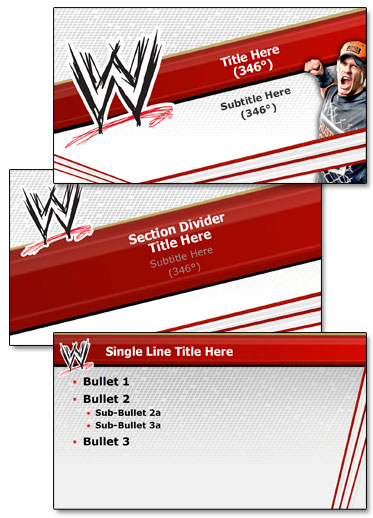
PowerPoint is used everywhere – even the Wresting Ring! Well, the presentations may not be actually in the ring, but the marketing guys talk about the ring a lot in their presentations. Here is the template developed for the 2011 WWE marketing presentations.
– Troy @ TLC
TLC PPT w/ Video Slide Used By Microsoft
Seeing your work displayed to the world is always pretty great. In this case, it has also brought in hundreds of comments on a recent Facebook post by Microsoft.
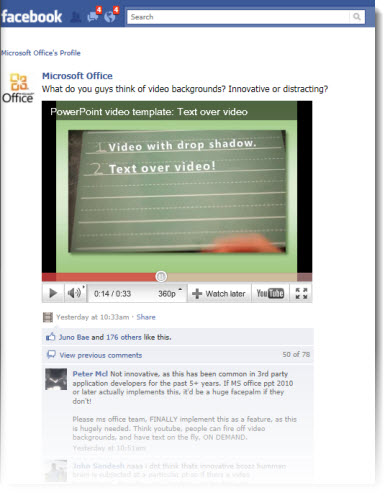
From a recent project for Microsoft, here is one of the video “templates” I created to demonstrate the video capabilities of PPT 2010.
The Facebook post is here.
In reading the comments, I was surprised at the number of people requesting content-over-video be added as a feature. Maybe some additional advertising and market awareness campaigns are needed. Content-over-video is available in PPT 2010, works great, and the video being commented on was developed in PPT 2010.
– Troy @ TLC
View From My “Desk” at a Show
On a recent show, I was at the tech table front of house (ie. out front looking at the stage, vs. backstage). Here is my view of the event.

– Troy @ TLC