
Tech Deck for Green Lantern Presentations
Here is my tech area as I developed the marketing presentation for The Green Lantern on a recent show.
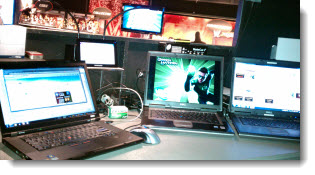
The computers are (left to right), production computer, primary show computer, backup show computer. Note my very nifty 7″ USB powered monitor near the center (right above the box of Excedrin…).
– Troy @ TLC
Animated Logo Loop
On a recent project, we were provided with a number of corporate logos and asked to create an animated presentation that would be able to seamlessly loop.
The logos were all supplied as Illustrator .eps files. So the first task was converting to .emf or .png format.

Then each logo was separated into many small image files to allow flexibility in animating. All animation is developed in PowerPoint 2010. Here is the result:
Troy @ TLC
Easter PowerPoint Template
Happy Easter! TLC Creative Services has designed a full featured 16×9 PPT 2010 Easter themed template for all to use.
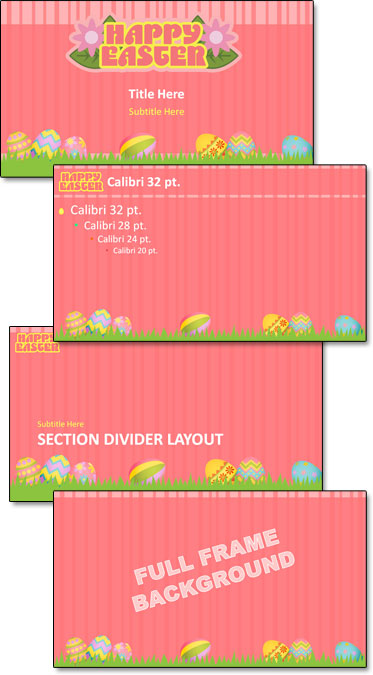
Click here to download.
– Troy @ TLC
Backstage – Caesars Palace
Just a few quick shots of my office for the week at Caesar’s Palace in Las Vegas for a corporate show.
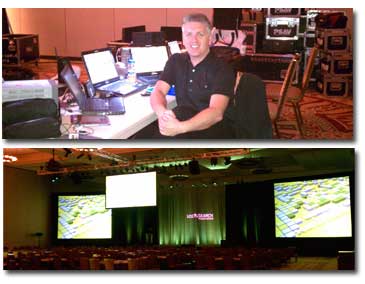
Note the center screen flown out in front of audience with flown front projector.
– Troy @ TLC
IE9 Has Arrived
Last week, in a batch of 30+ updates nad security patches, Internet Explorer 9 was officially rolled out as an optional update.
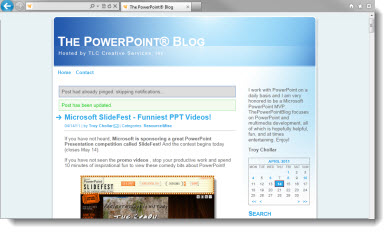
I have running IE9 as my default browser for a week and everything is great. The minimal toolbar and tabs along the top provide larger web content area (which is great) and the integrated URL and search bar is easy to use. All of the MS Web Apps, which I use daily, work flawlessly.
Two features I really like are the ability to rearrange the tabs and the ability to “tear off” any tab and turn it into its own browser window!

– Troy @ TLC
PPT 2003 Corruptions Errors After April 2011 Updates?
I know the developers at Microsoft have a big job. I know they create updates to help all users. I also know they do a lot of testing before anything is released (almost too much testing as it slows down their release cycle by months and years…). I know the focus is on the newer PowerPoint format, but I still have PPT 2003 (and PPT 2010) installed on all computers here.

A small small security update on Tuesday, April 12, 2011 has brought countless users to a stop as it looks at okay content as a potential threat – offers no options to override its action – and only allows presentations to be opened in a useless state – arghhh!
Here is the fix:
1. Close all applications.
2. Open the control panel (START >> CONTROL PANEL)
3. Select UNINSTALL A PROGRAM
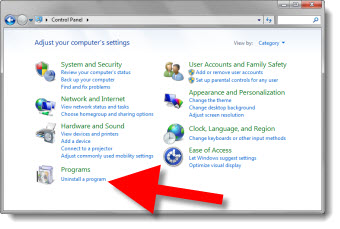
4. Select VIEW INSTALLED UPDATES
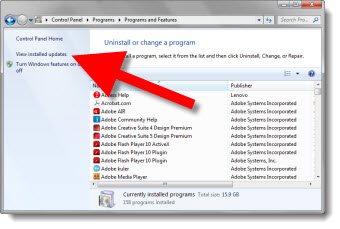
5. Scroll down list and select SECURITY UPDATE FOR POWERPOINT 2003 (KB2464588) POWERPOINT
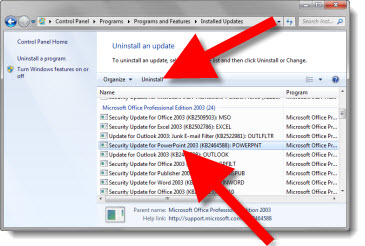
6. Select UNINSTALL
7. Follow any prompts to confirm. When done, open any PPT 2003 presentation as normal with no need to restart computer.
– Troy @ TLC
TLC Creative Presentations Featured at MS SlideFest
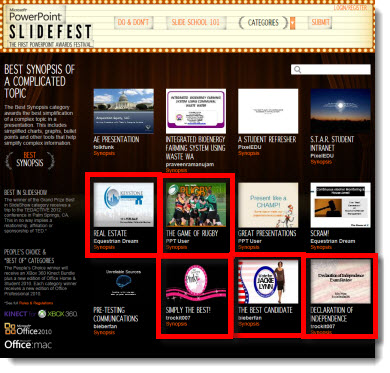
TLC Creative Services (that’s me), was asked by Microsoft to develop some sample PowerPoint 2010 presentations. Some are featured on the Microsoft SlideFest Competition in the Category samples.

When I looked I saw these TLC Creative Services developed presentations:
– Simply The Best
– Real Estate
– The Best Candidate
– Declaration of Independence
– The Game of Rugby
– Troy @ TLC