
Everyone Knows How To Use PowerPoint, But Using It Well…

I like the Brainshark application. And I like the presentation philosophy of Andy Zimmerman, Brainshark’s VP of Product Marketing. On the last day of 2010 Bloomberg Businessweek’s tip was by Mr. Zimmerman and I could not say the opening line any better:
“[Everyone] knows how to use PowerPoint software. Using it well can be a different story.”
Read the full story, which is brief and has good presentation recomendations, here.
– Troy @ TLC
Windows 7 Explorer Previews – See Without Opening!
Windows 7 is without a doubt the best operating system Microsoft has released to date. I find it stable, easy to use, powerful and full of useful features. The core usability of any operating system is how it organizes and allows you to find files. I did a curiousity check and at almost half a million files on my main production computer, and over 3 million files on the main archive server, finding and identifying files easily is a big task!
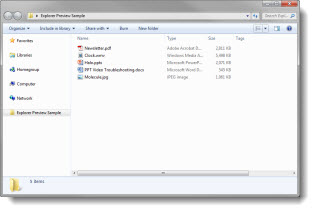
Here is the standard Windows File Explorer in Windows 7.
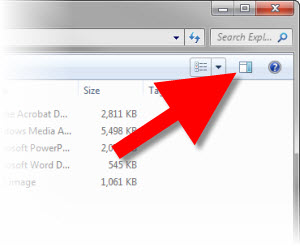
This icon in the upper right, opens the very powerful, and very useful, Preview Pane.
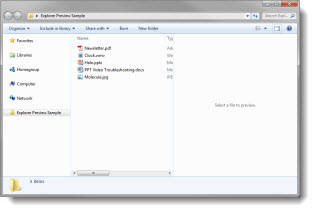
Click the Preview Pane icon and Windows Explorer adds an additional information pane on the right.
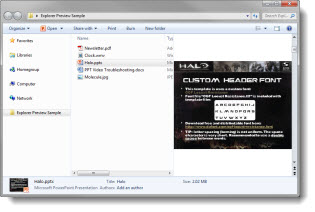
Select a PowerPoint file and the slides are previewed without opening the full application! The vertical scroll bar on the right takes you through each slide, including transitions and animations!
Select a PDF file and the full PDF, page-by-page is shown in the preview pane. The PDF preview adds navigation buttons in addition to the scroll bar on the right.
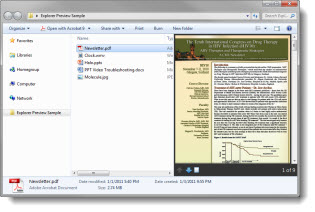
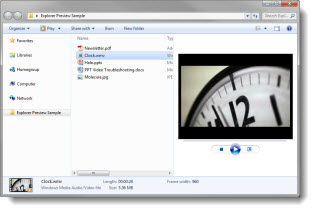
Select a movie file, which can be a .wmv, .avi, or quicktime/.mov (if running the 32-bit operating system) are previewed with an active timeline bar and vital stats about it in the bottom bar, such as file size and pixel size.
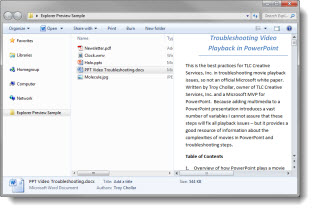
Select any Microsoft Office document – Word, Excel, Onenote, PowerPoint, and all show up in the preview pane.
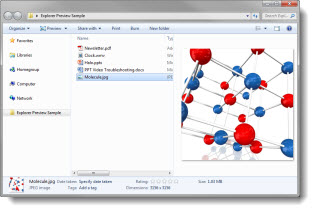
Select an image (.jpg, .gif, .png, but not .eps, .psd, .ai) for a preview and the bottom bar with all the vital stats, such as file size and dimensiions.
When looking through dozens, or thousands, of files the Windows Explorer Preview Pane in Windows 7 is GREAT!
– Troy @ TLC
Creating the “Happy New Year” Text in PPT 2010
2011 started with a “Happy New Year” graphic and message. Creating the graphic was easy in PPT 2010.
1. Type text and size

2. Add style formatting (fill color and 3-D bevel)

3. Duplicate orginal black text slide and apply a custom 3-D bevel


4. Then customize the Surface Material and Lighting

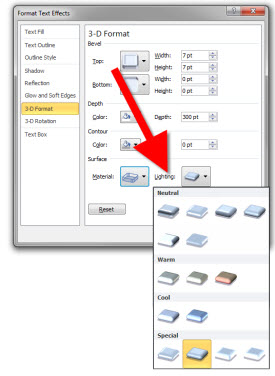
5. Copy the colored text to the 3D perspective text slide and adjust size of each to match

6. I added the TLC company logo, then size/positioned to take place of the dot in the explanation point

The completed slide can be downloaded here.
– Troy @ TLC
Happy New Year – 2011!!

Wow, 2010 ended with great family fun and LOTS of design work – which is great! Inbetween design projects and family events while ThePowerPointBlog was on break, I have put together a number of really great posts, upgraded the software platform (which now allows things like inline movies!) and more! 2011 is going to be a great year and ThePowerPointBlog will be full throughout the entire year.And 2011 kicks off the 6th year for ThePowerPointBlog!

– Troy @ TLC

Where Have You Been… (Cabo)
My week has been busy, limited in internet access, no cell phone service and beautiful! Cabo San Lucas, Mexico in December is perfect.
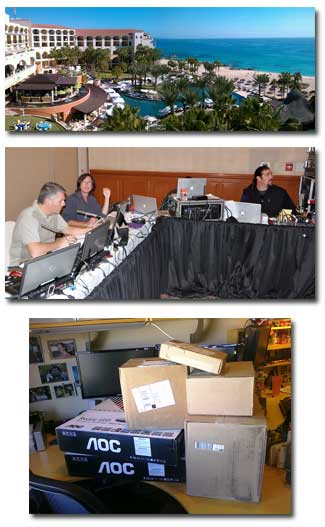
(top) view from my room, overlooking the beautiful Hilton resort and Gulf of Cortez blue water.
(middle) tech table. From left: me, Marc, Brian(behind monitors), Gary.
(bottom) my desk back home after a week away.
– Troy @ TLC
“Backstage” Defined
In PPT 2010 when you click the upper left button the Backstage opens.
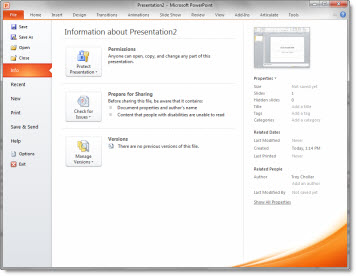
On a recent call with the Microsoft PowerPoint team I heard this quick definition of the backstage area that is great:
“Backstage has things you do to a document” (such as save, print, convert, etc.).
– Troy @ TLC