
PPTLive in Atlanta – Text Effect
I am very happy to have made it to PPT Live this year with the crazy project schedule and it being on the other side of the country I feared I would miss out on this great event. But I am in Atlanta and looking forward to the next few days!
Just for fun I quickly created this slide using the great, but often overlooked, feature of picture fills for text.

The visuals are great, easy to do, and fast. The word “Atlanta” is made of a skyline shot of downtown Atlanta (at night). Even better is this is just one text box with different style treatments applied to text selectively!

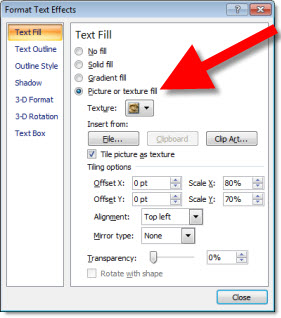
To fill text with an image, SELECT text >> FORMAT >> open FORMAT TEXT EFFECTS dialog >> TEXT FILL tab >> select PICTURE OR TEXTURE FILL >> FILE and select image.
– Troy @ TLC
The Eco-Green Font For “Green” Presentations
If you want the ultimate in eco-friendly presentations, then consider using the EcoFont font. Okay, presentations really do not qualify for EcoFont’s eco-friendly qualities unless they are going to printed as handouts.
The concept is ink is another landfill item (ink cartridges, toner, etc.). So this custom font is designed to be stylish, yet print with less ink, thereby reducing the need to replace your ink or toner cartridges as often.
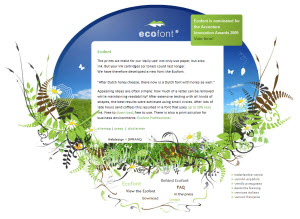
Here is what the ultimate green font looks like:

– Troy @ TLC
Blast Off! An Animated Slide
For a recent project a slide needed show the sales team activity was “Blasting Off” (as in super productive). This is the animation Lori developed, minus some corporate logos and text. We tend to stay away from “clip art” but in this case it worked with the message, the presentation visuals and the speaker’s style. Download the slide here.

– Troy @ TLC
Need a Flag for a Presentation?
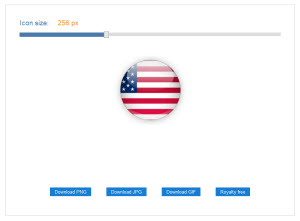
In researching images for a recent presentation I discovered this great website – Flag Icons.
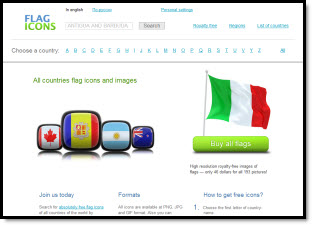
Every country looks to be represented. But the part I used was the “web 2.0” design styles for each. Just find the country you need a flag for and then select the flag style that works best with the presentation.
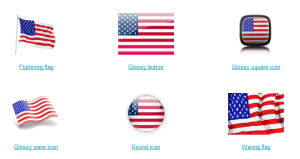
In addition there are options for saving as a .jpg (white background) or .png (transparent background) and sized from 50-800px wide.
– Troy @ TLC
123RF – International Flavor and High Quality Images

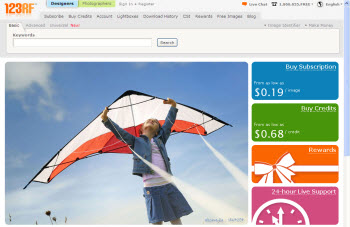
123RF is a smaller image site with a very international flavor. When I want a unique image such as a road, horizon or group of kids I always find something. Most of the images appear to be from international photographers – in international settings – and just offer a different perspective to even model shots. Image quality is great, rates are super, but the search offerings can be less than others.
Raster/Photo images: Yes
Vector images: Yes
Video: No
Audio: No
Pay Per Image: Yes – approx. $2 for standard PPT use (web, 600px)
Subscription Download: Yes (eg. 1 year 5 images day = $750)
Test Search Results:
1. “Fast Car” = 5,162 results
2. “Medical Consultation” = 840 results
– Troy @ TLC
StockExpert – Images and Video

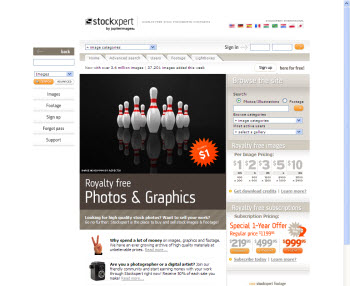
StockExpert seems similiar to iStockPhoto when I do a search – lots of the same or similiar images. They are all good quality and the pricing is good (or looking better as sites like iStockPhoto slowly raise their rates). One new feature is the selection of videos – which will be more important with the release of PowerPoint 2010 and the whole world goes video crazy. The search engine is intuitive and gives more precise results than some others – this may be because StockExpert was acquired by Jupiter Images who injected much of there meta tagging and search technology.
Raster/Photo images: Yes
Vector images: Yes
Video: Yes
Audio: No
Pay Per Image: Yes – approx. $2 for standard PPT use (small, 800px)
Subscription Download: Yes (eg. 1 year unlimited = $1,500)
Test Search Results:
1. “Fast Car” = 4,449 results
2. “Medical Consultation” = 958 results
– Troy @ TLC
Photos.com (and Clipart.com)

Photos.com is venerable, being one of the few companies around before the internet. I have a collection of (costly) Photo CDs from them. And if you every purchased one of the bright boxes full of “4 Million Images of CD/DVD” you know photos.com. Of course, that long history means some of the images are a bit dated, or perhaps seen in many other layouts over the years.
But the images are good quality, the search is nice and the thumbnails easy to review and use. The subscription rates are some of the best, so another reason you see the images a lot. You can also get some things here not available at others: a sound effects library, custom fonts and Flash animations.

Raster/Photo images: Yes
Vector images: Yes
Video: Yes
Audio: Yes
Pay Per Image: Yes – approx. $5 for standard PPT use (‘multimedia’, 500-800px)
Subscription Download: Yes (eg. 1 year unlimited of photo images only = $450 OR photos+vector+Flash+audio+fonts = $1,200)
Test Search Results:
1. “Fast Car” = 4,670 results
2. “Medical Consultation” = 7,348 results
– Troy @ TLC