
Getty Images – Real People, Royalty Free

Getty Images is an industry force, owning many of the other services, used by major media (newspaper, magazine, TV) and the place to get images of real (famous) people, real-life video and audio. This is the benchmark for professional quality images and breadth of search options. It does come at a price, but you definitely get what is paid for. Everyone should click the “Search Tips” button and read how to maximize search results (same tips apply to virtually all sites).
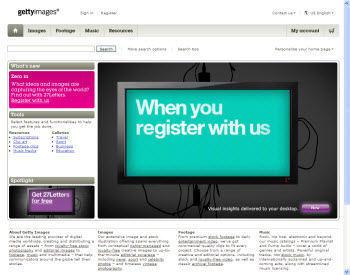
Raster/Photo images: Yes
Vector images: Yes
Video: Yes
Audio: Yes
Pay Per Image: Yes – approx. $35-150 ($35 = “web & Multimedia” 413px)
Subscription Download: Yes (this goes to photos.com – one of the many they own)
Test Search Results:
1. “Fast Car” = 5,301 results
2. “Medical Consultation” = 11,616 results
– Troy @ TLC
Dreamstime Images

Dreamstime has been around for a while, but I do not hear a lot of people talking about it. One reason may be their Royalty Free license has more options than most and the image price can vary quite a bit based on the options (which seem confusing and easier to find images elsewhere without the confusion). But the images are great, with lots of unique photography for topics not found on other sites.
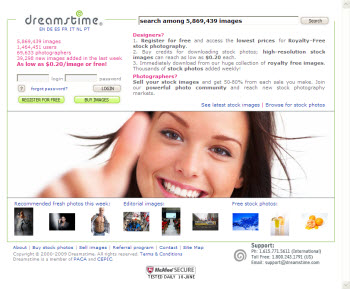
Raster/Photo images: Yes
Vector images: Yes
Video: No
Audio: No
Pay Per Image: Yes – approx. $3 for standard PPT use (small, 800px, level 2 RF)
Subscription Download: Yes (eg. 25 images per day for 6 months = $1,250)
Test Search Results:
1. “Fast Car” = 12,918 results
2. “Medical Consultation” = 1,150 results
– Troy @ TLC
JupiterUnlimited – Lots of Getty Images in 1 Package

JupiterImages Unlimited is a Getty Images company – a central service that gives access to images from several Getty companies. The mid-level “Essentials” subscription shows images from photos.com, ablestock.com, liquidlibrary and photobjects.net. I spent a few months using this site for a project through a clients’ subscription. The images are great, quality top notch and selection wide. Doing a vector search brings up lots of great vector images, but also plenty that are dated and lackluster. Another highlight is the huge library of photo object images (photos shot on a white background).
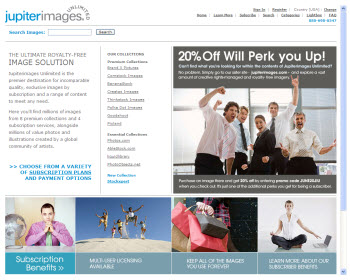
Raster/Photo images: Yes
Vector images: Yes
Video: No
Audio: No
Pay Per Image: No
Subscription Download: Yes (eg. 1 year unlimied download Essential Plan = $1,500)
Test Search Results:
1. “Fast Car” = 4,077 results
2. “Medical Consultation” = 1,518 results
– Troy @ TLC
Stock.Xchng A Free Option!

“Stock Exchange” (Stock.XCHNG) bills itself as the leading FREE stock photo site- and I would have to agree. This is definitely one of my go-to resources as the quality is good, image size is great (near fullsize print quality) and it is a true image site, though the search can give limited results. It does have ties with pay sites, so note the 1st row of images on each page is not part of the free options (and that’s why they look perfect). Another consideration is everything is a .jpg image, even the vector looking images (because the vector version is available at the affiliated pay site).
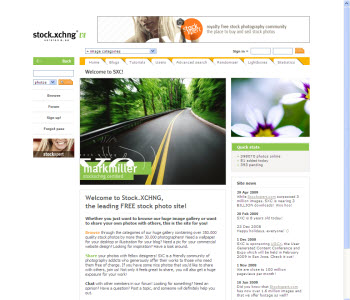
Raster/Photo images: Yes
Vector images: No
Video: No
Audio: No
Pay Per Image: No – They are all free!
Subscription Download: No
Test Search Results:
1. “Fast Car” = 262 results
2. “Medical Consultation” = 0 results
* With alternate search terms I was able to located 100’s of images for each, just took more effort.
– Troy @ TLC
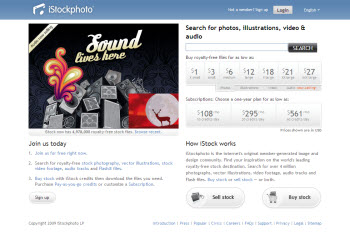
iStockPhoto – Independent Artists for Variety

iStockPhoto can take credit for revolutionizing royalty free images. They permit anyone to upload images (vs. contracted artists/photographers) and the artist receives a royalty whenever the image is purchased (vs. paying upfront fees to the contracted artists). The good is unbelievable variety, often outside the expected and norm (independent artists). The bad is anyone can add images, so not everything is professional and polished…
Raster/Photo images: Yes
Vector images: Yes
Video: Yes
Audio: Yes
Pay Per Image: Yes (average for “Medium” image $9 each)
Subscription Download: Sort Of
Test Search Results:
1. “Fast Car” = 11,605 results
2. “Medical Consultation” = 18,889 reults
– Troy @ TLC
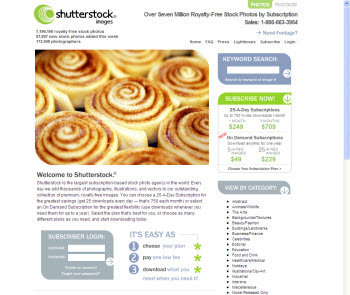
Shutterstock Photos – Lots of images, including vector!

Shutterstock Photos is one of the sites I have been using a lot lately. They offer a huge selection of images, all professional quaility, though some a bit dated and a great selection. One option I have made really good use of is the number and diversity of vector art, especially for developing template background images.
Raster/Photo images: Yes
Vector images: Yes
Video: Yes (optional with subscription)
Audio: No
Pay Per Image: Yes average $10 each)
Subscription Download: Yes (25 images per day for 1, 3, 6, 12 month durations)
Test Search Results:
1. “Fast Car” = 17,206 results
2. “Medical Consultation” = 3,696 results
– Troy @ TLC
Images for Presentations
We have been told ‘An image is worth a thousand words.‘
Maybe it really is ‘A 1,000 words on a slide is boring!‘
I use images a lot. They can be to accent text, or be the entire slide. Back in ancient history (10-20 years ago), we did lots and lots print design and spent lots and lots of money on royalty free images on photo CDs. If you don’t remember those days, it averaged $300-500 for a disk with 20-40 images based on a theme. A disk was usually purchased for 1 or 2 images and we hoped to be able to use other images on future projects.

Today we have a huge number of online, royalty free image sites – plus flicker, google images and even Microsoft Online. It’s does not cost much to design highly visual layouts now. So I spent a week and pulled together some information on the image sites I like and use on a regular basis. I made some notes about likes and dislikes and did the exact same image search at all to compare the results.
For the balance of September I will list a different image resource with each post, hopefully you can discover a few new ones.
– Troy @ TLC