
Delete a File That Refuses to Delete with “Unlocker”
I just wrapped up a quick project where I created a custom installer that created a folder, added presentations and videos, added shortcuts and an uninstaller. All pretty standard stuff, but I always test everything to make certain all works before a client distributes it. Well, I discovered an error with my coding. Actually all ran perfect except the uninstaller did not uninstall… hmmm, not good. I figured out the problem, edited the code and all worked perfect on my next test. Time to send to client – yeah!
Maybe it is because my main production computer is still running Windows XP (although there are several Vista Ultimate computers here and I am running Windows 7 on a my Office 2010 test computer), but the folder from my first test install (the one where the uninstaller errored out)would not delete. Every time I attempted to delete I ended up with some message like this:
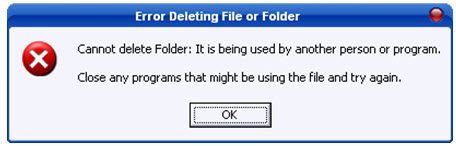
Then I remembered this little (265k install) application that I installed long ago and is just waiting to be used. Unlocker does exactly what it says. It unlocks a file, or folder full of files this time, and allows me to delete it – yeah!

It is a handy utility that is a solution to otherwise frustrating occurrences. Oh, and it’s free (donation option). Here’s the Unlocker website.
– Troy @ TLC
WWE Template
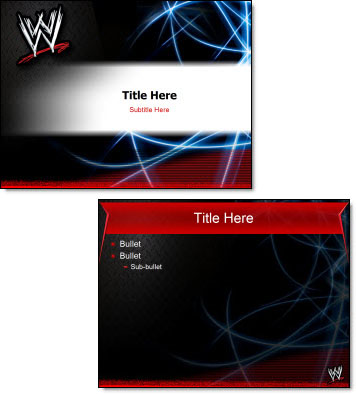
Sometimes a template just needs some high energy visuals. That was pretty much my direction for a project for the WWE (World Wrestling Entertainment) – “it needs to be great and full of energy!”
I took that direction, the official logo, some online research on (… have not followed professional wrestling a lot) and the final result was this template.
– Troy @ TLC
Mad Ad Live Template
Mad Ad Live is not the conventional advertising company and they required a PowerPoint template that visually conveyed their own style of sophisticated but ready to break the traditional rules.

– Troy @ TLC
Where’s His Arm? Why is Stock Photo Doing That…
Presentations are visual communication and that means lots of images. I maintain a number of subscriptions to online stock photo sites. The one thing I see from all is the selective/artistic cropping that often makes it difficult to use an image.
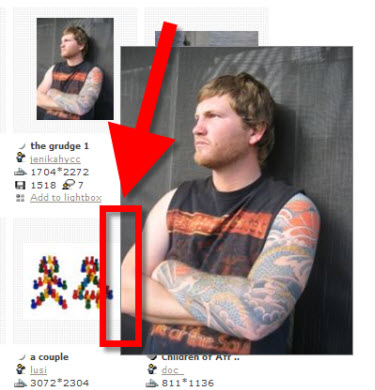
As example, here is a great image, but where did the rest of his arm go…
– Troy @ TLC
Shapes Menu in Different Shapes
I get this question a lot – even from people that have been using PPT 2007 for awhile. “where is my insert shapes?” It is obvious, but we get used to things being a certain way and when it changes we overlook things. This also happens most often when the computer is hooked up to a projector, where the screen resolution is reduced to the projector resolution (eg. my monitor is 1900×1200 but most projectors are lower at 1280×1024 or 1024×768).
Here is what most see on their ribbon:

But with a smaller screen resolution, the ribbon adjusts to smaller options and the shapes library becomes a simple button:

– Troy @ TLC
PowerPoint + OfficeFX Presenter = Fox TV
I develop PowerPoint presentations for large events that do not look like ‘standard PowerPoint’ with lots of animation, custom images, etc. I have also used the OfficeFX software for lots of events and awards shows because it takes PowerPoint to a new visual level with full motion backgrounds and custom transitions.
Recently a The Lawrence Company used the new Presenter 4 to produce a multi-screen HD show for a Fox TV event that was anything but ‘PowerPoint’ – although the whole thing was PowerPoint.

Here is link to video showing some of the great custom transitions and animations.
– Troy @ TLC
Video Preview from Bing! Search
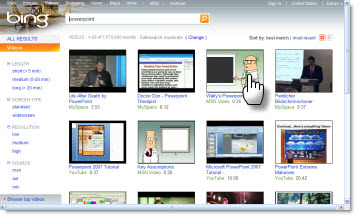
Sometimes you just discover things by accident. As example I did a video search using Bing! and discovered that if you roll your mouse over any of the thumbnail images it plays the movie in the thumbnail without going to the webpage – very cool!
Here I did a search for “PowerPoint”, clicked the ‘video’ link at the top and was able to view all by just putting my cursor over it.
– Troy @ TLC