
Give Depth To a 3D Shape
PPT 2007 has some create functions for converting even the simplest shape into a 3D element. But there is some interaction of features needed to create the effect.
1. Here is my sample arrow with some stylizing applied.

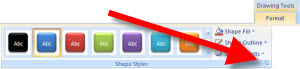
2. To convert to 3D I like to open the full FORMAT SHAPE dialog. To open, select the shape >> FORMAT tab >> SHAPE STYLES section >> small OPEN dialog in lower right corner
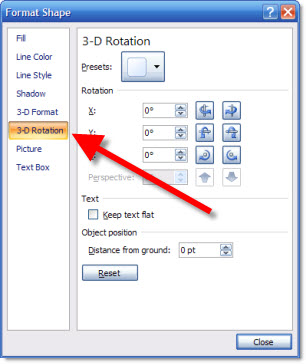
3. Go to the 3-D ROTATION tab
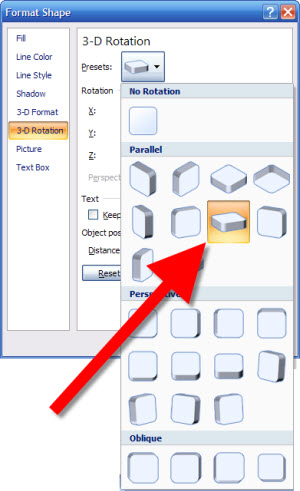
4. From the drop-down menu of preset I choose OFF AXIS 1 TOP
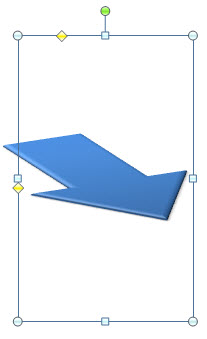
5. Here is my arrow converted to 3D
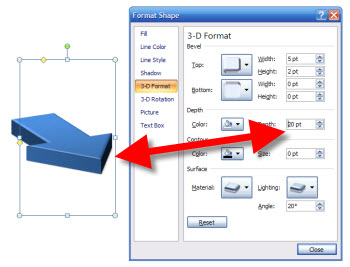
6. To add some depth to the arrow go to the 3-D FORMAT tab and increase the DEPTH point size
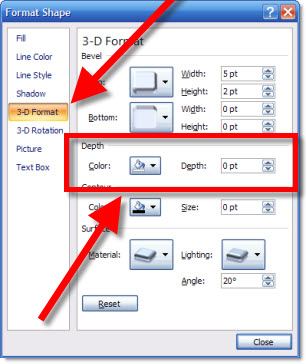
7. This menu has live preview, so as you adjust the shape will update. For my I increased the DEPTH to 20 points for my final image.
– Troy @ TLC
Using Edit Point Tool on Shapes
With SP2 (Service Pack 2) the Edit Points tool has been updated and become a very useful tool. The Edit Points tool is a simple vector image editor (think Illustrator 1.0). You can create your own custom shapes or modify preset shapes, which is what I am going to show here.
1. Here my sample shape, an arrow with some stylizing applied
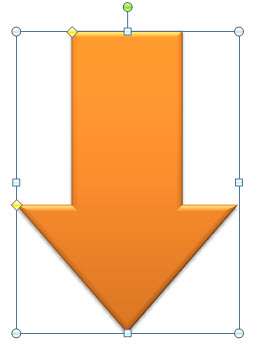
2. Select shape >> FORMAT tab >> INSERT SHAPES section >> EDIT SHAPE drop-down menu >> select CONVERT TO FREEFORM
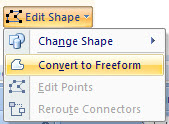
3. Now select shape >> FORMAT tab >> INSERT SHAPES section >> EDIT SHAPE drop-down menu >> select EDIT POINTS
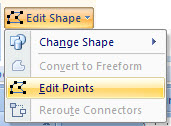
4. Note the bounding box around the shape changes to a series of edit point dots at each intersection

5. By clicking and dragging an adjustment handle the shape is transformed
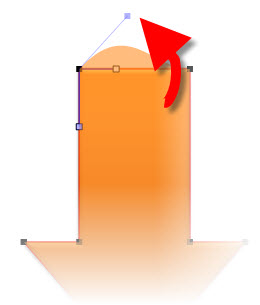
6. Select on of the edit points and adjustment handles are available
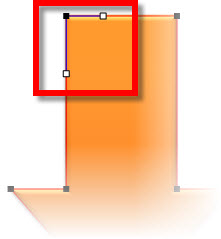
7. After changing the adjustment handles on top of both the left and right edit points I have created a custom arrow

– Troy @ TLC
Vector Images From ShutterStock.com
Just a quick note. For a specific project I have been searching many of the popular royalty free image sites for some needed vector (eg. Illustrator) art that will be used to develop a custom background. I have been really impressed with the image variety, selection and quality from ShutterStock.com.

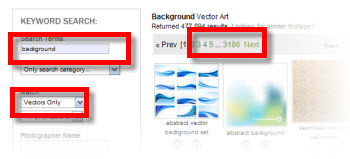
Guess in the past I have searched for photo images (eg. raster) and this was first time specifically looking at vector art. Here I searched ‘Background’ with ‘Vector Only’ and came up with 3,185 pages of 25 images each – good stuff!
– Troy @ TLC
Tools On My QAT
With PPT 2007 we are very limited in how to customize the application. The one customizable “toolbar” is the QAT – Quick Access Toolbar. So here is what I have mine:

1. Save
2. Open Slide Master
3. Subscript
4. Superscript
5. Insert Symbol
6. Align to objects (works with #23-24)
7. Align to Slide (works with #23-24)
8. Text Color
9. Fill Color
10. Line Color
11. Insert Shape
12. Crop
13. Pickup Style
14. Apply Style
15. Format Painter
16. Change Shape
17. Align Left
18. Align Right
19. Align Center
20. Align Top
21. Align Bottom
22. Align Middle
23. Distribute Horizontally
24. Distribute Vertically
25. Bring to Front
26. Send to Back
27. Rotate Left 90′
28. Rotate Right 90′
29. Flip Horizontally
30. Flip Vertically
What do you have on your QAT?
– Troy @ TLC
IE8 Compatibility Mode
I like IE8 and it is my default browser. But it, like many new versions of software, does not play nice with some website coding. As example here is www.GEOLadders.com, a website I use to log my mountain bike rides and have some fun seeing my ride in its map overlay view.
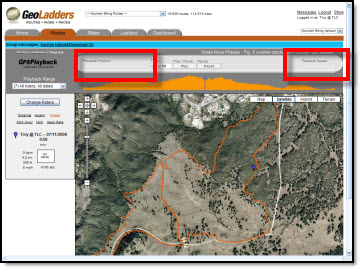
The problem is the two red boxes are where some playback controls should be, and were before upgrading.
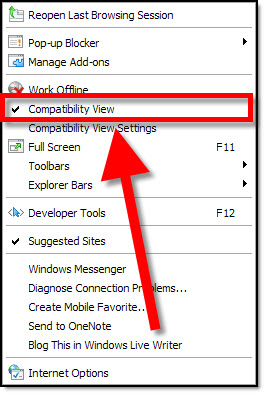
The solution for this website and many that have display or control issues is the Compatibility View option built in to IE8. The compatibility is only for webpages it is activated for (not global) and is a simple 2 click process to turn on.
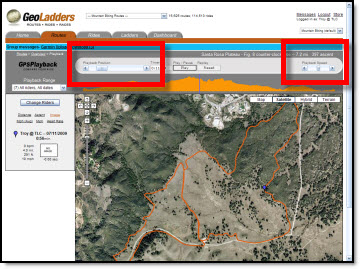
Now when I view my course I have the playback controls expected – now if I could just get some more time away from the computer and on the trails….
– Troy @ TLC
“PowerPoint” is a Verb, Defined as “Any Presentation With ‘Slides'”
The sub-head for this article caught my attention:

The “No PowerPoint” part is what caught my attention. What if I choose to use the Open Office presentation software, Flash, or Mac’s Keynote – would I be allowed to present?
When a product takes over its category it becomes the default name for the category (eg. Scotch Tape, any type of clear tape, or Hot Wheels, any small toy car). And in our case “PowerPoint” has become a default that means any presentation that uses slides/visuals.
Just a thought of the day post.
– Troy @ TLC
Using Example Slides for Inspiration
Many, many thanks to Julie Terberg of Terberg Design for being a guest author on ThePowerPointBlog!
………………………….
Sometimes you need a little inspiration when developing a presentation. You could turn to one of the many resources available for graphic designers: books, magazines, or websites to name a few. But inspiration is only the first step. How do you go about creating the design concept you like using the tools provided in PowerPoint?
Next time you’re looking for a unique layout or graphic treatment, consider browsing through the example slide effects available from Office Online. With PowerPoint 2007, you have access to more than 150 example slides complete with detailed instructions for recreating the effects with PowerPoint.
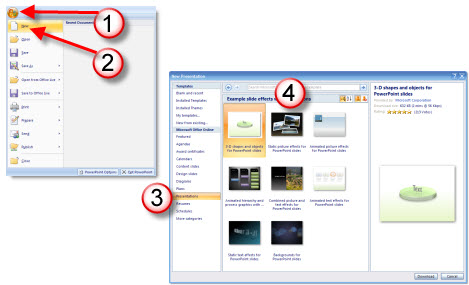
To download the example presentations from PowerPoint 2007:
– Click the Microsoft Office Button
– Then click New
– In the New Presentation dialog box, under Microsoft Office Online, click Presentations
– Then Example slide effects with instructions.
The examples are divided into eight separate presentations, including 3-D shapes and objects, static or animated picture or text effects, combined effects and more.
You can copy the example slides into an existing presentation, recolor the graphics, change fonts, and replace pictures and text. Or recreate an effect by following the detailed instructions on the Notes Pages and customizing to suit your content. Either way – begin with the example slides as inspiration and really make them your own by changing things up a bit. Experiment by editing the values for each of the Shape and Text Effect settings. Try out all of the 3-D Bevels and 3-D Rotation settings. How about a different fill, an alternate Surface Material or Lighting effect? Many of the example slide effects were designed with this type of experimenting!
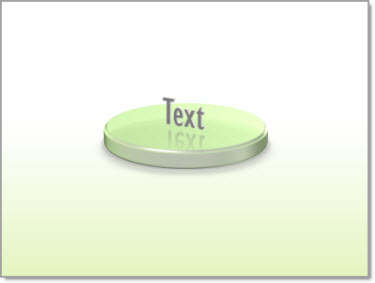
Here is one example slide from “3-D Shapes and Objects for PowerPoint slides.” With a few simple changes to the shape and effects, I created this second slide.
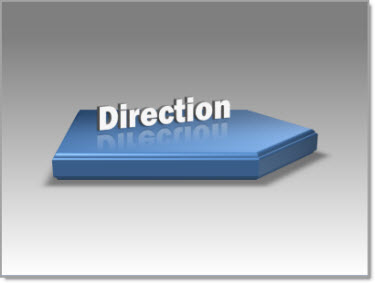
The oval shape is now an arrow with a gradient blue fill, the 3-D Bevel and Rotation settings have been changed, along with the font, text fill and 3-D Rotation.
Begin with an example slide as inspiration, follow the instructions to learn how the various settings affect the design, and then experiment using different shapes, fills and effects to create a design that’s uniquely your own.
Julie Terberg
Terberg Design