
Wikipedia on PowerPoint
If you want some facts about PowerPoint, you could search the Microsoft website or just head to Wikipedia (click here) for a history of the program and more.
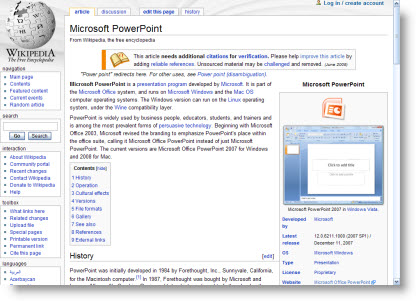
– Troy @ TLC
Pecha Kucha (Tonight)
Pecha Kucha is something that sounds fun and may be a great skill builder for presenters. Basically Pecha Kucha forces presenters to create an on-the-fly presentation. They are given a topic, 20 slides, and 20 seconds per slide. It was created in Tokyo, Japan in 2003 as an event for young designers to meet, network, and show their work in public.

If you are in the NorthEast, head over to the free Calypso Communications event in Portsmouth NH. Click here for a story outlining the event and Pecha Kucha.
– Troy @ TLC
Resize Preview To Fit-to-Screen: PPT vs. Photoshop
To quickly get the “big picture” you may need to see the whole slide or image. There are some great keyboard shortcuts to do this, but they are different in PPT 2003, PPT 2007 and Photoshop.
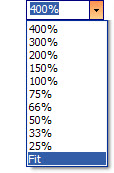
PowerPoint 2003:
Option 1: Use the drop-down menu and choose FIT
Option 2: Install the PPTools free StarterSet and click the magnifying glass icon

PowerPoint 2007
Click the ‘Fit to Window’ button in the lower right corner

Photoshop:
CTRL + 0 (zero)
– Troy @ TLC
Resize and Keep Aspect Ratio: PPT vs. Photoshop
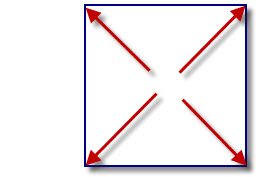
Another great feature is resizing (enlarging or shrinking) images and autoshapes from any corner and have it maintain the same aspect ratio.
This feature is available in PowerPoint and Photoshop, using the SAME key combination.
PowerPoint: SHIFT + adjust with mouse
Photoshop: SHIFT + adjust with mouse
– Troy @ TLC
Resize From Center: PPT vs. Photoshop
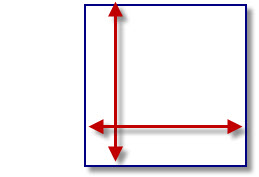
A great feature is resizing (enlarging or shrinking) images and autoshapes from their center point.
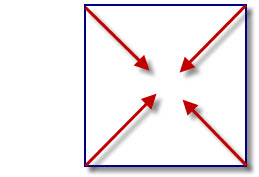
This feature is available in PowerPoint and Photoshop, but using different key combinations.
PowerPoint: CTRL + SHIFT + adjust with mouse
Photoshop: CTRL + ALT + adjust with mouse
– Troy @ TLC
Change Photoshop Ruler Measurement
I have been using Photoshop since version 2 (the dark ages of computer design) and just had Lori point out a cool feature I never knew existed!
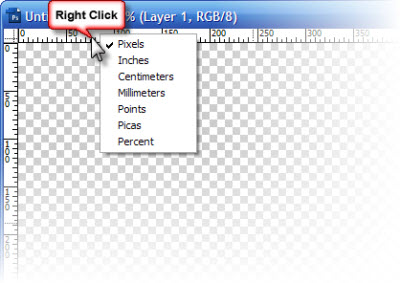
I know PowerPoint is our topic, but I work in Photoshop virtually everyday preparing images for templates and presentations. In this case I was moving back and forth between PPT images that are measured in pixels and a print layout that was measured in inches. So, I was constantly going into the preferences and changing the rulers until Lori came over and pointed out a better way.
If you RIGHT-CLICK the ruler in Photoshop, it can instantly (and easily) be changed!
– Troy @ TLC
“Just Rename It To .PPSX”… (doesn’t work)
In the old days (PPT 95 through 2003), the only difference between a presentation and a show was the extension. So if you had a presentation and wanted it to open in slideshow view, just the file extension had to be renamed. But in the new world (now 2 years old) of PPT 2007 that does not work.
1. Here is our test file – a .pptx (PPT 2007 presentation)

2. Manually change the file extension (.pptx), changing the “T” to an “S”, and Windows gives this confirmation dialog
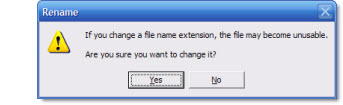
3. The icon changes to the PowerPoint Show icon and the extension is .ppsx

4. But when you try to open the file you get this error
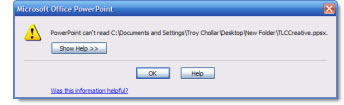
5. Why? Because any Office 2007 file with an “x” in the file extension is really a .zip file with lots of individual files inside it. Changing the extension does not directly change the file any longer, so the quick fix of ‘just rename it’ no longer works…
– Troy @ TLC