PPT 2007 “Picture Animations” Template Deck
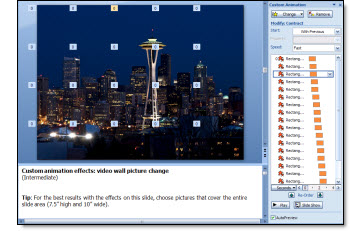
More animations! This time 20 slides of image animations with thorough step-by-step instructions. Click here to go to the MS Office Online page to download.
– Troy @ TLC
PPT 2007 “Text Animations” Template Deck
Animation is one of my strong points and this template presentation has some great ones!
The Text Animations deck on Office Online has 20 slides of text animations – each with step-by-step instructions on how to recreate these great effects.
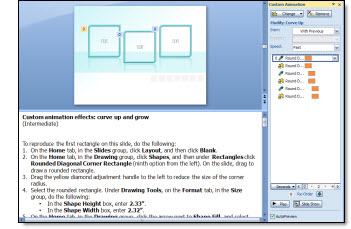
It is also good to note that most of the animation effects can also be applied to other objects such as autoshapes or inserted images!
Click here to go to the MS Office Online page to download.
– Troy @ TLC
PPT 2007 “Picture Effects” Template Deck
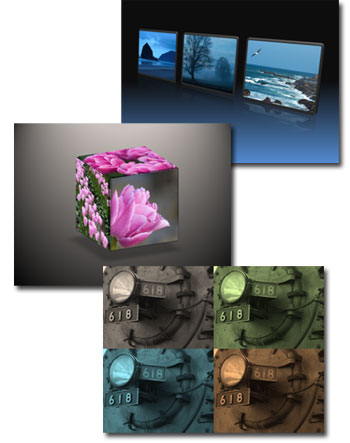
Click here to go to the Office Online page with the download link for this great, and free, PPT 2007 presentation that has 15 picture effects. All effects are created entirely in PPT 2007 and the speaker notes have detailed step-by-step instructions on how to recreate the effects in your presentaitons.
Here are a few samples of the picture effects in this deck:
– Troy @ TLC
PPT 2007 “Text Effects” Template Deck
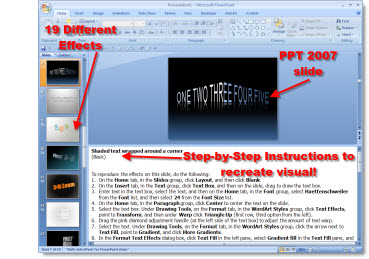
Click here to go to office online and download this fantastic free presentation with 19 great text effects all created in PPT 2007.
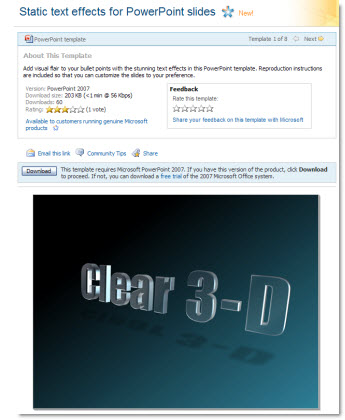
What makes this presentation especially great is that not only is everything created within PPT 2007, but a detailed how-to set of instructions included!
– Troy @ TLC
PPT 2007 Visual Themes FREE
Sometimes it is difficult to keep a secret – this is one of those items I was excited about when I previewed them (yeah!) and then was told not to talk about them until Microsoft posted them (ohhh…). Well this week Microsoft Office Online has officially posted a series of PPT 2007 visual elements templates.

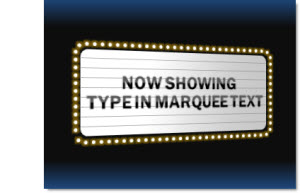
These really great ‘presentations’ are a series of incredible visual elements, animations and layouts – all created with PPT 2007 tools. As example one of the template decks shows how to make this graphic entirely within PowerPoint 2007!
Julie Terberg is the designer responsible for all of these effects (also a MS PowerPoint MVP). Check back as each day next week I highlight a different template deck (there are 8 in total).
– Troy @ TLC
Making a Visual (Scoreboard)
Working on a recent project I thought this was a good example of the progression of a slide. The original speaker notes called for a slide that basically said they are ahead of the competition. Here is the slide they came up with:

During a slide review we moved to making this in to a visual that the speaker could use for an analogy. A football scoreboard was the solution. Here is what they came up with (‘they’ being the clients internal staff).

When I received the presentation to go through and clean up all slides here is the visual developed:
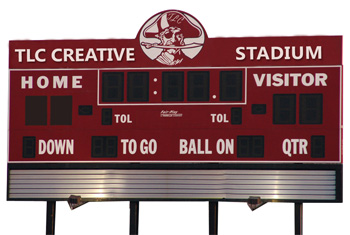
– All of numbers on the scoreboard were PPT WordArt (using PPT 2003) overlaid, so client can easily change to match analogy.
– Top of scoreboard was branded with client name (here I branded with TLC Creative)
– Hard to see here, but even the mascott is branded with the company initials on his hat (with TLC here)
The final slide ended up being animated with the numbers on the scoreboard (quater, score, time remaining until new product launch, etc.) changing as a quick history/timeline was presented!
– Troy @ TLC
Snapsound.com for FREE sound fx
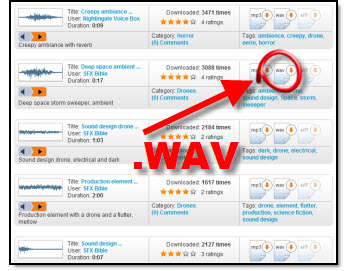
If you need some sound effect (fx) for a presentation, a great, FREE, online resource is soundsnap.com. You do need to register and then 5 downloads per month are free.
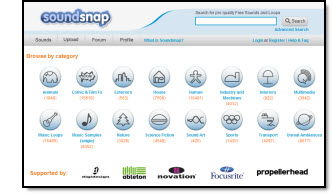
There are a lot of sound fx here and the collection seems to be continuously growing. All are free to download and royalty free for use. One of the best features is you can download almost any audio file in either .mp3 or .wav format (I prefer .wav as it can be embedded into PowerPoint).