
Macro Settings In PPT ’07 vs PPT ’03
The previous post showed how to find the security level settings in PPT 2007. Not to make things difficult, but all of the descriptions and names have changed.
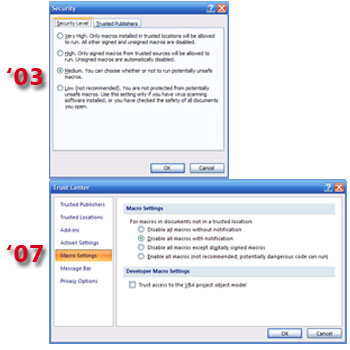
In addition to the name changes, some are virtually the same and some don’t quite match up.
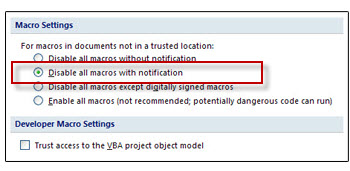
The HIGH and LOW settings from PPT 2003 have PPT 2007 settings that match up and accomplish the same thing:
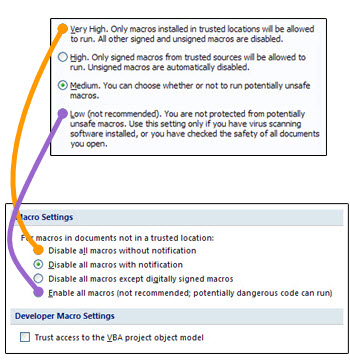
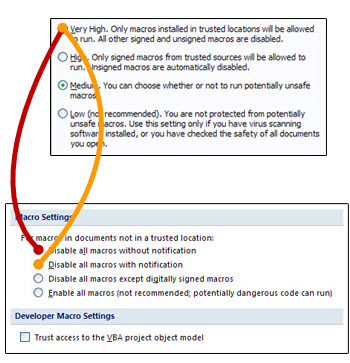
The VERY HIGH PPT 2003 setting has been split into 2 settings in PPT 2007:
Finally the MEDIUM setting from PPT 2003 really has no equivalent in PPT 2007… And because here on ThePowerPointBlog and in PPT training programs I recommend changing the Macro Security to Medium, what do I recomend now?
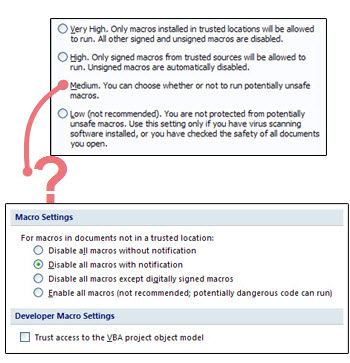
I have setup all of the TLC computers and recommend (though it is not based on the same knowledge, understanding and confidence of Medium in PPT 2003) to use the 2nd setting – Disable All Macros With Notification.
– Troy @ TLC
Where are ‘Macro Security Settings’ in PPT 2007?
When installing add-ins in PowerPoint, the macro security settings need to be lowered from the default setting of HIGH to MEDIUM or LOW. But how do you do this in PowerPoint 2007?
First the names have changed and second the where you find them is a bit difficult if you are not familiar with the new Ribbon layout.
1. Click the circle Office button in the upper left corner.
2. Click on POWERPOINT OPTIONS.
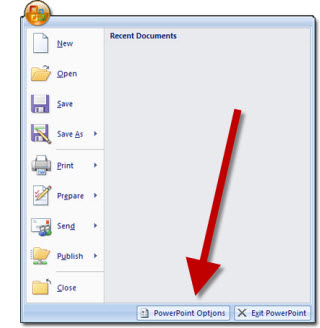
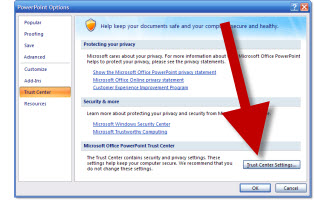
3. Go to TRUST CENTER in the left column.
4. Click on TRUST CENTER SETTINGS.
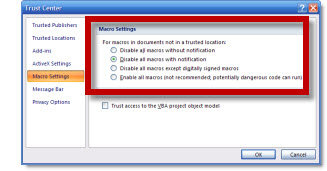
5. Adjust to needed setting, click OK and exit PowerPoint to save setting.
– Troy @ TLC
Oakley’s Podium
Oakley sunglasses is a great company to work with! They have a style unique to them and it has to be experienced to be understood – but it works! I recently spent a few days at their ‘interplanetary headquaters’ which is an impressive building (think of the movie Blade Runner). Their 600 seat theater is also imposing – just check out the podium!
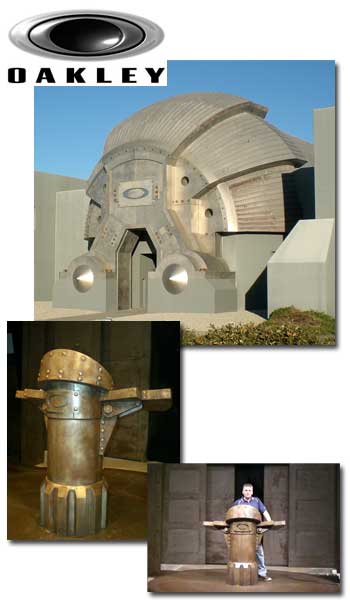
(and that’s me in the lower photo)
– Troy @ TLC
Pixar Work
Here’s a quick photo of me and my computers for a recent meeting for Disney-Pixar (Toy Story is on the computer and a display for Cars is in the background). It’s always fun to be around the novelty of Pixar – and the meetings are a ton of fun (especially watching pre-release sections of movies :D).
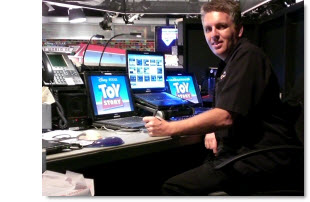
– Troy @ TLC
Happy Thanksgiving!

Have a GREAT day with family!
– Troy @ TLC
PowerPoint — Admin….???
So I have never visited elance.com, until today. I had to see what someone told me, and seeing is believing. Now I admit this is a bit personal, but they have categories like:
– Web
– Design & Multimedia
– Admin Support
– Sales & Marketing
And where is PowerPoint listed? Not Design & Marketing or even Sales & Marketing. PowerPoint design (hey there’s the word “design”) is listed in Admin Support!!

– Troy @ TLC
Use PPT for Other Projects
I develop a lot of multimedia CDROM’s and these projects always begin with PowerPoint. After gathering details from client I create a mock-up of the various navigation points within the application. Then in PowerPoint make a flow diagram of what the user experience will be. This allows client to visually see my interpretation of their information before I dive into the actual programming.

– Troy @ TLC