
Big Gear Box!
Here I am with my equipment backstage at an event. It takes a lot of gear with computers, backup computers, routers, etc.

I personally favor cases by Pelican for shipping all of my equipment as they come in a variety of sizes, well padded and virtually indestructable. But recently they have introduced a new, BIG, series of cases – big enough to pack your own producer!

(Note: modeling the jumbo pelican case is “Hodgie”, Steve Hodges, a great show producer I get to work with several times a year).
– Troy @ TLC
Happy New Year!

Looking forward to a great year! Above image was created in PPT 2007.
– Troy @ TLC
Add More Smart Art to PPT 07!
Microsoft’s Office Online has a collection of additional Smart Art objects that can be downloaded and added to the PPT 07 library!
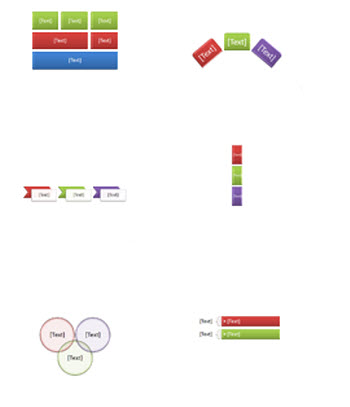
These work in PowerPoint, Excel, Word and Outlook. All are FREE. click here to go to the download page.
– Troy @ TLC
YouTube Video In PowerPoint (part 2)
Here is my process for adding a YouTube (google, metacafe, soapbox, etc) video to a PowerPoint presentation:
1. Find the movie online and copy the URL
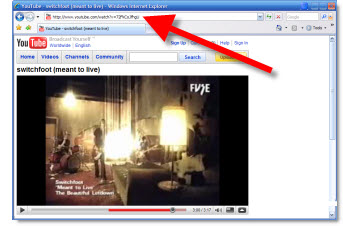
2. Go to www.techcrunch.com/get-youtube-movie
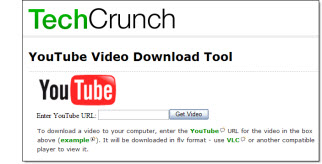
3. Paste in the YouTube URL

4. Follow instructions to download to your computer.
Note: the video is in .flv format, which need to be converted for use in PowerPoint
5. Go to www.media-convert.com
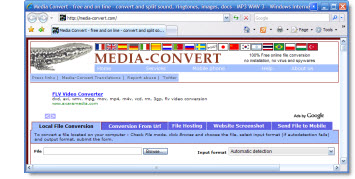
6. Be sure you are in the ‘Local File Conversion’ tab

7: Click the BROWSE button and find the video on your computer

8: Convert the .FLV video to a PowerPoint friendly .WMV format.
Note: there are lots of options, but I recomend
– No Video Preset
– Windows Media Video (.wmv)
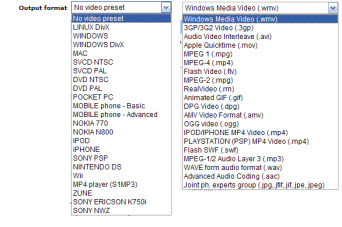
9: Click OK and following instructions to convert and have file emailed you.
10: Move newly created .wmv video to same folder as presenation and use PowerPoint’s INSERT >> MOVIE FROM FILE wizard
11: Done!
– Troy @ TLC
YouTube Video In PowerPoint (Part 1)
So you have found the perfect video for you analogy – on Youtube. The question I get a lot, is how to play that video in a presentation.
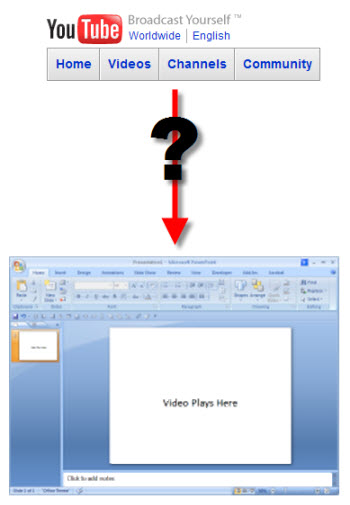
There are a few issues that make this a bit complex. In this post I’ll overview the issues and in the next post show my process for making it all work.
Issue 1:
– YouTube (Google, Soapbox, Metacafe, and almost all other online video sites) is an online video, not on your computer.
Issue 2:
– If you download the video, it is an .flv (Flash Video), which a format PowerPoint does not support.
Issue 3:
– Nearly all online video sites automatically run a compression filter to make the file size smaller (they are storing ALL of these videos on their servers, so the smaller the file the more they can store and the less bandwidth needed to playback). Highly compressed videos mean lower playback quality.
– Troy @ TLC
Free Christmas Template
Merry Christmas to everyone (a day early)!! As a small gift to everyone who visits ThePowerPointBlog.com here is a custom PowerPoint template for your use.

This is a full featured template with all master slide elements (text box position, text style – color – size, line spacing, slide transitions, default color scheme, etc.) pre-formatted. Template was setup in PPT 2003, the theme is ‘white christmas’ and it will hopefully find many wonderful uses. Click here to download.
Note: you can search ‘christmas’ to find templates from previous years too.
– Troy @ TLC
All 8 FREE PPT 2007 Effects “Templates”
In all Office Online has 8 incredible example templates – each with step-by-step instructions on how to recreate each effect!
– Static Text Effects
– Static Picture Effects
– Animated Text Effects
– Animated Picture Effects
– Combined Picture and Text Effects
– Animated Hierarchy and Process Graphics
– Backgrounds
– 3D Shapes and Objects
Click here to access them all (note: downloads from Microsofts Office Online site must be done with Internet Explorer). All are the work of fellow PPT MVP Julie Terberg of Terberg Design.
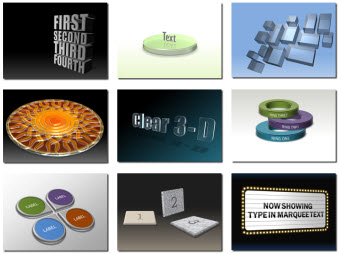
(Note: I am grabbing this image from Ric B’s PPT Team Blog)
– Troy @ TLC