
Office 2003 Microsoft Support
OOPS – I HAD A TYPO, WHICH IS CORRECTED NOW (2014, not 2007)
I know there are a lot of people out there still using PPT 2003. This was very evident when talking with people at PPTLive last week. And just as way of record, all of my computers have both PPT 2003 and PPT 2007 installed.
So for all of us PPT 2003 users, here is some important news and dates Microsoft announced last week:

1. Support for PowerPoint 2003 will end October 14, 2008 unless you have upgraded to SP3 (so this means you will need SP3 to install any updates after the middle of this month). SP3 for Office 2003 can be downloaded for free from Microsoft’s site.
2. Support for PowerPoint 2003 is slated to end in April 2014 (so this means no further service packs or updates will be developed and distributed after this date).
– Troy @ TLC
PowerPoint eConvention – check out the winners!

The PowerPoint eConvention hosted by PPT Heaven has closed and it is worth a visit to the site to see the winning entries. Check it out here.
– Troy @ TLC
.Wav .MP3 .SWF What Can Be Embedded?
This is a topic that comes up a lot, with my clients and on the PPT newsgroup.
Basically, only the .wav audio format can be embedded into a PowerPoint presentation. This means the audio file goes with the presentation and nothing but the presentation needs to be distributed. All other audio formats need to be sent along with the presentation for them to work – they are linked.
There is one exception, but it has a number of other issues, and this .swf files. A .swf is a legacy Flash file and it can be embedded into a presentation. As a side note, a .swf is really a .mp3 embedded in a .swf file format.
To give a visual behind this I created a simple 3 slide presentation.
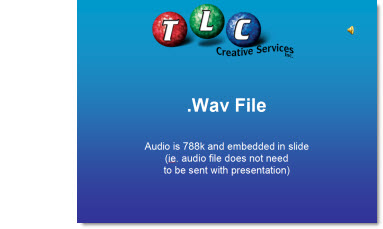
– Slide 1 = embedded .wav
– Slide 2 = linked .mp3
– slide 3 = embedded .swf
You can download it here – 1MB
– Troy @ TLC
Hanging Out with PPT MVPs
So I was able to spend 2 days at this year’s PPTLive conference, which was really incredible! It is amazing to be in a room with almost 300 people that all use PowerPoint, but probably use it 300 different ways. I spent a lot of time the in Help Center and was able to share some of my projects from this year, answer questions and technical issues, and learn some new things myself.

Top Photo (bottom-to-top): Julie Terberg (MVP), Ric Bretschneider (MS PowerPoint Program Manager), Bobby (MS Developer), Troy Chollar (MVP – that’s me!)
Bottom Photo (left-to-right): John Wilson (MVP), Bill Dillworth (MVP), Todd Dunn (MVP), Steve Rindsberg (MVP), Sandra (MVP), Troy Chollar (MVP – that’s me!)
Hope to see you there next year!
– Troy @ TLC
Heading to PPTLive!

I am heading over to the PPTLive conference today and look forward to being with several of the PPT MVPs, hearing from the Microsoft PowerPoint Development team and seeing many people excited about what can be done with this great software.
It’s too late for this year, but check out their website and consider putting this event on your calendar for next year. Click here.
– Troy @ TLC
Insert Slide in PPT 2007
QUESTION:
What is missing from the INSERT TAB in PowerPoint 2007?

ANSWER:
The INSERT SLIDE BUTTON.
WHERE DID IT GO?
The User Interface team must have thought this was a common and valuable tool, so they placed it on the “Home”/Draw tab.
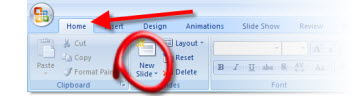
Although this works, it really does not make sense, as the insert tab is, well, to insert things.
SOLUTION:
Steve over at PPTools created a little, FREE, add-in that does this:
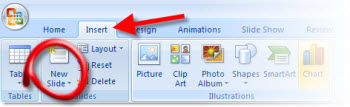
Now the home/draw tab AND the insert tab have the insert slide button!
You can read how to install and download the tiny add-in here.
– Troy @ TLC
Office 2007 Feedback Page
Hmmm, so as a Microsoft PowerPoint MVP you would think at least I would know of a Microsoft Feedback Page for Office 2007.

But the truth is I just recently discovered this (along with other PPT MVPs). I can say that development and planning for the next version are underway at Microsoft, and that for previous versions the number of incidents reported or requests received did make a difference in the features updated, added, or removed. So if you encounter a bug or have a feature you would like to see in future versions I am guessing this is your best tool of getting that info to Microsoft!
To view click here.
– Troy @ TLC