
Need A Map for a Presentation ?
One of the best deals available is the map collection from an educational supplier. eSchoolMaps has a huge collection of U.S. and global maps that are supplied in several formats.

The .emf version is not only compatible with PowerPoint, but already on slides which can be inserted into any presentation! And all can be modified with custom fills, resizing, etc. But best of all, the entire collection is just $40! Look at it here.
Here is a US map I modified for a recent project:

– Troy @ TLC
Webinar on PowerPoint Add-Ins
This is a bit informational and a bit self-promotion – on Friday, June 20th I will be speaking for AudioSolutionz (a division of Eli Research) on what PowerPoint add-ins I use daily. I will also be overviewing a number of add-ins out there as well as an open Q&A session (about add-ins).
Click here for the Audio Solutionz page with all the details (and fees).
– Troy @ TLC
It Takes A Lot Of Images To Convey A Message
I am preparing material for a PowerPoint/Design course and this is screen capture of my images folder from a recent project. My message is that a presentation is more than bullet points and an image can be more effective. I practice that message and this is shows the number of images prepared in Photoshop for a recent presentaiton.
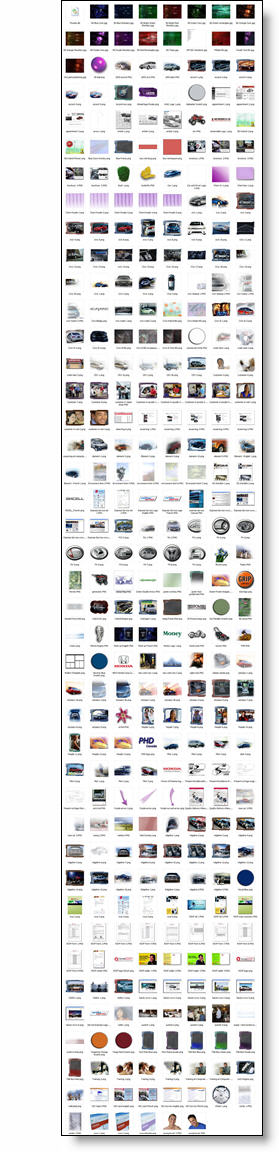
– Troy @ TLC
MS Fluent User Interactive Demo
Not up to speed on the new Ribbon interface… Have 10 minutes to kill… Check out this nifty interactive Flash demo on why the Ribbon was designed and interactive tutorials for each of the Office apps.
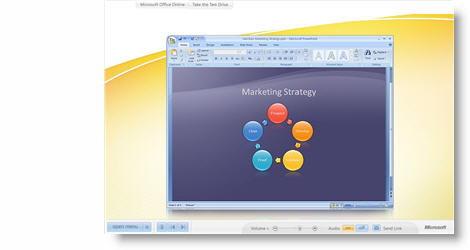
Click here to open. If you want to skip ahead, PowerPoint is Chapter 6.
– Troy @ TLC
PPT Graphics for Video
PPT 2007 has some great visual effects. For a recent project I was developing the PowerPoint presentations for speaker support. I was asked by the video production company that was creating videos for the same meeting if I could create a number of graphics that would have a coordinated look with the presentations. Among the graphics I developed these two piecharts (client data removed):
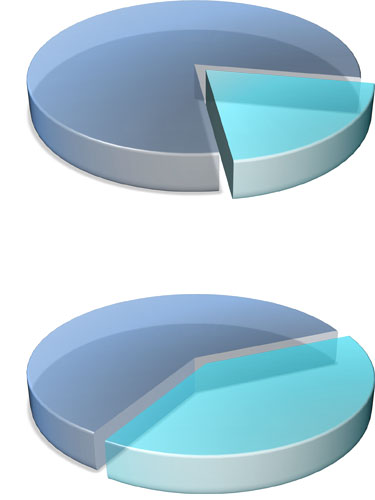
Each was saved out of PowerPoint as a .png which preserved the transparency and allowed the video editor to place the graphic over the motion background. They also animated from 1 piechart to the other showing growth. Pretty cool stuff!
– Troy @ TLC
Free PowerPoint Webcast Hosted by Microsoft
Microsoft recently announced a webcast they are hosting with my friend and author Cliff Atkinson as the speaker. They summarize it as “learn the tips and tricks you need to complete a Microsoft Office PowerPoint 2007 presentation in record time”.
When: June 12, 2008
Time: 9:00am PST
Cost: Free!
More Info: here (note: to register you will need a Windows Live/Hotmail account to login)
I am on showsite that day, but if schedule allows I’ll be there!
– Troy @ TLC
Master Slide “Slates” (2)
One of the nice elements of PPT 2007 ribbon is the way it previews master slide options. Here is a recent presentation with 4 master slides:
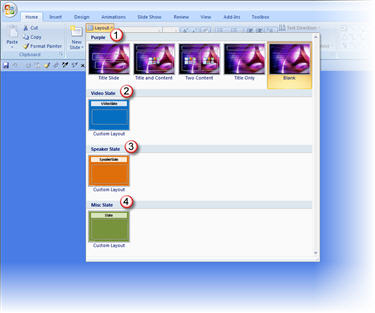
This really shows the slates mentioned in the previous post. For this presentation I only have one background for the speaker content (#1 – Purple) and 3 slates. Of note: I color code the speaker slates so I know what type of information it contains before reading it (especially when viewing slides in slide sorter view). Here the breakdown of each:
1. Content background and the 5 layout options developed for it
2. Video slate: hidden slide that tells me what video is to run at that point of the presentation
3. Speaker slate: hidden slide that tells me which speaker will be on stage (this presentation has numerous presenters)
4. Misc. slate: hidden slide that is used to tell me everything else, from web demo to break
– Troy @ TLC