
Image Fun in PPT 2007
So with PPT 2007 we can quickly create fun, and editable, graphics. Using a stock photo and our sample image I quickly created this slide in about 45 seconds.

– I first set the image to appear in an autoshape (thought bubble).
– Then I used the autoshape adjustments to move the thought bubble trail to our characters head.
– I applied a stroke to the autoshape, colored it (dark blue) and made it thicker.
– Last I applied a drop shadow to the thought bubble and the character.
– Troy @ TLC
3D Perspective to Images and Shapes
The ability to add perspective to images, and maintain editability/adjustability adds some great design tools. Here is my sample image with two 3D perspective styles applied.

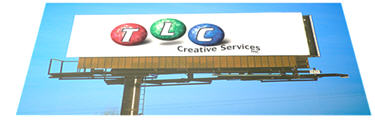
Both of these styles were applied in a matter of seconds from the preset options.
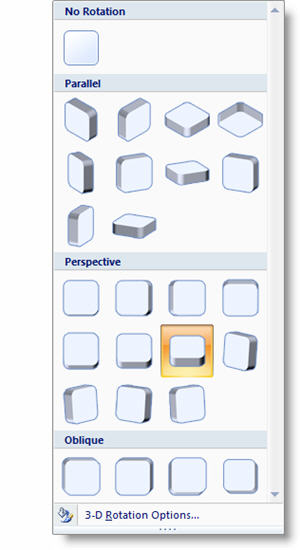
– Troy @ TLC
Gates and Keynote ???
Yesterday I was looking at the news headlines and this one immediately jumped out!
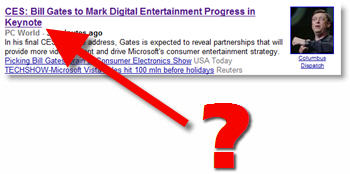
Does it mean that Mr. Gates is using Apple’s presentation application Keynote for his CES speech… Of course the answer is no – but this is a journalist faux pas as “keynote” refers to Mr. Gates keynote speech, not the software used.
Hmmm, yet another good marketing move from Apple.
– Troy @ TLC
Holiday Blues…
First I want to wish everyone a Happy New Year and I hope 2008 is a great success for everyone!

The holidays were fantastic, but January 2nd everyone was back in their offices and we have had an avalanche of emails and calls this week! I have gone from relaxing to stress – and I still need to get the holiday decorations put away…
I will be back with more posts beginning Monday. Have a great weekend!
– Troy @ TLC
Pictures In Autoshapes
One of the creative things possible in earlier versions was to fill an autoshape (circle, rectangle, triangle, etc.) with an image. This required:
– creating the autoshape
– go through 4-7 steps to fill shape with the photo
But now things are MUCH EASIER!
– Insert photo
– With photo selected choose any autoshape
– Done!
In less than 1 minute all of these custom images were created:
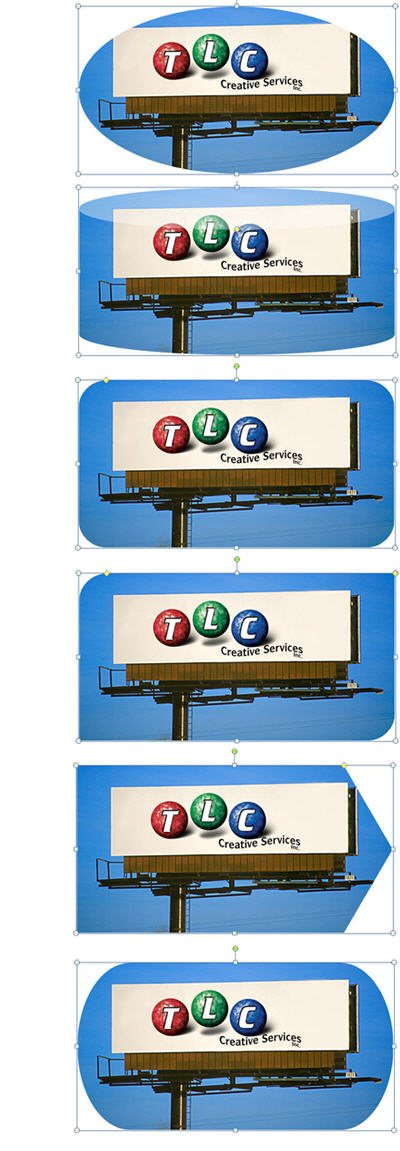
– Troy @ TLC

Soft/Feathered Edge
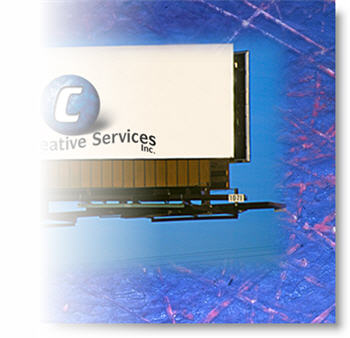
Needless to say, but I am able to spend more time in PowerPoint than with any previous version. Here is another reason – the Soft Edge feature! Previously I would work with an image in Photoshop, save it out as a .png and then insert into the presentation. Here is our sample image with a soft edge applied:

AND a key with the softedges, drop shadows, and glows is that all add transparency. This means the images can easily be layered on top of other images or textured backgrounds.
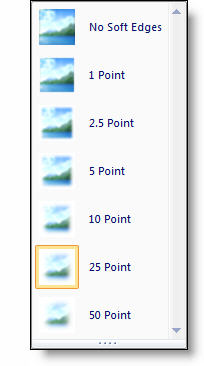
The presets are setup in how much is feathered away, which is measured in Points.
The only downside to this feature is that the image must have a uniform soft edge all the way around it – no on just a few sides…. back to Photoshop when this is needed.
– Troy @ TLC