
Rotate Pictures in Windows Explorer
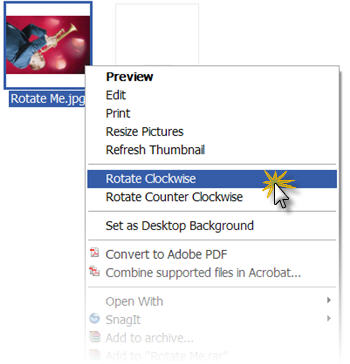
If you have bunch of images to insert into a presentation, but some are rotated (ie. taken in vertical layout with a digital camera) they can easily be rotated BEFORE inserting into the presentation.

1. Open Windows Explorer
2. Set View to thumbnail or filmstrip
3. Select image(s) to rotate
4. Right-click and choose the rotation (clockwise or counter clockwise) needed
– Troy @ TLC
Image Resizer
This free application from Microsoft has some great uses. Basically it does exactly what the name implies, it adds the ability to resize images. But this one is accessible from a right-click on any image.
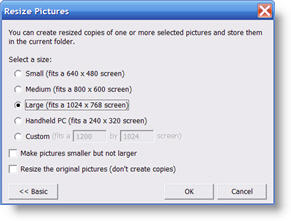
It is a limited use application, in that it offers only four preset image sizes. If you click the ‘Advanced’ button it also offers the ability to set a custom size. Another nice feature is you can select multiple image files and convert all to a new size as a batch process.
You can get more info and download from here.
– Troy @ TLC
Favorite Shortcuts and Apps
I have mentioned before, but one of the wonderful aspects of my projects is always working with different people and interacting with a diversity of talented people. Recently a group of us started talking about favorite applications, add-ins and shortcuts. Everyone seemed to have something that none of the others (all highly experienced graphic designers) had not heard of before.
Taking my cue from that group discussion I have put together a series on some of my favorite Windows short-cuts and applications. Some may be useful, others not so much. And if you have one that goes with one of posts – send me an email – so this series may grow and help us all.
– Troy @ TLC
Room With a View
Okay, to tie this in with the theme of the blog, PowerPoint, this occurred while traveling to review presentation content with my client.
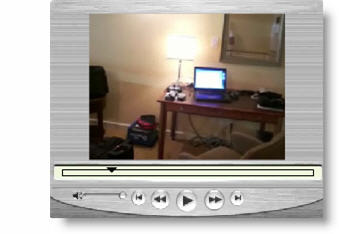
I recently stayed in downtown Toronto which along with fantastic restaurants (I HIGHLY recommend the ribs at Baton Rouge) it has the SkyDome ball field. Over the course of three nights I enjoyed baseball games – without leaving my room. Click here to view a quick movie that explains all.
– Troy @ TLC
Stupid Options
I am setting up a new Dell laptop and making sure I like its performance before purchasing a number of them for shows. Well I just ‘discovered’ one of the worst (ie. stupidest) factory settings/features.
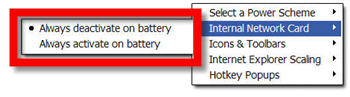
Turns out that Dell has a power save feature, set as the default, that disables the network port (NIC). Worse, it does not notify you of it being disabled – it’s just not there! Needless to say I discovered this gem while I was without a power supply and needed to connect the internet. Add one more to my list of factory settings to change.
– Troy @ TLC
Inflight MP3 Player
International flights are great. Larger planes and more amenities. Earlier this week I took this photo of the multimedia player that was on the seatbacks.
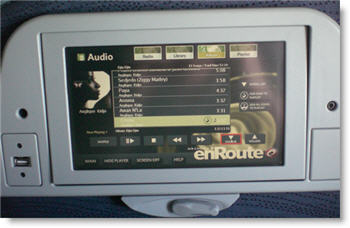
I was able to select from a large library of music, or could have watched one of the 30 movies. Still a long time to sit on an airplane, but tech novelties make it a bit more enjoyable. Also, note the USB port on the left.
– Troy @ TLC
Office 2003 SP3 Release
Yesterday Microsoft released the largest Office Service Pack ever (SP3). It covers security, improvements, Vista compatability and interoperability with Ofifce 2007.
Here is some of the facts Microsoft sent me:
• Over 6000 fixes.
• Over 70% focused on security.
• Includes 600+ new hotfixes (including fixes to Watson crashes).
• Includes 50 public updates/security bulletins.
• Includes SP1 and SP2.
• Total of 77 languages and 398 distinct patches.
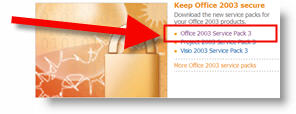
Easiest way to download is from Microsoft Office Update.
– Troy @ TLC