
Creating the Theme Logo (4)
If you look back at the theme logos created so far, it is obvious how the template would be very different for each. So up to this point I am unable to really start working on the PowerPoint template.
But the goal is to make this event a success, and that begins with the client liking and appreciating the core visual to the whole thing – the theme logo.
– Troy @ TLC
Creating the Theme Logo (3)
Hey this is good stuff! But after some more discussion it was back to Illustrator and PhotoShop for a few more options – so when do I get busy working on those presentations…

– Troy @ TLC
Creating the Theme Logo (2)
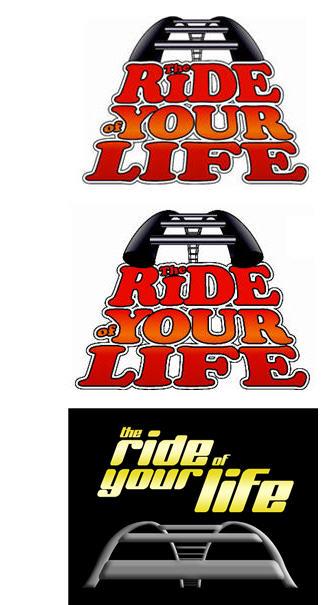
After some discussion regarding colors and use of logo (to include presentation template, event signage and print pieces), it was back to the drawing board for a few more ideas:
– Troy @ TLC
Creating the Theme Logo (1)
So on this project I was given the theme text, “The Ride of Your Life”, and the visual direction. From there it was up to me to select color scheme, graphics, etc.
Here are the first two logo concepts:

– Troy @ TLC
Event Theme Graphic
For me, I cannot really begin working on a presentation for an event until some of the details are figured out – such the theme. Everything needs to coordinate and the theme can influence the color scheme used, the style of graphic treatment and much more. Sometimes the Theme is the starting point of an entire project.

– Troy @ TLC
Troy’s Burgers
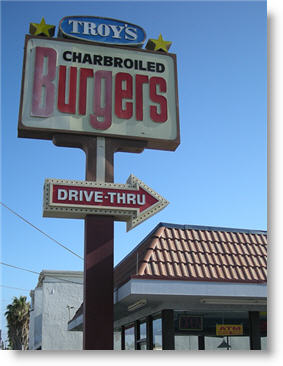
Nothing to do with PowerPoint, but something I had to share. I was emailed this photo (thanks Dan). I’m not sure where this is, nor am I certain I would frequent it – but they did pick a great name!
– Troy @ TLC
PPTXtreme MoreEdit Released
I have been happily using a beta version of this add-in for quite awhile. Now it is available to all (approx. $40 US). Here is their official press release:

pptXTREME releases moreEdit for Microsoft PowerPoint
pptXTREME has released moreEdit for Microsoft PowerPoint 2000, XP, 2003 and 2007. moreEdit consists of eight tools: SaveSelected, MakeHeader, MakeBody, Edit Word Art, MatchWidth, MatchHeight, Hide/Unhide and Notes.
With moreEdit’s MakeHeader and MakeBody, shapes that are created in PowerPoint without using the slide master can be formatted to the master. The process also removes “fake” bullets and extra lines and spaces left by the author to give the appearance of PowerPoint bullets.
The SaveSelected tool saves slides selected by the user into a file from within PowerPoint’s own sorter view.
Multiple elements on a slide can be aligned and formatted with the same width or height using the MatchWidth or MatchHeight tools. moreEdit’s Edit Word Art maintains the Word Art’s font size and formatting when you edit the Art’s text.
moreEdit’s HideSlide and UnhideSlides adds to PowerPoint’s default “hide” capabilities by making the hidden slides more visible in sorter view.
The Notes tool inserts text boxes for notes to the author that are formatted to be seen but can be hidden.
Get the full-function trial, click here.
– Troy @ TLC