
PPT and Vista’s Active Thumbnails
I often run PowerPoint with an extended desktop setup with PowerPoint in the design or slide sorter view on the local monitor and presentation/slideshow on the external monitor. One of the downsides of this setup is that if I cannot see the external monitor/projector I do have an indicator of what slide I am actually on.
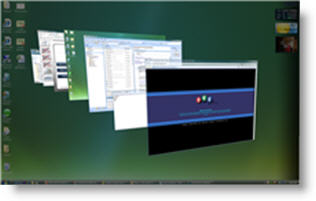
Windows Vista has some neat features, and some frustrations. Everyone has seen how Vista provides live thumbnails of all open applications and windows. Here is one example:
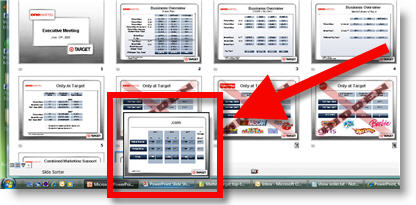
I can also use these active thumbnails to show me exactly what slide is active on an external monitor! By rolling over the ‘Slide Show’ tab it pops up a live thumbnail of the current slide. What’s even more hip is that the thumbnail will also show the animations in real time.
– Troy @ TLC
PPT Overlays To Graphics (4)
The final element was to create a placeholder for the financial information. I added another custom fill autoshape, this time a rectangle. After sized it was ‘sent to back’ and the appropriate text was added.

If you would like to download this slide, click here.
– Troy @ TLC
PPT Overlays To Graphics (3)
Because the globe is an animated .gif, not a Flash or movie file we are able to overlay elements (Flash and all movie formats always play on top of all PowerPoint content). The green semi-transparent circle overlay is the first layer. The next layer was each division logo – in this case I have added the TLC Creative logo.

The Problem here is that the logo is a bit flat and the black text is lost. Again, the solution was using a PPT autoshape. This time I created a glow, which was simply a white circle with a custom fill from center. Here is one done in blue (so it can be seen on this white background).

The result is a nice highlight spot that not only makes the logo text legible, but adds a 3D element to the overall globe.

– Troy @ TLC
Google and PowerPoint
 This week Google made an integrated PowerPoint viewer option to its online tools. Basically if you receive a PowerPoint presentation in a gmail account, there are a few options for the attachment; view as HTML, view as Slideshow, and download. Of course the key new option is VIEW AS SLIDESHOW.
Clicking View as Slideshow opens a new window and the presentation is displayed in a Flash based application. It does not handle everything perfect (I tested with an animation heavy presentation) and it is only a viewer. So there are no editing capabilities – yet. In reading others news feeds I noted that Google said edit & create slideshow tools would come by this summer…
– Troy @ TLC
Hurry and PPT 2007 Can Pay Big!
iFilm.com is hosting a Microsoft PowerPoint 2007 contest. Rules are simple, submission is simple, deadline in June 24th – so hurry!

Click here to get all the details.
– Troy @ TLC
PPT Overlays To Graphics (2)
Because the globe is a circle, the solution to making it tie in with the template color scheme was to use a semi-transparent autoshape. I added a circle, sized it to the globe, then gave it a subtle 2-color fill.

This altered the “blue” globe to a “green” globe – without affecting the animated .gif

– Troy @ TLC
PPT Overlays To Graphics (1)
This was a nice effect I worked on for a recent presentation. The goal was to use an animated globe to visually bring in a “global” element while discussing a corporations global sales.

The problem was the blue earth did not tie in with the template color scheme.

– Troy @ TLC