
PPT 2003 and Vista
I am now feeling confident running Vista and all of my applications. But it may not be my recommendation for the person unwilling to research hacks and settings to overcome the many situations that come up. On my primary system I have all versions of PowerPoint installed. In many instances client needs determine the software used. Although PowerPoint 2007 is wonderful, I am living in a PowerPoint XP-2003 world.

So if you have upgraded to Windows Vista and use PPT 2003, I have a few fixes to problems. The next two posts will explain usability problems and the third will cure both!
– Troy @ TLC
Informm Presentation Professional Survey
Infocomm is doing a follow-up to last years survey where they collected input from presentation professionals. I entered my info, which took about 6 minutes and the best part is this year they are making the results available to all that participate (must enter an email address at end of survey).
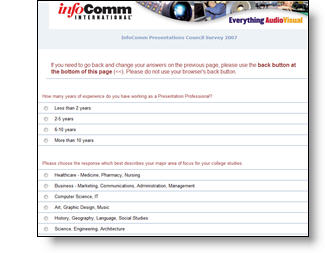
Click here to go to the survey.
Note: All submissions due by May 19th.
– Troy @ TLC

PPT 2003 to 2007 Commands
If you have installed PowerPoint 2007, you know the User Interface with its new Ribbon layout is very different! Keep this Microsoft website handy as you begin to relearn how to do everything.
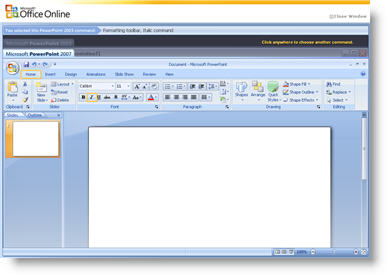
This interactive Flash page allows you to click and choose almost any feature in a PPT 2003 simulation and then it shows where to find the same command in PPT 2007. Click here to try it.
– Troy @ TLC
Backstage
On a recent project in Dallas (the one that took me 10.5 hours on the plane to arrive from San Diego (should be a 2.5 hr flight)), the event photographer took this photo and emailed it me – thanks Sal!

The nice side lighting is actually a combination of another laptop monitor and the 12×9 screen in front of me. Despite the great photo, I am as usual working in the dark…
– Troy @ TLC

Existing Presentation to Widescreen (pt 2)
For the best quality layout and graphics when converting an existing presentation to widescreen I go through several steps. Note: 1-4 assure that new widescreen presentation maintains all formatting such as fonts, custom bullets, default color scheme, header/footer, etc.
1. Open existing presentation
2. Save As (name)_WideScreen.ppt
3. Delete all slides
4. Change page size to needed widescreen size
2. If background artwork is developed in Photoshop, modify in Photoshop to create new version of artwork that is setup for new widescreen aspect ratio
3. Update the master slide(s) with modified artwork and adjust formatting to fit widescreen layout
Now I have a widescreen template of my presentation.
– Troy @ TLC