
What’s Wrong With It? (Alignment!)
In working through many, many presentations this week a large part of my time was spent not only improving the overall visual content and layout, but giving the small, but professional, tweaks to elements. As example:
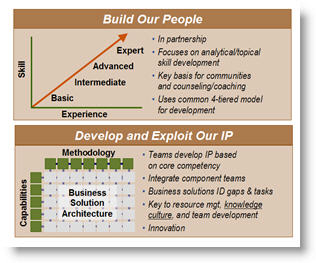
Here are two elements, as provided. They screamed out to me, but what was the problem…
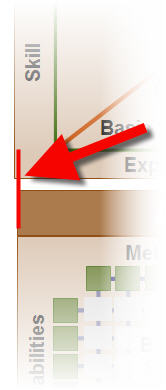
Zooming in we can see that the two equal size boxes are not aligned.
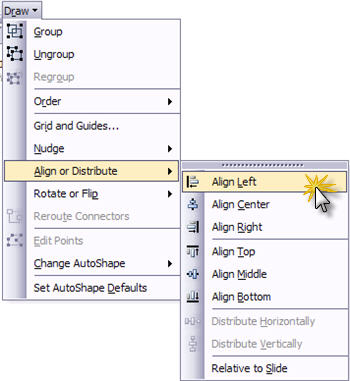
The solution is very easy in PowerPoint.
Select both boxes.
Go to DRAW >> ALIGN OR DISTRIBUTE >> ALIGN LEFT.
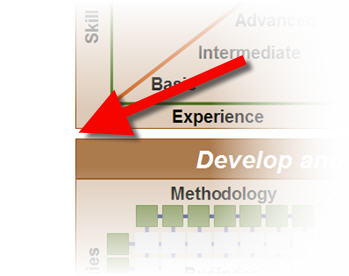
Now both boxes are perfectly aligned! (and all is good with in my world… just 200-300 more slides to go).
– Troy @ TLC
MS PowerPoint Homepage
Everyone here uses PowerPoint, but how many have explored the PowerPoint section of the Microsoft website?

Amongst the advertising, hype and standard Microsoft info is a lot of good information, tips, and files. Click here to go straight to the PowerPoint homepage.
– Troy @ TLC
Why Do My Slides Start at Zero?
Had a client call with this situation – which is frustrating if you don’t know where to look.
You look at your slides in Slide Sorter view, or on a printout, and the first slide is not labeled as #1, but as #0.
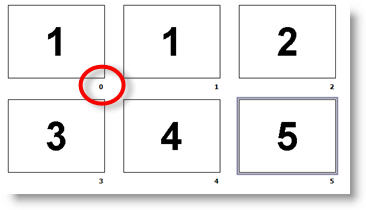
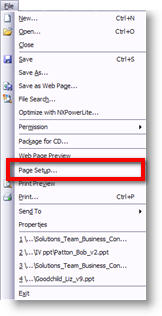
To “fix” go to FILE >> PAGE SETUP
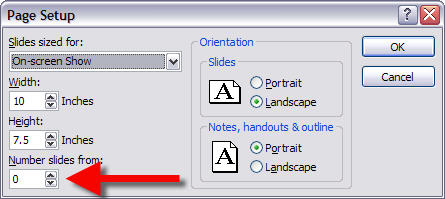
In the Page Setup Dialog note the NUMBER SLIDES FROM option. Change the “0” to “1” and all is back to normal.
– Troy @ TLC
Side-by-Side Example (with and without cast shadow)
I pulled the images from a recent presentation to show a nifty side-by-side comparison of the same slide with and without some cast shadow elements. This first slide shows all of the photos inserted – because I have dropped out the background around each image and saved as a .png the slide looks nice and clean.

Here is the same image with an oval cast shadow under each element. The cast shadow helps add depth to the slide and make the images pop from the background.

In addition the slide had a dramatic animated entrance, which was accented even more by animating on the cast shadows.
Click here to view movie.
– Troy @ TLC
PPT Brightness & Contrast Buttons
PowerPoint has very, very basic image editing capabilities. But some great effects and adjusts can be created quickly using the Brightness and Contrast toolset. Here is my original image of a chess board added to the slide.
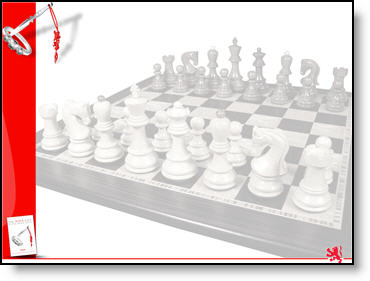
But it is to dark and too much contrast to effectively overlay text on.
Here is my adjusted image:
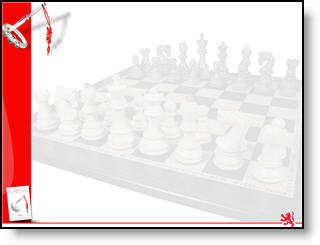
Instead of opening the image in Photoshop again – adjusting the brightness and contrast – saving out – re-inserting into presentation, I did all of the needed adjustments directly in PowerPoint.

I selected the image, increased the brightness around 8 clicks and decreased the contrast around 10 clicks and now the image is ready for the text box to be added to the slide. Took less than 10 seconds!
– Troy @ TLC
Embed Large .Wav Audio Files
I have covered this before, but it keeps coming up. This week I created this quick tutorial for a client, so here it is in a bit more detail.
1. The only audio format that can be embedded into a PowerPoint presentation is a .wav
2. By default PowerPoint will only embedd a .wav file if it is under 100k (very small – generally less than 10 seconds)
3. You can raise the embeddable file size to 50 MB!
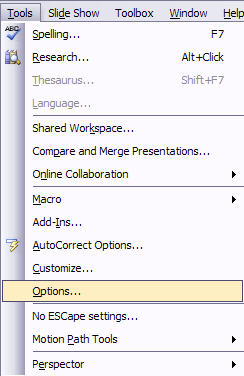
4. Go to TOOLS >> OPTIONS
5. Go to the GENERAL tab
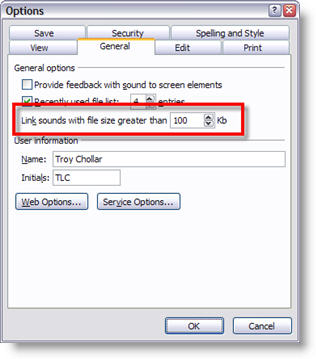
6. Change the 100 to 50000 (do not add a comma)
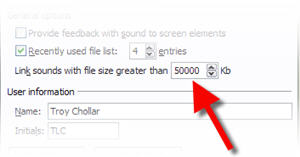
7. Done!
– Troy @ TLC
Projecting with a Mirror
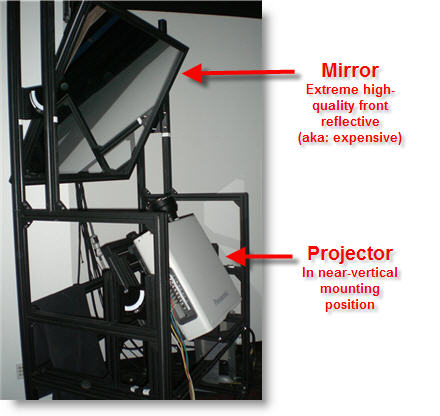
When space is limited things can get interesting. For this meeting rear projection was required, but there was less than 10′ behind the screen. Enter “the mirror.” This very specialized projector mount allowed the projector to be mounted at a near-vertical angle to shoot up to a large mirror, which then ‘projected’ onto the screen.
– Troy @ TLC