
More Image Sites
Two additional “discount priced” image sites I have used are:
1. iStockPhoto

2. Fotolia

Like Big Stock Photo (Nov. 19 post), these sites allow professional and hobby photographers to add to their libraries. Nearly any needed image, conceptual or object can be found for just a few dollars.
– Troy @ TLC
What is “Royalty Free”
If adding photos to a presentation they are most likely “royalty-free” photos. The term is used a lot, so here is a quick overview of what it really means.

Royalty free photographs are offered for a one-time fee. When you purchase a rolyalty free image you can use the image as many times as you want, in as many projects as you want. As opposed to a fee for a specified number of times the photo is permitted to be used (which was the dominant business model 10+ years ago).
Royalty free also means the image is purchased for use in a product, not for resale as a stock image or as an image alone. Every royalty free company has slightly different guidelines, so be sure to review before use. The last tip is to check the image size (although with PowerPoint/multimedia this is not as critical as print design).
– Troy @ TLC
Stock Photography Site – “Big Stock Photo”
Years ago when I specialized in print design and royalty free/stock photography was a bit more expensive (think $300-500 for a CD with 20-50 images) and much harder to find just the right image (it is much easier and more economical to be a designer now!).

Another great resource I have been making use of recently is “Big Stock Photo. This online stock photography site has a very good library of images with lots of diversity of topics. The cost is incredible at just a couple of dollars each.
Add this one to your resources – “Big Stock Photo“
– Troy @ TLC
The PowerPoint Fairy
Here is a humorous little cartoon about “The PowerPoint Fairy” (and it may answer a few questions about unprepared presenters – the PowerPoint Fairy didn’t visit them before to the meeting).
Click here to view (sorry for the link, but respecting the website’s do-not-copy-my-images policy).
– Troy @ TLC
Pick the Exact Color – Fast and Easy
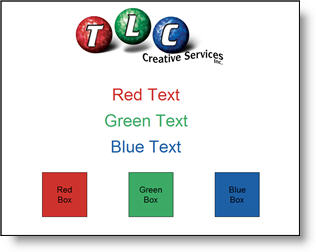
A perfect compliment to any version of PowerPoint is PPTXtreme’s Color Picker. The great thing about this sample slide is the text and box fills are the exact same color and colors pulled from the logo. No guessing, just point and click to select the exact color!
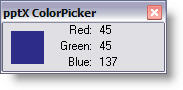
When one of the Color Picker tools is selected a small information window opens and wherever your cursor is, the color is displayed. Click on anything on your monitor and that color is selected.
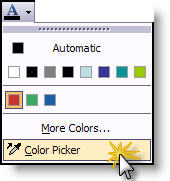
Color Picker can select the color for Text:
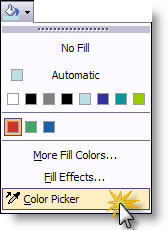
For Autoshape Fills:
For Lines:
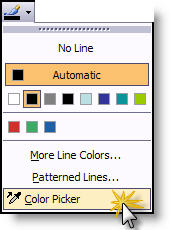
It also works with selecting dropshadows. At $20 this is an invaluable tool to add to PowerPoint.
– Troy @ TLC
Presentation Stage
Here is a photo of the stage for the event I developed the presentations for a few weeks ago.
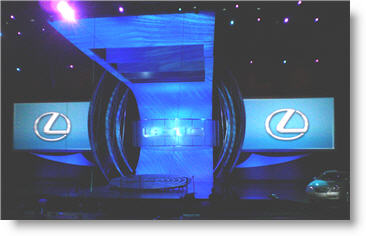
The left and right screens supplied most of the speaker support slides (separate presentations from two computers running in sync). In addition additional screens would fly in from the slotted openings seen in the top-center of the staging (16×9 rectangle, floor to ceiling LED wall, and an oval (which you can see in the photo below)).
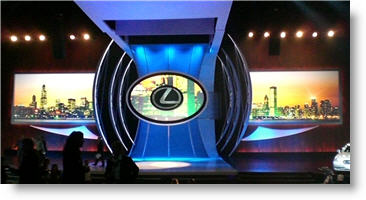
– Troy @ TLC
Calling All Articulate Experts
Articulate Presenter, the PowerPoint-to-Flash software, has announced its first annual Articulate Guru Awards Contest.
This is a software that has been in my arsenal of applications for several years and has been pulled out for many projects over the years.
Check out the details here.
– Troy @ TLC