
Great Write-Up On Corporate Events
Mike Wilson from Instant Effects has a great article that posted at Indezine last week. I have worked a lot with Mike and his developers over the past few years as OfficeFX has evolved. Even better is knowing he has spent time out of office and backstage at large corporate events to really see what the presentations need to do and how they are used.
This is a long article, so have a few minutes, but it captures a lot of the enviroment, equipment considerations and requests I work with every day. View it here.
– Troy @ TLC
Use the RECOLOR tool
So you have a slide like this with an imported Excel table:
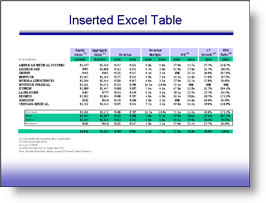
And you need to adjust the colors of the excel chart to coordinate with the presentation template. You double-click the table and get the image format box, not the Excel data:
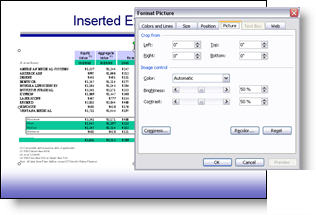
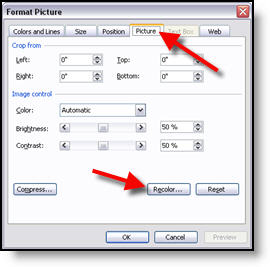
But all is not lost! Some information is still there. On the PICTURE tab, click the RECOLOR button to access this “secret” data.
In the RECOLOR PICTURE dialog you can see the original colors formatted in Excel and have the ability to change to any other color in a few easy clicks.
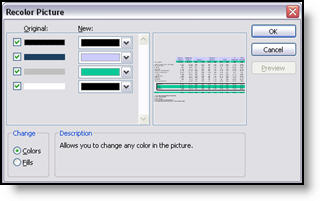
This is an invaluable tool within PowerPoint to know of and use when faced with pasted in Excel tables.
-Troy @ TLC
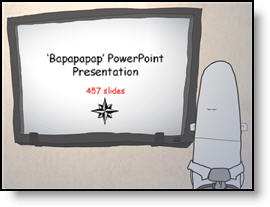
Sat through a presentation like this….?
Just ran across this link in some old notes. I found this little movie over a year ago – made me laugh then and it makes me laugh now! Check out the “Low Moral Presentation” here.
-Troy @ TLC
CNET review of Office 2007
Just this week CNET has posted a very good review of PowerPoint 2007. It is in a quick read format that is comprised of 12 topics, each with a screen capture and few paragraph description.
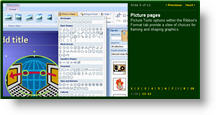
Take a few minutes and click through this informative overview here.
– Troy @ TLC
Great “PhotoShop” Shadows Inside PowerPoint
Often you have a nice, well designed slide such as this title slide. It does not really need any images or animation, but it would be nice to give it a bit of depth.
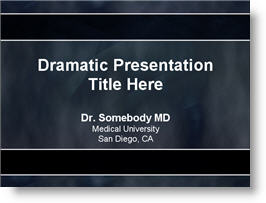
Adding a soft, PhotoShop, drop shadow to the title text helps the slide differentiate itself from the “standard” PowerPoint content and add some depth and appeal.
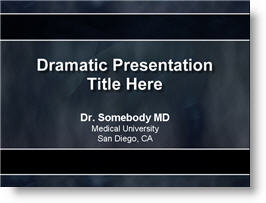
This effect was created in less than 4 seconds using PPTXtreme‘s SoftShadow add-in. I selected the text box and clicked on the QuickShadow button.

Looking closer you can see the smooth feathered black shadow that was applied to each letter. Something that helps the text float above the background artwork.

– Troy @ TLC
How Long Was Each Slide Displayed?
Turning PowerPoint presentations into webcasts has become a fairly routine request. One of the more difficult aspects of recreating a presentation is knowing when the presenter advances the slide. This is critical in syncing video of the presenter with the slides. Here is one method I have used – and best of all it is built into PowerPoint!
A few points about this process:
1 – This is at larger conferences where I am backstage running the presentations.
2 – I am running a backup computer and I run this timer on it.
3 – I use a remote system so both computers advance simulataneously.
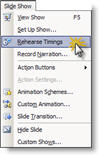
(1) With the presentation open go to SLIDESHOW >> REHEARSE TIMINGS
(2) The slide show begins and a pop-up timer is visible.
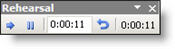
TIP 1: As soon as the Timer window is visible click the PAUSE button. When the meeting begins click the PLAY button (the last thing I want is to have to many things distract me at the beginning of a meeting!).
TIP 2: Even though the timer is running on the backup computer, drag the timer to the very bottom so it is virtually invisible – just in case you have to switch to it!

(3) When the presentation is done click YES to the save the timings.

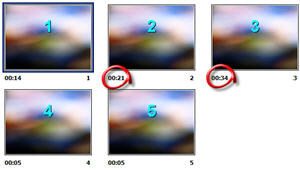
(4) Each slides time onscreen is seen next to the slide thumbnail. Be sure to do a SAVE AS to keep these timings for reference when building the webcast.
– Troy @ TLC