
The Two Looks of a PowerPoint Table
A recent project involved taking a good presentation and making it great. I had some very clean and easy to read PowerPoint tables. They conveyed the information and made good use of the tools in the application. Here is the original:
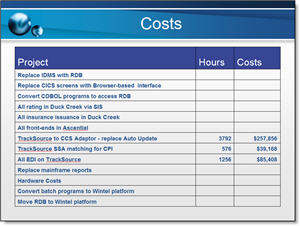
But the goal was to add visual dynamics to the presentation and this means making all elements coordinate with a common color scheme, font use and positioning. Here is the same table with some additional formatting:
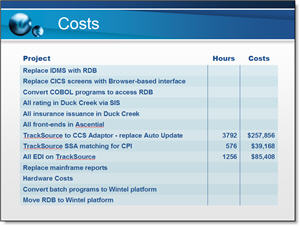
– Troy @ TLC
PowerPoint Quotes – Funny and True.
Reading the latest edition of PC World I came across a quote that had me rolling in laughter. Peter Norvig (an executive at Google) said, “Powerpoint is like having a loaded AK-47 on the table. You can do very bad things with it.”
Funny – and true. It is not a bad program as Mr. Tufte says. But it can be used very poorly. So I went online and found a few more good quotes:
“PowerPoint is the Rodney Dangerfield of software: it gets no respect.”
– Ken Goldberg, the Berkeley engineering professor
“If you like overheads, you’ll love PowerPoint.”
– Edward Tufte
Hmmm… maybe some things to ponder today…
-Troy @ TLC
Template and Tutorial Highlighted in August Newsletter

Presenter’s University asked if TLC Creative Services would contribute some PowerPoint templates to their resource library. I was very excited to find out the templates and adjoining tutorial were highlighted in their August newsletter that just went out.
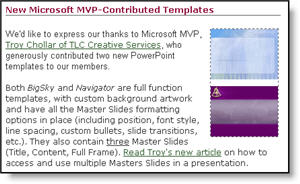
There are now two full function PowerPoint templates available for anyone. Because one of the templates I developed included an additional master slide I also developed a tutorial on accessing and using additional master slides in a presentation.
Click here to download templates from Presenter’s University (may need to go through free registration process).
Click here to see the tutorial on accessing and using additional Master Slides.
– Troy @ TLC
Visio is Nifty, But Not Pretty
MS Visio is a great tool for putting complex processes into a visual layout. But, like most business applications, it does not have a lot of visual aesthetics. Here is a slide from a recent project:
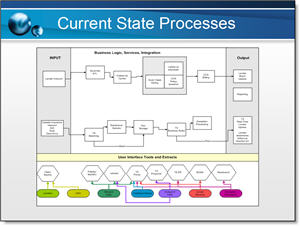
The best thing about this slide (to me), is the client was able to quickly create something that showed me exactly what they wanted.
My job was to inject some visual dynamics to the presentation. So a few hours of working in PhotoShop and PowerPoint the same information now looks like this:
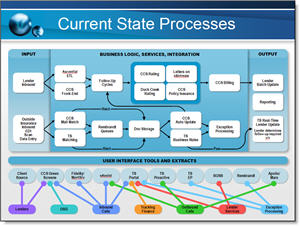
Same information – just a slightly enhanced presentation of it!
– Troy @ TLC
Ugly Hyperlinks in Your Presentation?
For reference you add a URL to a slide. But the text changes color, an underline is added, and in general is ugly!
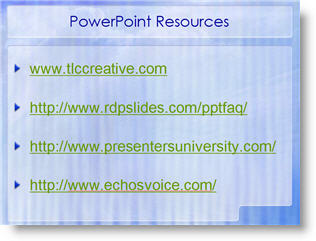
You have options to bring back the aesthetics of your slide – here is the easiest. Select the text box and right click on the hyperlink and choose REMOVE HYPERLINK.
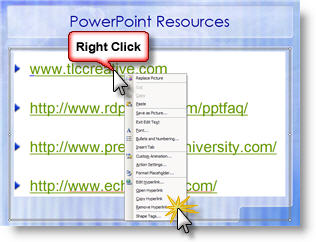
This strips out the active link programming and changes the URL into plain text. It will not be able to be clicked as an active link after this. The result is happy, beautiful, text once again!
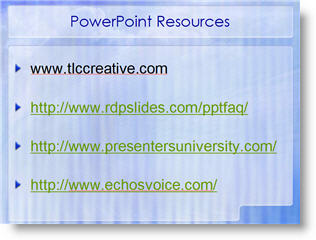
– Troy @ TLC
Use “Blank” for Your Browser Home Page
My preference when it comes to a browser Home Page is to have the browser open with nothing (zip, nada, white space). It takes time to load a page, which is usually not the one I want to see. Here is how to setup Internet Explorer:
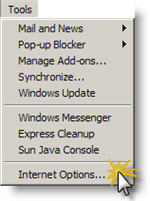
(1) Go to TOOLS >> INTERNET OPTIONS
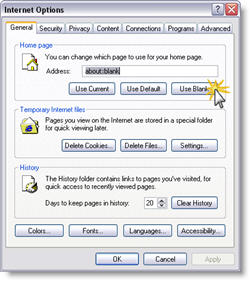
(2) On the General tab, click USE BLANK button.
-Troy @ TLC
Set Home Page in Internet Explorer FAST
Thanks to Brad Hagen, owner of Video Resources, for showing me this nifty shortcut! On a recent project I was responsible for setting up an event’s internet cafe. Set up a wireless network, configure the dozen computers and set up with custom wallpaper, set the browser homepage, etc.
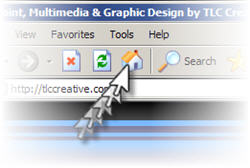
Here is how to set the browser homepage in three easy steps:
(1) Browse to URL you want to be the home page
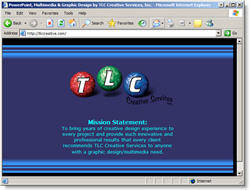
(2) Click-and-drag the webpage icon in the address bar
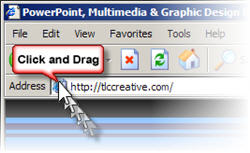
and drag on top of the “Home” icon
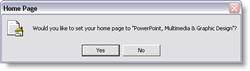
(3) Click “Yes” to the dialog. Done!
-Troy @ TLC