
Background vs. Layer in Photoshop
You are trying to remove the background from an image in Photoshop but when you hit the delete key it fills the selection with a solid color. This is an easy oversight, and even easier to correct. Most likely your image is set to a single merged/flattened layer. In Photoshop:
○ Open the layers palette by going to WINDOWS >> LAYER
○ Look at your image layer. It will either say BACKGROUND, LAYER 0 or another name. We are only concerned if it says “background.”
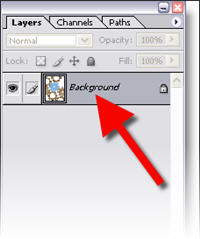
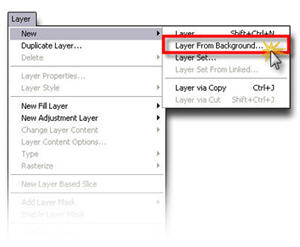
○ Either double-click the layer or go to LAYER >> NEW >> LAYER FROM BACKGROUND
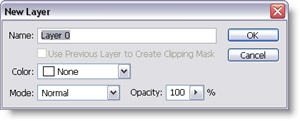
○ Optionally name the layer in the New Layer dialog, click OKAY
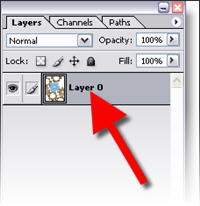
○ Now in the layers palette the “background” has been replaced with “Layer 0” or the name you set. Make a selection, hit delete and the transparency checker board will be all that remains.
Troy @ TLC
Online Movie Tutorial : Remove Image Background in PhotoShop
In this screen capture tutorial I go through the process of exporting an image from a presentation, opening it in PhotoShop, removing the background, properly saving it with transparency and then inserting back into the presentation.
This is a 4 minute narrated online movie – because seeing a real demonstration saves hours of frustration! To view click here.
– Troy @ TLC
Make Your Images RGB in Photoshop
When creating or editing an image in PhotoShop – be sure it is set to RGB. I recently encountered a situation with a clients files that was perplexing (aka: extremely frustrating). They were scanning photos at a print resolution (300 dpi and very large) and also as CMYK images. I figured out their problem, corrected the images in the current presentation and gave them a scanning tutorial so future efforts will work better.
For any images you will be using in a PowerPoint presentation, make sure your images being edited in Photoshop, or any image editor, are set to RGB. In Photoshop:
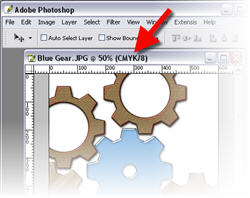
○ Check the top information bar of your image to see what color mode it is currently set to. Common mode are RGB, CMYK and INDEX
○ To change your image to RGB go to IMAGE >> MODE >> RGB
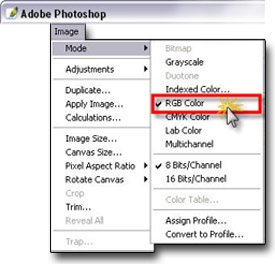
Done.
You now know your image is compatible with PowerPoint and one potential conflict/problem has been eliminated!
Troy @ TLC
3D Spheres from AutoShapes
I create a lot of graphic elements for presentations and since the inception of PPT XP I have been able to do many directly in PowerPoint with some creative use of AutoShapes and transparency settings. PPT MVP Shawn Toh has posted a sample presentation with some really great 3D spheres at Indezine.
Here is one of the spheres created entirely with autoshapes:

Here are the autshapes used to create the above 3D spere:

Here is the description and download link on Indezine, click here.
Troy @ TLC
PPT Keyboard Shortcuts
There are lots of great ways to work faster in PowerPoint (and all Office applications for that matter). Most everyone knows the basic keyboard shortcuts; copy, paste, duplicate slide, etc. But how about moving through action panes (F6) or move one word (Ctrl + Right Arrow).
Here is a reference this page on Microsoft for the complete listing of keyboard shortcuts, click here.
Troy @ TLC
4th of July template
Happy 4th of July!! The states are awash with patriotism and we are off for our annual trip to the state fair where we end the day listening to the Navy Band and watching a huge fireworks show.
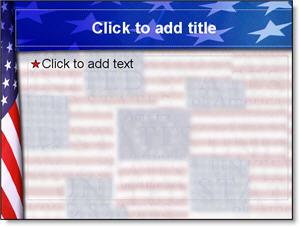
There are lots of great template sites out there, and it is not something I have focused on (providing a library of downloadable templates). But I designed this Americana themed template to share with all. Download here (580k).
Troy @ TLC
Where’s the job application…
My work environment when I interact with people face-to-face is generally in ballrooms and convention centers across the country. I hear and get the “I’d like to do what you do” question fairly common. I recently responded to someone, who was very serious about a change of direction in their design work, which I will share with all:
“Dear XXXX,
Over the past few years I have seen a surprising need for qualified people to work showsite presentations. But for straight design work I believe there is a very competitive market. For me the two have become inseparable. I do lots of creative design work for live events, both in pre-production from my office and while on showsite.
For showsite presentations the graphics person needs to be very knowledgeable about design principles – PowerPoint – computer/hardware issues – A/V equipment (projectors, scalers, switchers, etc.) and of course people skills. I would recommend:
○ Spending lots of time on the PowerPoint newsgroup just reading the questions and answers. Knowing the solutions to the various common problems is mandatory. https://support.microsoft.com/newsgroups/default.aspx?NewsGroup=microsoft.public.powerpoint&SLCID=US&ICP=GSS3&sd=GN&id=fh;en-us;newsgroups
○ Get familiar with the PPT FAQ that Steve Rindsberg maintains(you will see plenty of newsgroup replies are just links to pages on this site) https://www.rdpslides.com/pptfaq
○ Beyond skills and knowledge it is a matter of getting your name in with production companies. The industry is relatively small, so working with one means referrals to others.
Lest you think it all exciting, the hours are anywhere between midnight-and-midnight. Airplanes – hotels – banquet food – and lots of travel are a daily part of things too…”
Troy @ TLC