
What is an .M4A?
.MP3 and .Wav are audio file formats that PowerPoint recognizes. Another very common format is .M4A (audi-only version of an .MP4), and you have heard of even if you do not think so.
.M4A is the format of Apple iTunes music files. It is for the most part a higher quality file than an .mp3 and a smaller files size. Here is what an “M4A” looks like:
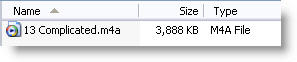
Unfortunately PowerPoint does not support the .M4A format, so if you download a song from iTunes it will need to be converted to another format (.mp3 or .wav).
-Troy @ TLC
What’s an “Ogg”?
.MP3 and .Wav are audio file formats. Another is .ogg, which is much common but with many .mp3 players supporting it you are likely to encounter one when developing a presentation at some point.
Vorbis is the group behind the .ogg format and it is for the most part a higher quality file than an .mp3. The Ogg Vorbis is a fully open, non-proprietary, patent-and-royalty-free, general-purpose compressed audio format for mid to high quality audio and music. Here is what an “ogg” looks like:

Unfortunately PowerPoint does not support the .ogg format, so if someone sends one to you for a presentation you will need to convert it to another format (.mp3 or .wav) in an audio editing application.
-Troy @ TLC
Making a Small .Wav
So, for maximum useability it great to embed multimedia into the presentation. PowerPoint allows the .wav audio format to embedded – great! But the .wav format makes the largest file size – bummer! The good news is, with a basic audio editing application you can dramatically reduce the size of your .wav files.
Here is my sample audio file; a huge 22MB!

I opened the file in Sound Forge Studio, went to Save As, choose .wav as the format and then clicked on the ‘Customize’ button to further modify the settings. As you can see I:
– Reduced the SAMPLE RATE to 22,050 (from 44,100)
– Reduced the BIT DEPTH to 8 (from 16)
– Changed the CHANNELS to mono (from stereo)
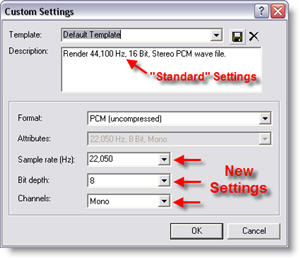
Needless to say, this is a lower quality audio track than the original. But most presentations are viewed with computer speakers, have no stereo recording attributes and act as an enhancement to the presentation – no one will notice 🙂
Here is the same audio file saved with the above settings – a mere 2MB!

For comparison, here is what the same file looks like saved as a lower quality .MP3 (64k, 16 bit, stereo), but higher quality than our optimized .wav the .MP3 is only 1MB:

You will need to find the balance between the benefits of larger – embedded audio and smaller linked audio to know which is better for your presentation. Best of luck!
-Troy @ TLC
.Wav – The Exception To The Rule
As we know, multimedia files are linked to the PowerPoint presentation. The exception is the .wav audio file. This file can be embedded in the presentation!
Positive: It is a part of the presentation, so there are no links to worry about.
Negative: .wav is one of the largest audio file sizes, so the presentation gets much larger.
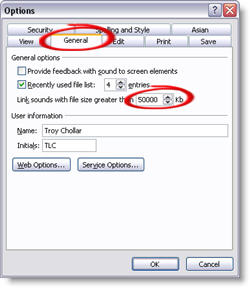
By default PowerPoint will embed a .wav file if it is under 100k – which is a very short audio file (1-5 seconds). You can increase the size PowerPoint will embed up to 50 MB. Go to: TOOLS >> OPTIONS >> GENERAL tab >> change the 100k to 50000k.
Troy @ TLC
Where’s the Music?
I hear about this problem lots and lots: “I created my presentation, sent it (via CD, email, intranet, etc) and the other person sees the presentation but does not hear the music – what happened?”
PowerPoint is limited in its ability to embed any multimedia, instead it links to an external file and plays it. So when you add an .mp3 music track to a presentation – it is not inside (embedded) with the presentation – and it MUST be distributed with the presentation for it to work. Here is the best practice:
– Copy the selected audio file to the same folder as the presentation
– Insert the audio file into the presentation
– Always send a copy of the presentation AND the audio file

Next, the exception to the rule.
Troy @ TLC
Infocomm Int’l Presentations Professional Survey
How Do You Compare with Your Peers…
• What types of organizations do Presentation Professionals work in?
• What areas of expertise and background do Presentation Professionals have?
• Do you outsource your content development/delivery/overall communication strategy/technology/visual/graphic development, or do you do it in-house? How often does your organization contract with outside production firms for presentation development?
• What types of challenges do Presentation Professionals experience today, and how concerned are they about these challenges?
Find out by participating in InfoComm International’s Presentations Professional Survey. This online survey should only take you about 10 minutes to complete.
To be sure your responses are included; please complete this survey by April 28, 2006.
https://www.surveypro.com/TakeSurvey?id=18853
What are the “Other” Programs?
As a final thought on this three-part series, here is my top 10 list of the “other” programs that are a part of my arsenal of tools for developing PowerPoint presentations that are converted to something other than a presentation:
– SnagIt: almost to many uses to list! There are plenty of screen capture applications out there, this one is my preferred because it does so many things, so easily.
– OfficeFX, Professional: Moves presentations to the next level of visual dynamics and also has frame accurate video rendering.
– PFCMedia: If you use video in your “traditional” presentation, the ‘Plays For Certain’ application is what you need to make it work! (and we are all looking forward to a Professional edition of this application)
– Camtasia Studio: Used for everything from online video tutorials found on the TLC Creative website, to converting PowerPoint lectures to webcasts.
– Articulate Presenter, Professional: a solid contender for converting presentations to a distributable format.
– Flash: Big learning curve, but it creates things from custom elements in a presentation to specialized user interfaces for many of the conversion projects.
– DVDIt! 6.0+: My choice for professional DVD authoring.
– Vegas Video: My choice for professional video editing, which has become a large part of PowerPoint conversion projects.
– DreamWeaver: Webcasts, login portals, download pages, etc. are all a part of distribution projects and Dreamweaver is my web development application of choice.
– Magix Audio Cleaning Lab 10: probably the lowest cost software in the list and the newest addition to our arsenal of software. Professional narration and clean up of live video audio is a big part of many projects.
Note: if you are looking for some more great tips & tricks, stay tuned I have been putting the finishing touches on a number of new tutorials and video samples that will be posted over the next few weeks!
-Troy @ TLC