
Clipchamp – A New Video Editor

Climpchamp is a video editing app that focuses on making video editing simple and fun. Microsoft recently acquired the company and is adding clipchamp to its array of features. Microsoft notes the goal is to “empower creators” – and as presentation designers, we are creators!
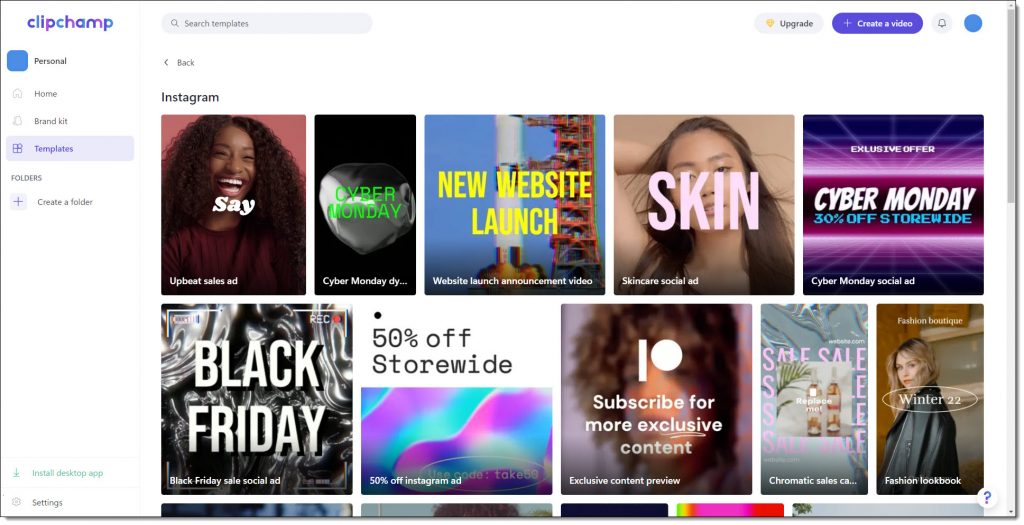
Clipchamp is a very capable (eg. real) video editing application. It does have a strong focus on video for social media; YouTube, Instagram, etc. – but this blog series is focused on using clipchamp for videos to be used in presentations.
Microsoft acquired Clipchamp, the Australian based video-editing app, in early September 2021 for an undisclosed amount. Clipchamp will soon be pre-installed on Windows 11 computers and is available to all now if they search, download and install. Clipchamp is also unique in that is as a mobile app, web-based browser app, and installed as a local/desktop app.
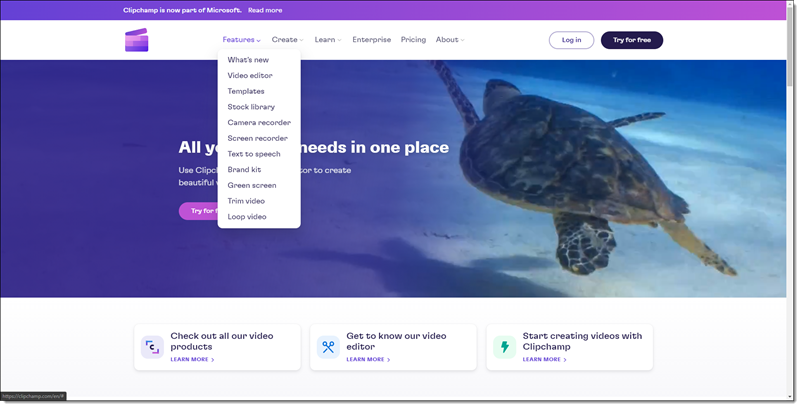
Troy here at TLC Creative Services has been testing Clipchamp, and already used it on several client projects – which prompted adding this blog series. I heard Troy say he thinks as a Microsoft standard app, clipchamp will become a standard video workflow option for presentation designers.
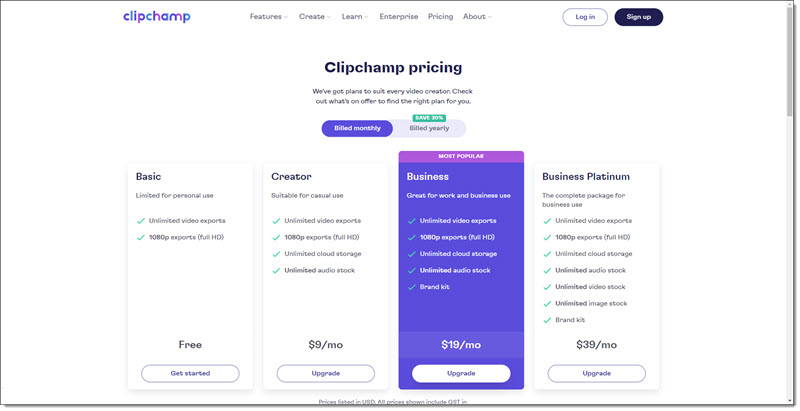
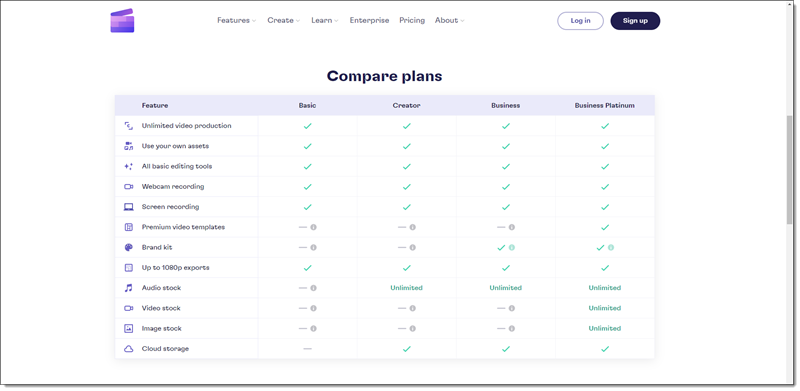
The app is free to use, but is currently a “freemium” app where there is a subscription to add some of its features, such as unlimited cloud storage, unlimited stock media, and create a brand kit.
Clipchamp’s other great features include text-to-speech, video captions, essential tools for trimming and cropping, fade effects, and even green screen. Standby for each to be covered in upcoming blog posts.
Talking about The Present to Succeed Conference on the latest Presentation Podcast episode
The 2nd annual Present to Succeed conference was April 7-8, 2022. This fully online conference’s tagline is, “a lineup of world-class speakers you can’t find anywhere else.” This episode we have coordinated the global time zones and have a great conversation with Boris Hristov about the Present to Succeed conference.
Listen here.
Mac Computer-to-Computer AirDrop is Amazing!
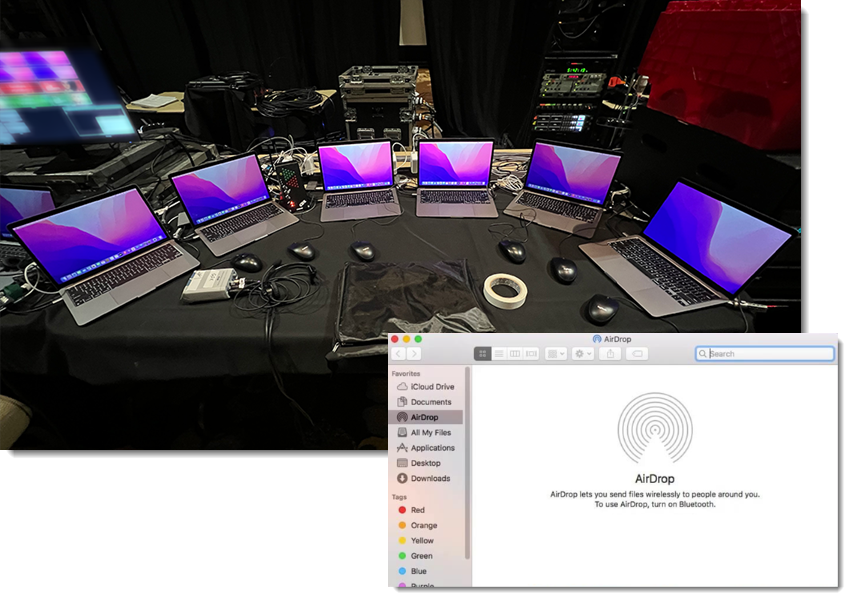
This week’s office for me is surrounded by a fleet of Macbook Pro’s for this event (running Mac PowerPoint). I am definitely a Windows person, but every time I have Macs to work on the magical tool is using the Mac OS AirDrop to seamlessly transfer files between computers – it is absolutely amazing (and missing on Windows computers)!
Troy @ TLC
Remove Text Margins – in 1 Click!
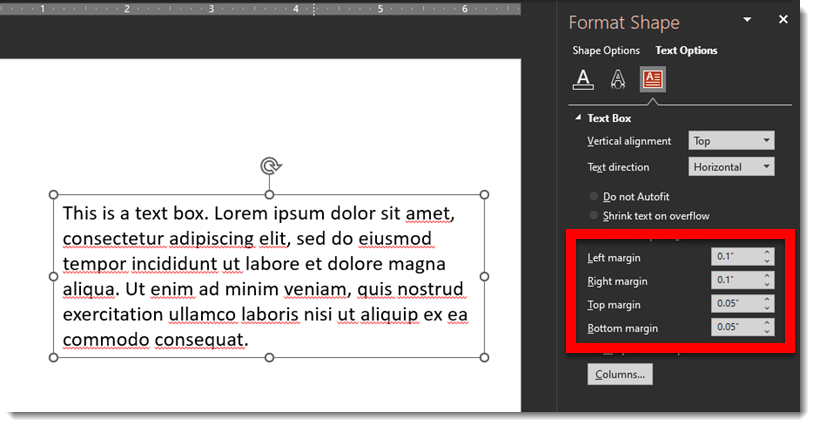
Here is something I do dozens, if not hundreds of times per day. Select a text box > open the Format Shape pane > find the inner margin settings.
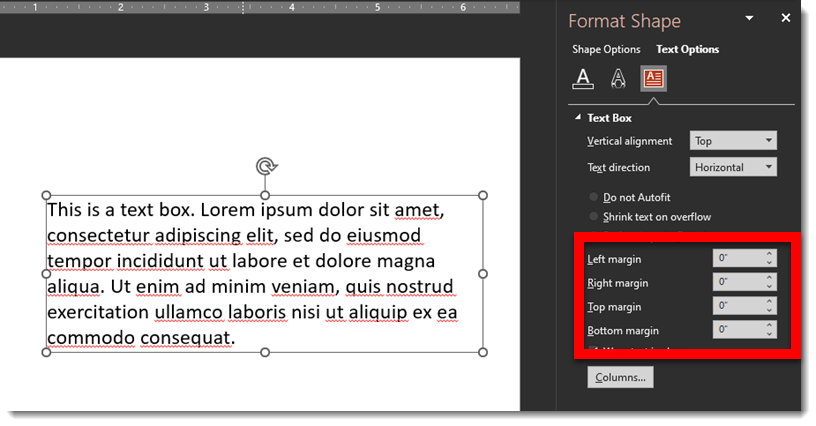
Then change all to zero’s
Recently I added this amazing icon to my QAT
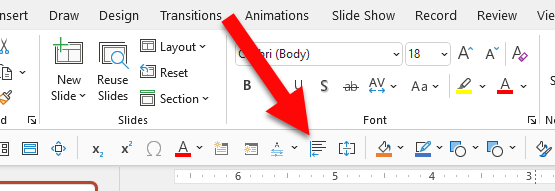
It is the “Remove (inner margins) from Selection” feature now in Brightslide.
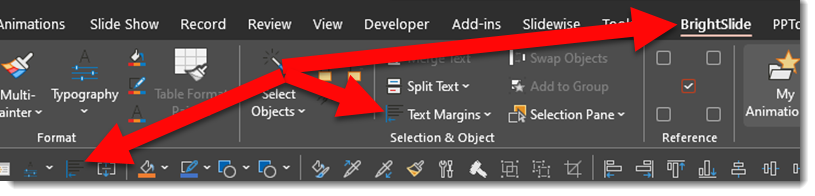
The Brightslide “Text Margins” has 3 options for removing inner margins; from selected shape (this is the one added to my QAT), from every text box on every slide (wow!) or from all Master Layouts (which means any text box associated with a master placeholder will have the inner margins set to zero, but all individual text boxes on slides not connected to a master layout will remain as set).
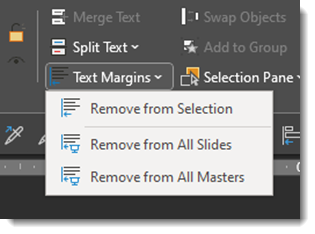
And the Brightslide PowerPoint add-in suite is FREE from the super people at BrightCarbon!
Troy @ TLC
You’re a Pill!
For a recent project (can we all say “pharma deck”) I needed a medication/pill icon.
- Option 1, which i will admit is my primary option, is to open the Noun Project in PowerPoint, find the icon, copy to slide, modify as needed (because the icons are editable .svg graphics!).
- Option 2, go to Adobe Illustrator and quickly create the needed pill icon (and shortcut the process by selecting – copying – pasting into PowerPoint – which is an editable .svg graphic!).
- Option 3, add a PowerPoint shape, give it a color fill and add text (into the shape – not as a text box on top of the shape!) that labels that shape as a “Pill”. This is a common solution when formatting a 200+ slide deck and have a time constraint budget.
But on this recent project I created option 4, which is really spending some additional time on Option 3 and making it great! Here are a few of my full editable, resizable, recolorable, ready to use “pill” PowerPoint shapes.
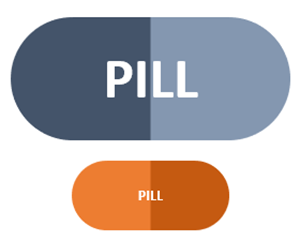
The pill shape is simply a rounded rectangle PowerPoint shape with the rounded corner adjuster moved inward to create fully rounded ends to the rectangle.
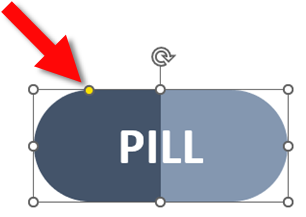
It is also a 2 color gradient, with 4 color stops.
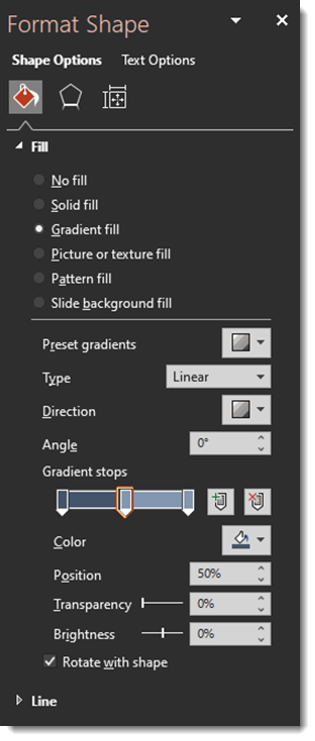
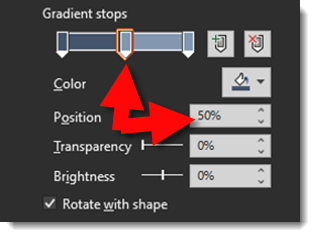
The tricky part is manually entering the middle color stop positions vs. click-and-drag. Set both to 50%, which eliminates any gradient soft edge and completes the 2 color pill icon.
For my presentation, I also moved away from a flat icon styling to a slight 3D bevel look by using PowerPoints 3D shape option.
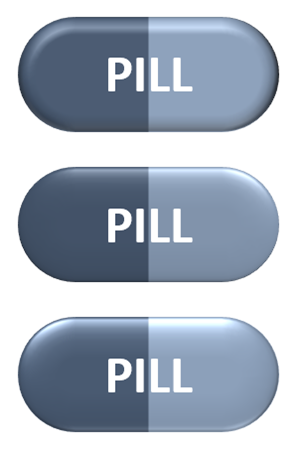
Download the PowerPoint Pill Shape on a slide HERE
Troy @ TLC
Still Waiting for the Office Refresh?
I just worked with another designer that noted that their Office had not yet updated to the new “Windows Refresh” – the updated app styling. Sure enough, PowerPoint on their computer had the “rectangle” interface still.

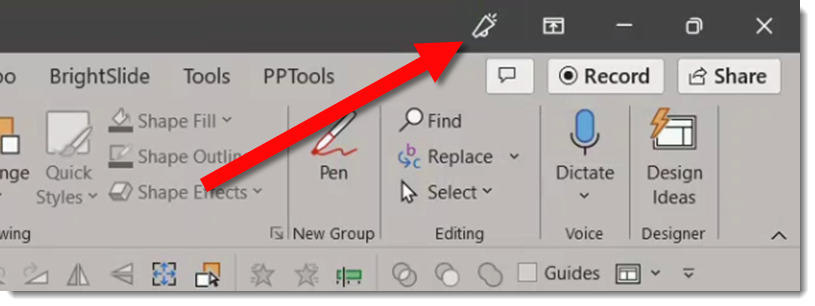
The solution, at this time because the “refresh” has rolled out to all Office 365 accounts now, is to click the “Upcoming Features” megaphone icon.
Scroll down the Coming Soon content, find the “Try the Experience” toggle, turn it on, and restart PowerPoint.
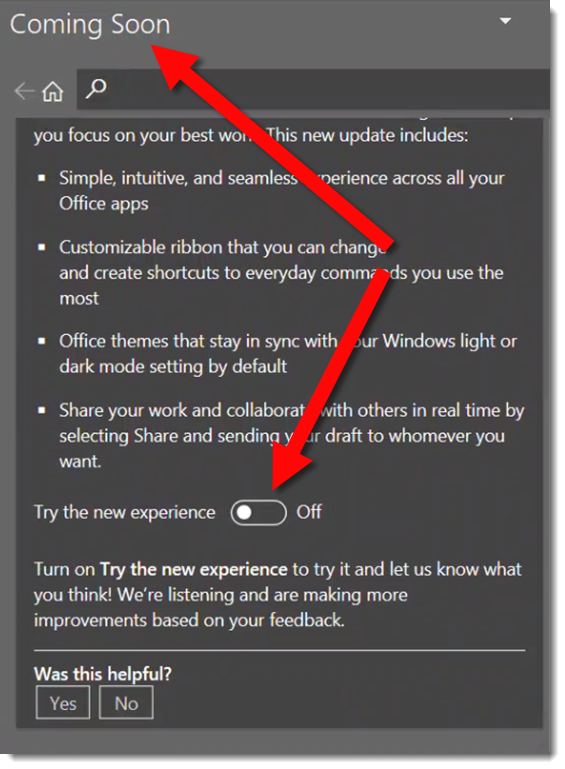
The app interface for all Microsoft Office should now be on the most recent, “rounded corner” interface 😊

Troy @ TLC
New Presentation Podcast Episode!

What’s it like to design presentations on the Mac? Longtime Mac users Jole Simmons and Mike Parkinson join Nolan for a conversation about the good, the bad, and the ugly on using PowerPoint and Keynote and Google Slides on a Mac. What are the disadvantages and what are the advantages to Windows? Is the animation timeline really that important? Is it more expensive or less? And how does Keynote stack up next to PowerPoint?