
Adobe Color Wheel – A Color Scheme Shortcut!
Adobe Color is a web app that creates color themes using color theory modes or pulled from uploaded photos. There is also the Adobe color community where the color schemes others have created are available to use.
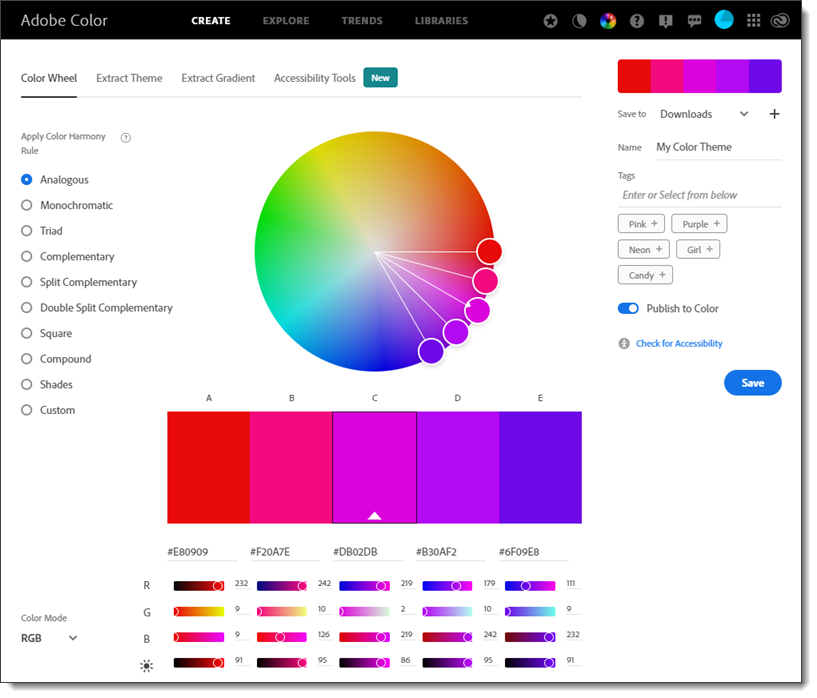
For this post I created 3 color schemes to explore the different color theory bases. Within the Adobe Color app a “base” color, is the one color that stays consistent when changing to different color theory modes. There are 9 color theory modes (+ “custom”).

The first color scheme started with the center tan color as the base color and used the COMPLIMENTARY color theory model. After a few minutes of adjusting, this is where I landed:
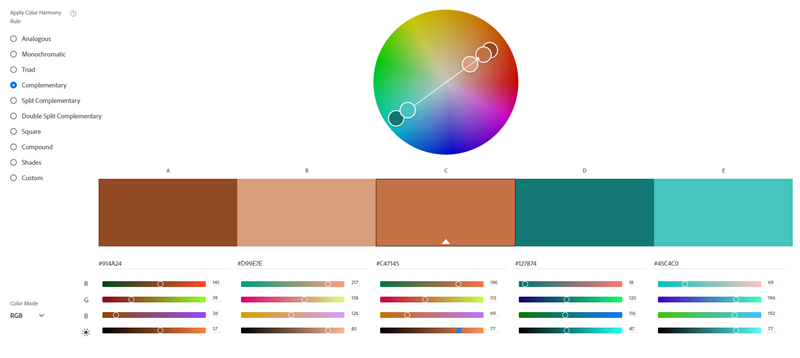
For the second color scheme, I kept the base color the same tan color, but changed the color theory model to SPLIT COMPLIMENTARY. The result shifted to this color scheme:
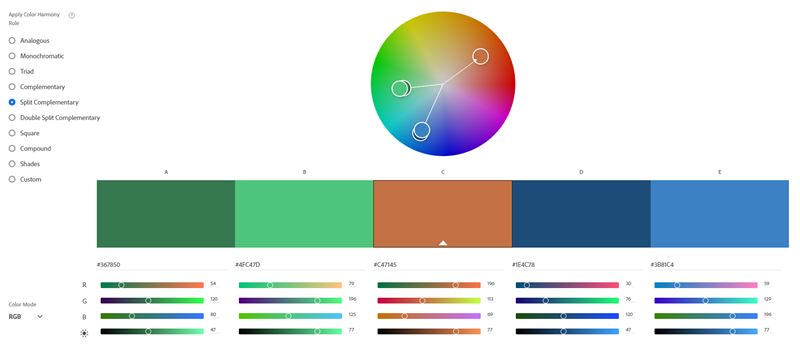
For the third color scheme, I went back to the first COMPLIMENTARY color scheme and changed the base color from the tan to the 4th slot, teal. I then changed the color theory from COMPLIMENTARY to the SPLIT COMPLIMENTARY Color Theory model used in the second color scheme. It may sound like a lot, but this new color scheme was created in just a few clicks in the Adobe Color app:
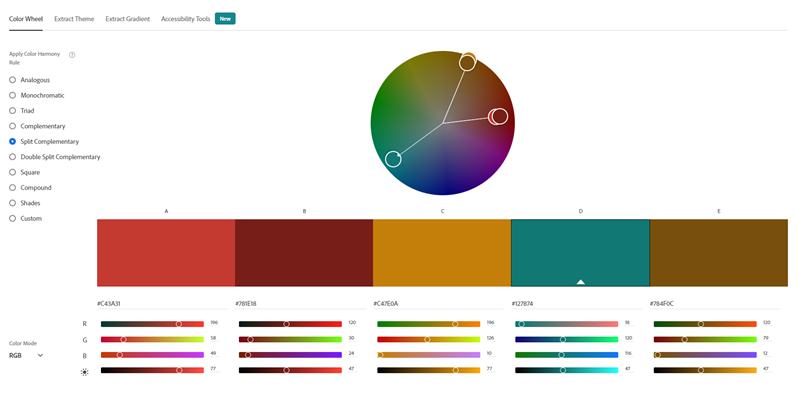
One big note about using the Adobe Color app for PowerPoint color schemes. Adobe Color creates a theme of 5 colors. Of course PowerPoints color scheme is based on 6 accent colors. So Adobe Color only goes so far when looking to create a PowerPoint color scheme – the 6th color will need to be figured out, outside of the Adobe Color app.
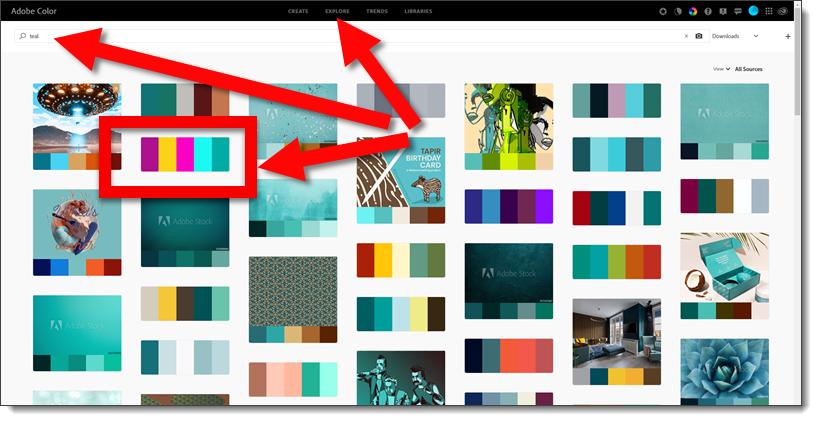
The EXPLORE area is great for looking at lots of ideas and finding preset color themes. Here I went to the EXPLORE tab and searched for “Teal” which created a mood board style layout of images, illustrations and preset Adobe Color color schemes.
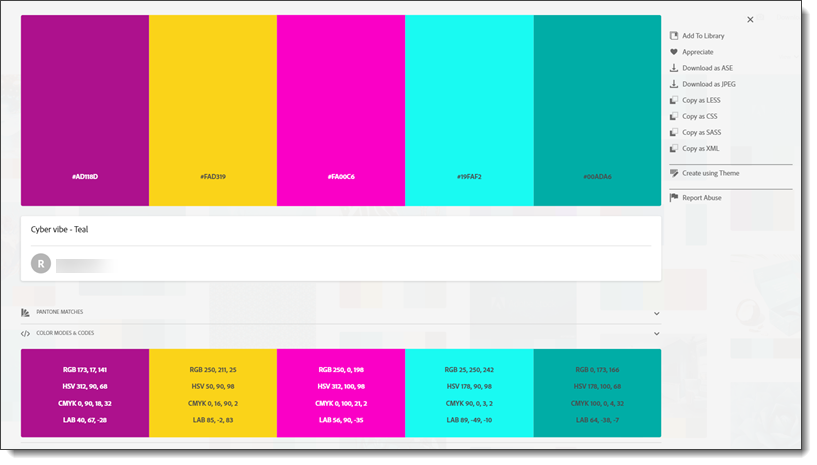
Clicking any of the example color schemes (I clicked the one highlighted in the above image), gives all the details about the colors used.
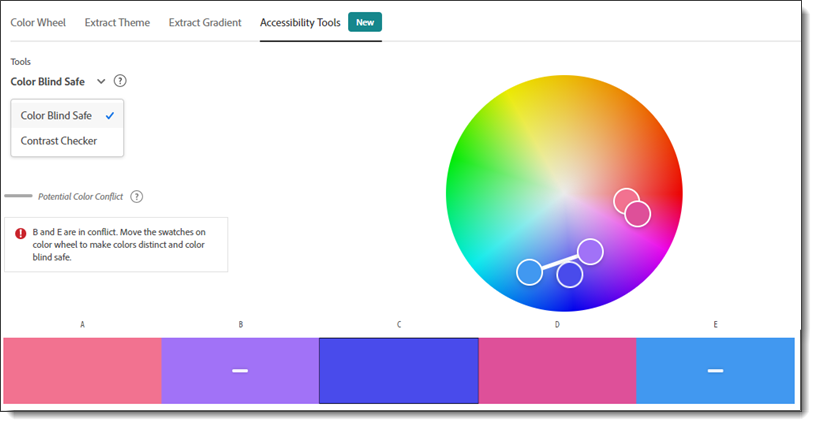
The ACCESSIBILITY TOOLS are very interesting and currently provide feedback on a color scheme for Color Blind Safe color combinations and can run a contrast checker.
Go the Adobe Color app here.
Troy and Amber @ TLC
The Better Deck Deck!
I’ve got mine, do you have yours!
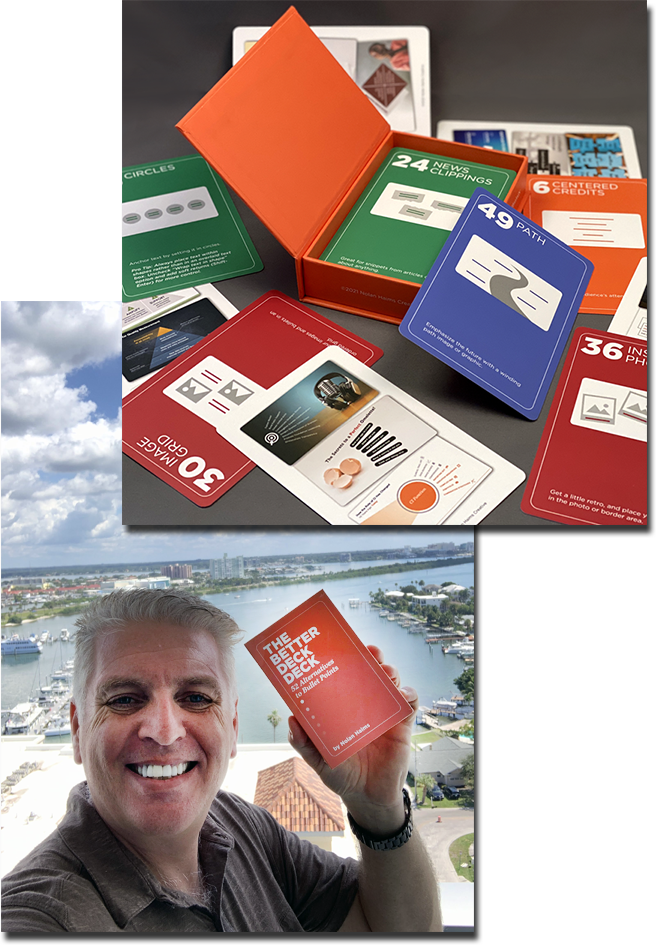
The Better Deck Deck created by Nolan Haims is a great presentation design resource. 52 cards (okay, technically 53 if the information card is counted) showing 3 slide design makeovers on each card for a lot of presentation slide design inspiration. Details here.
Troy @ TLC
Presentation Guild General Board Service Information Meeting Today

The Presentation Guild elections for the 2022 Board of Directors is this month. Later today the Presentation Guild is hosting a general open house for everyone to learn more about what the Board does and how you can potentially contribute.
October 12, 2021 @ 5:00pm PDT’
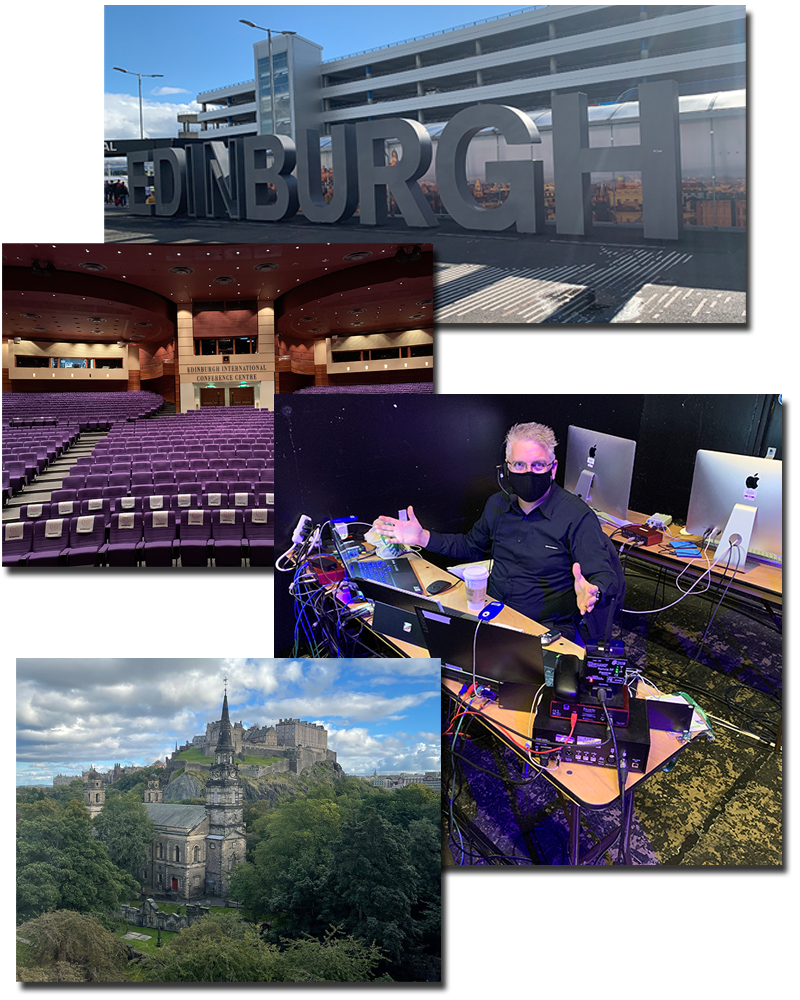
Greetings from Scotland
Last week in Florida with a group of presentation people (at the 2021 Presentation Summit), and this week in Scotland experiencing the UK! So what is the PowerPoint – Scotland connection? Same as all corporate events, being the behind the scenes presentation expert to assemble daily master show files assuring the speaker supplied slides all seamlessly integrate (page size, fonts, linked media and more – ugh!), then supplying the computers and running the presentations. After a year + of virtual only events, it is great to be travelling and onsite with people again!
Troy @ TLC
Live From the Presentation Summit 2021 (Podcast)
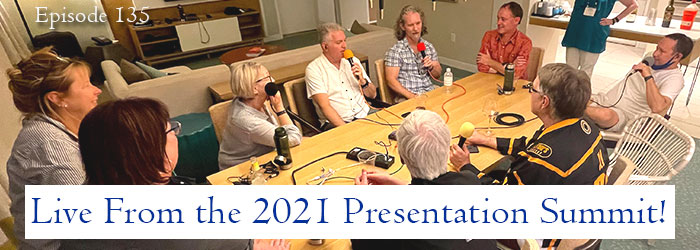
At the 2021 Presentation Summit held in Clearwater, Florida The Presentation Podcast gathered the 9 Microsoft PowerPoint MVPs for this episode! Join us for a conversation about the conference, PowerPoint, Florida and everything else! Listen here.
A View of the 2021 Presentation Summit!
This week has been great! Being together with people, in person! Presentation people! And at the beach!
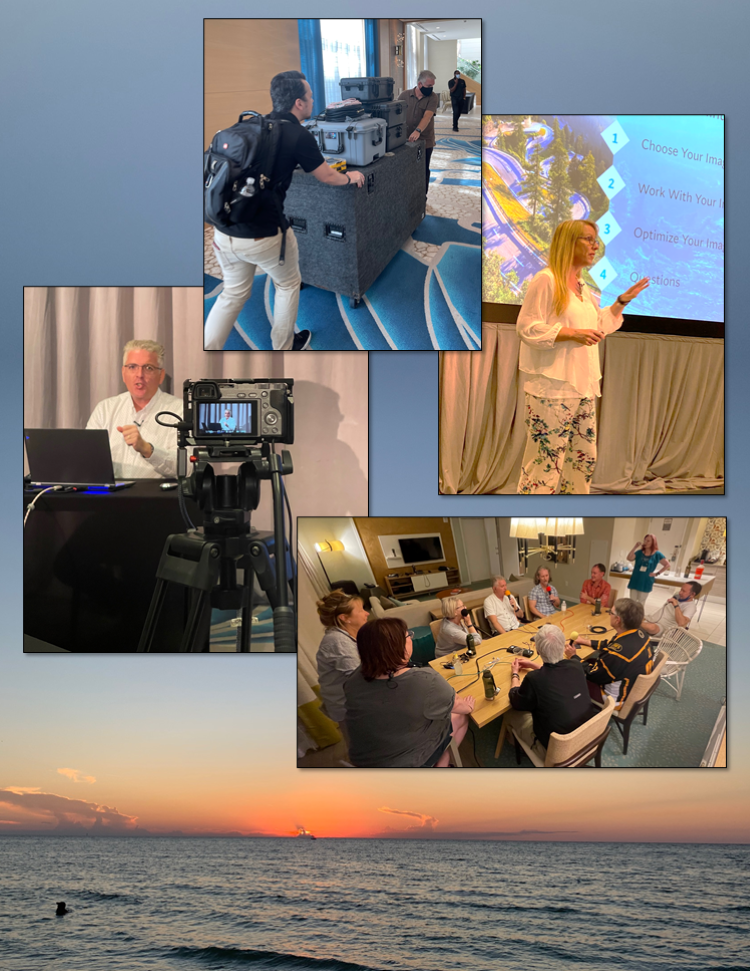
So much great content. So many amazing conversations. Several fantastic podcast recording sessions. Opportunity to present on presentation design (both Lori and Troy). And being a part of the conference team providing the onsite technology equipment and live stream AV team. A week of little rest, but huge rewards!
Troy @ TLC
Create Presentations? Listen to this Episode of The Presentation Podcast!
What do presentation designers do when they need to create a presentation for themselves? Do we follow our own best practices, or do we take shortcuts? Troy, Nolan and Sandy are joined by Lori Chollar of TLC Creative Services, and as a group we to explore that question – and there are terrific tips and ah-ha moments for everyone during this episode!
episode 134