
Mute Computer System Sounds
Here is the scenario:
- Your computer with the presentation is connected to the meeting AV system
- Then you need to copy a new presentation file to the computer. When the USB drive is inserted the entire room hears the “bing-bing” chime of a new device added to the computer
- At which you groan and say sorry to the hundreds of people ready for the presentation…
Here is the fix:
- Windows has a setting to turn off, or mute, the computer system audio, such as new device sounds!
- Note: this is specific to Microsoft Windows 11. The Mac OS has a similar settings option available.
- Right-click the speaker icon in the lower right of the task bar
- Select SOUND SETTINGS
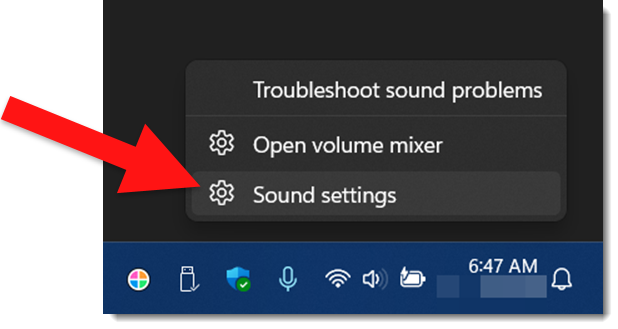
- The Settings, Volume Mixer dialog opens
- Locate SYSTEM SOUNDS in the APPS section
- Either slide the volume to the far left, or click the speaker icon to MUTE
(in this example, the volume slider is at 100%, but the speaker icon was clicked and system sounds are muted)
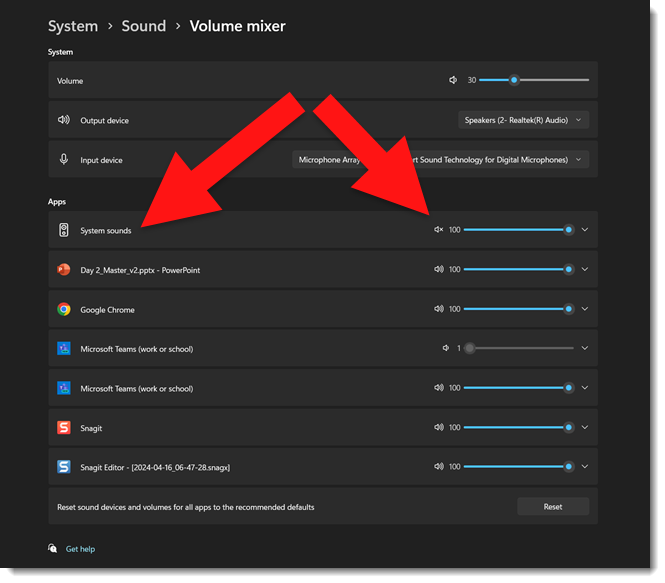
Done. No computer system sounds will be heard from the computer!
Troy @ TLC
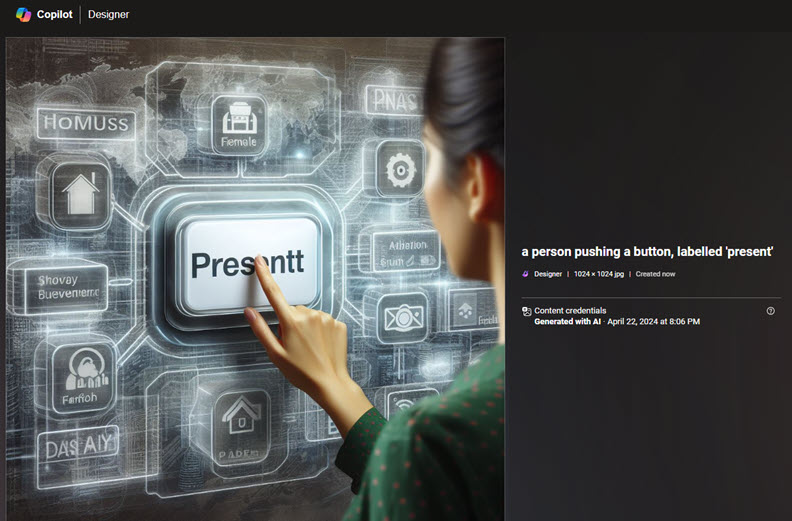
Typo in Copilot Generated Image…
In episode 196 of The Presentation Podcast, Rolly Seth, Principal Product Manager for Microsoft Designer, made an interesting comment that written language is challenging for AI image generators. This was a thought-provoking insight, and yesterday it had me thinking about my experience experimenting with Copilot’s image creation. While the tool can proofread my emails and documents, there is no proofreading text in an image it creates.
Creative tools have undoubtedly changed, but the AI tools still seem fragile and unreliable at this stage. Even the ability to iterate an image and make adjustments to it is non-existent. While I’m not discounting this amazing tool, it’s not yet ready to be my go-to tool for design work. As example, in this almost great image, the word that is literally spelled out in the prompt was misspelled.
For reference, the prompt that Copilot (ChatGPT-4) used to generate the image was, “Create an image of a person pushing a button, labelled “present””.
Troy @ TLC
No More Google Podcasts…?
Not exactly a presentation topic, but I get so much of my presentation industry news and tech info from podcasts I feel this is a topic worthy of The Presentation Podcast. The Google podcasts app launched in 2018, and was shut down April 2, 2024. In reality, Google Podcasts are not gone, just the app. Podcasts are being integrated into YouTube Music.

If you used the Google Podcasts app, which admittedly I did not, a migration tool has been available to transfer listener podcast subscriptions to YouTube Music (the other note is the migration tool was only available for U.S. users). But now that we are in mid-April, and the reason for this blog post with my calendar reminder to investigate podcasts on YouTube Music, went off, and I have investigated. I am not seeing podcasts in YouTube Music, nor on YouTube and the Podcasts tab. There are several video podcasts, but no audio only podcasts.

The press release I found (thank you Podcast Tonight Newsletter) notes the move is part of a strategy to simplify the podcast listening experience by combining it with music streaming, creating a one-stop audio destination on YouTube Music. Google believes this change will improve podcast discovery, encourage more community interaction, and make switching between audio podcasts and video content easier – an area where Spotify is also making strides. With 23% of weekly podcast users in the U.S preferring YouTube over Google Podcasts’ meager 4%, Google sees this transition as a necessary step to cater to user needs and habits.
Note: my podcast, The Presentation Podcast, is not available on YouTube podcasts yet… adding that to my list of updates to work through!
Troy @ TLC
TPP 196
Join Troy, Nolan and Sandy for a conversation with Rolly Seth, Principal Product Manager for Microsoft Designer, about AI, copilot and storytelling. Rolly previously as on the PowerPoint team, is a thought leader and all around brilliant thinker when it comes to the intersection of technology and creativity. Click here for the conversation!
What You Do Not Know – PowerPoint Add-ins

3rd party add-ins that expand the functionality of PowerPoint are the #1 option for being a faster, better slide editor. Listen to the full conversation at The Presentation Podcast, episode 192.
What You Do Not Know – Advanced Animation with an Animation Marker!

We call this an “animation marker” and it is a fantastic hack to PowerPoint’s Advanced Animation Pane if the slide has lots of With Previous animation timings. Listen to the full conversation at The Presentation Podcast, episode 192.
PowerPoint Not Printing PDFs – Here’s Why
So this is a problem, and I am guessing I am not the only one being frustrated with their computer – PowerPoint – Outlook – print drivers.
(note: paid actor, recreating computer frustration Troy is experiencing today)
After finally getting frustrated enough to look into the problem. The problem is any PDF I attempt to print resulted in this error message.
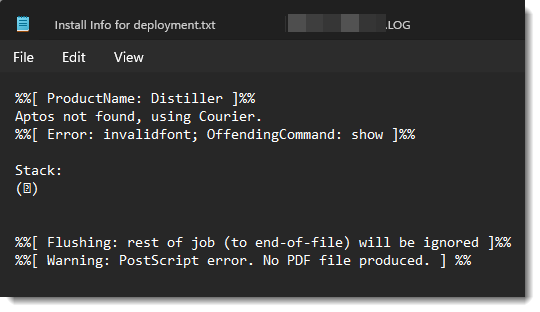
The problem is Windows, or Office. Or maybe it is an Adobe problem. But it is that Adobe is not recognizing the the new Windows default font Aptos (for more information on Aptos font, see this earlier blog post). My guess is Adobe does not recognize the font and does not know what to do with it, so it does nothing – aside from erroring out every PDF I attempt to print.
Note: I have not tested this on a Mac, but it is definitely an issue on Windows.
Here is the solution:
1. In the Office app (PowerPoint, Outlook, Excel, Word – they all are experiencing this issue) and file to print, go to the Print dialog and select ADOBE PDF as the printer.
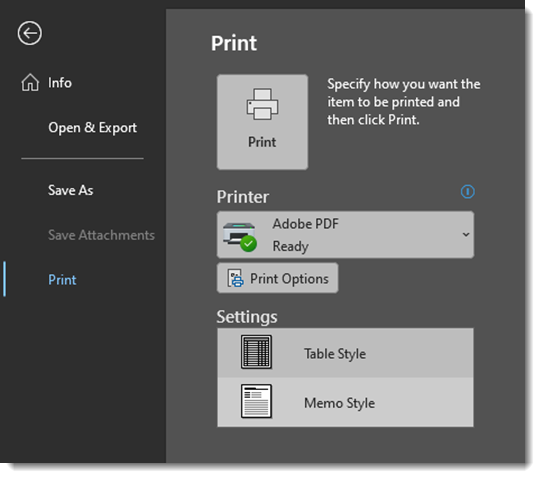
2. Click PRINT OPTIONS
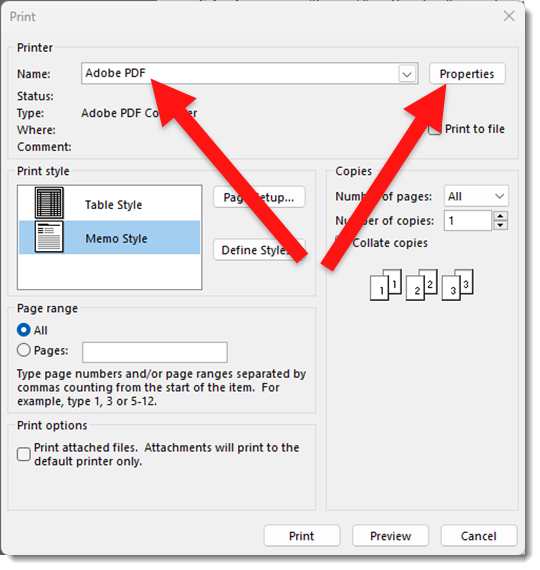
3. In the Print Options dialog, ACROBAT PDF should be the preset based on selection in the print menu earlier. Click the PROPERTIES button.
4. In the Abobe PDF Document Properties dialog UNCHECK the RELY ON SYSTEM FONTS ONLY; DO NOT USE DOCUMENT FONTS option.
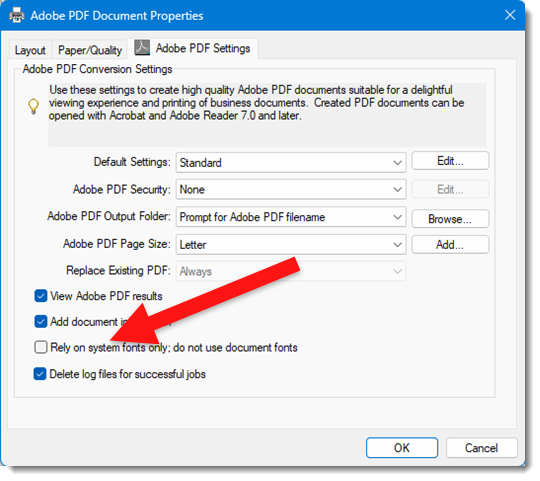
5. Click okay and the PDF should successfully print!
Note: I have not found a way to make this option unchecked by default. I also have been happy to create PDFs again and have not really dived deeper into changing the print options more permantly – mostly because I am hopeful Microsoft and Adobe will figure out this issue and fix it so this hack is not needed.
Troy @ TLC