Monthly Archives: January 2026

Presentation App Default Page Size

Here is a question we get from clients pretty often: “What is the difference between page size and aspect ratio? Do either matter?”

The answer is yes! They do matter, and each becomes even more important if multiple presentations are being combined into a single presentation. 

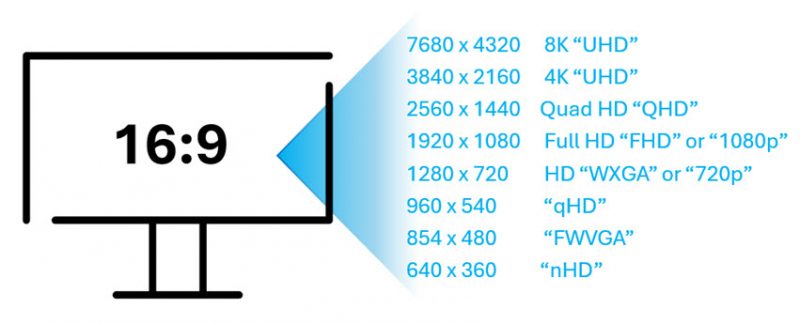
  • Aspect Ratio is the shape of the slides, and the aspect ratio needs to match the AV technology if the presentation is going to fill the AV screen properly. Nowadays, the standard aspect ratio is 16:9 – basically a rectangle. 
  • Page Size is the actual measurements used to create that aspect ratio in your presentation software. So yes, 13.333” x 7.5” is the same aspect ratio as 26” x 14.625”. However, and this is important, when the 26” wide slides are pasted into the 13.333” wide presentation, fonts and graphics may not scale down properly, nor maintain the same slide layout. 

Obviously, the ideal scenario is for presentations to be created at the correct aspect ratio for where they are being presented (meaning the slides will fill the screen exactly) AND for all presentations to be created with the same page size. If both are done properly then presentations can be combined into a single file, and/or slides can seamlessly be added between presentations as needed. 

With that in mind, below is a handy list of common presentation applications, such as PowerPoint and Adobe, and their default page sizes. In the case where an application doesn’t support inches, we simply exported the file to PowerPoint to pull the page size in inches. The great news is that all these apps use the standard 16:9 aspect ratio.  


Default Page Size of Presentation Apps: 

Microsoft PowerPoint Windows/Mac/Web: 1280 x 720px (~96ppi), 13.333 x 7.5in 

*TIP: while the technical resolution of PowerPoint is 720p, the resolution is really based on the output (eg. what the computer projects). TLC Creative Services designs all presentations with images and content based on full HD, 1920×1080 if no end use resolution is specified.


Apple Keynote: 1920 x 1080px (~96ppi), 26.67 x 15in 


Figma: 1920 x 1080px (~96ppi), 20 x 11.25in 


Canva: 1920 x 1080px (~96ppi), 20 x 11.25in 


Google Slides: 960 x 540px (~96ppi), 10 x 5.625in 


Beautiful AI: 1920 x 1080px (~96ppi), 20 x 11.25in 


Gemini (AI created presentation): 960 x 540px (~96ppi), 10 x 5.625in 


Adobe Express: 1920 x 1080px (~96ppi), 20 x 11.25in 


Now you know. 😊 

-The TLC Creative Services presentation design team 

By |2026-01-09T10:53:54-08:00January 13th, 2026|Resource/Misc, Software/Add-Ins|

App Default Fonts

Fonts are critical! Well… words are more critical, but because words are displayed using fonts, that makes fonts critical. Of course, over the course of each year, working with literally thousands of presentations created by thousands of different authors, I can confidently say that fonts are one of the pain points of working with presentations. It is not uncommon to encounter various font issues due to the diversity of presentation authors, their work environment (e.g., app and device), and their font choices. Managing these differences can be challenging, as presentations are often shared across multiple devices, platforms, and even presentation applications, each with its own default font and font availability. 
Ever wonder what the absolute default font is for an application? For example, when you open the app and create a new presentation from scratch…what font is waiting for you to start working with?  

Well, here is some helpful information for everyone who works with presentations – a list of the default fonts for these presentation applications. 

Default Fonts by Application 

PowerPoint Desktop/Web/Mac: Aptos 

Aptos is a Microsoft font and will automatically install on all devices and operating systems (Windows, Mac, Android, desktop, tablet, or mobile device). The only caveat is if, by chance, Aptos is not currently installed on the device, then the device will need to be online when the presentation opens for the auto-installation to happen. 
 

Apple Keynote: SF Pro 

SF Pro is a Mac OS system font. It is automatically available on all Apple devices running Mac OS (desktop, tablet, phone). But note, this font cannot be installed on non-Mac OS devices (e.g., convert a Keynote presentation to PowerPoint, open that PowerPoint file on a Windows computer, and the SF Pro font is not going to work! PowerPoint will randomly assign a replacement font, which may or may not maintain the text alignment). 

 

Figma: Inter 

Inter is a Google font and will automatically install on all devices and operating systems (Windows, Mac, Android, desktop, tablet, or mobile device) when used in many programs. Note: PowerPoint is not one of these applications that trigger Inter to automatically download and install. But if using PowerPoint on Windows desktop or Mac desktop (where custom fonts can be installed), Inter can be downloaded from Google Fonts and installed on the device (tip: install the OTF version of the font, not the variable font, .VTF).   

 

Canva: Canva Sans 

Canva Sans is native to Canva and is the default font when no other Canva template is applied. Canva Sans will not automatically be installed if a presentation created in Canva is downloaded and opened in a different application. Canva Sans can be downloaded from third-party sites for use outside of Canva.  


Google Slides: Arial 

Arial, used by Google Slides, is a Google Font, and will automatically install on all devices and operating systems (Windows, Mac, Android, desktop, tablet, or mobile device) when used in many programs. PowerPoint will automatically use the Microsoft version of Arial for seamless use. 

 

Beautiful AI: no specific default font 

Beautiful.ai takes a different approach to fonts with no true default font. When creating a presentation, the user selects a presentation style that sets the font (which becomes the default font for that presentation). Beautiful.ai leverages Google fonts, so they will automatically download and install on all devices and operating systems (Windows, Mac, Android, desktop, tablet, or mobile device) when used in many programs. Note: PowerPoint will not automatically download and install Google fonts, but PowerPoint on Windows desktop and Mac desktop (where custom fonts can be installed), allows Google fonts to be downloaded and installed on the device (tip: install the OTF version of the font, not the variable font, .VTF). 

 

Gemini (AI-created presentation): no specific default font 

Gemini also does not have a designated default font; rather, based on the presentation options, a font is selected, and that font becomes the default font for that presentation. All Gemini presentations leverage Google fonts, so they will automatically download and install on all devices and operating systems (Windows, Mac, Android, desktop, tablet, or mobile device) when used in many programs. Same note: PowerPoint will not automatically download and install Google fonts, but PowerPoint on Windows desktop and Mac desktop (where custom fonts can be installed), allow Google fonts to be downloaded and installed on the device (tip: install the OTF version of the font, not the variable font, .VTF). 


Adobe Express: Source Sans (when no template with fonts specified is applied) 

Source Sans is the default font in Adobe Express when no template (which specifies a font) is applied. Source Sans is an Adobe Font and will automatically load for Adobe apps, including PDFs. While Adobe Cloud fonts cannot be downloaded, they can be installed on any device through the Creative Cloud app, and other applications, like PowerPoint, will recognize and use those fonts. 


Now you know 😊. 

-The TLC Creative Design Team 

By |2026-01-09T10:53:11-08:00January 8th, 2026|PowerPoint|

New Podcast Episode Available! “Presentation Predictions for 2026: AI, Design, and Our Future”

New episode of The Presentation Podcast now available! Listen to “Presentation Predictions for 2026: AI, Design, and Our Future” now.

This marks a milestone for The Presentation Podcast – over a decade of expert commentary on the ever-evolving world of presentation design! Hosts Troy Chollar, Sandra Johnson, and Nolan Haims kick off 2026 with a review of their 2025 presentation predictions. They then unveil their presentation and PowerPoint forecasts for 2026. Listen on your favorite podcast app, or at The Presentation Podcast site HERE

By |2026-01-02T09:55:17-08:00January 6th, 2026|Resource/Misc|

20 Years of Sharing Presentation Insights—and What’s Next for 2026

20 Years!

This is a momentous blog post. I started sharing presentation-related content online in 2006 – that was 20 years ago!  

I started here with ThePowerPointBlog.com, then added Facebook and later LinkedIn posts. Over the years, the voice of TLC Creative Services has grown beyond just me to include our incredibly talented presentation design team, who added to many of the posts. 

In 2025, we took a big step forward by bringing on a dedicated social media manager. Her role has been to keep our posting consistent, and core themes each month. One of my favorite initiatives this past year, which was suggested by our social media manager, was our “Looking Back” series. Each Friday, we revisited a past blog post that was still relevant to PowerPoint and presentation design today. There is a lot of information and knowledge here, and the “Looking Back” series included posts originally shared 18 years ago! This series was shared on both The PowerPoint Blog and our TLC Creative LinkedIn account. It was a fun way to reflect on how far presentation design has come, and how far we’ve come with it. 

What’s Ahead for 2026? 

We’re excited about what’s next! Here’s a quick look at what we’re cueing up for 2026: 

  • For the blog: We’ll share two new posts every week (Tuesday & Thursday) 
  • For our Presentation Podcast: We’ll continue dropping two episodes each month (on the first & third Tuesdays) 
  • TLC Creative Facebook & LinkedIn: Posts aligned with blog content, plus more behind-the-scenes photos and updates.  
  • VXP Meetings LinkedIn: This is a new channel for 2026 where we are (finally) sharing information focused on our virtual meeting tools and production; specifically, tutorials, case-studies, and real-world projects 

The Goal?

My goal is the same: sharing resources, tutorials, example files, and conversations about presentations. We are happy to have TLC Creative Services, Inc. as part of everyone’s presentation journey in 2026. Whether you’re looking for inspiration, practical tips, or just want to see what’s possible in the world of presentation design. 

Thank you for joining us at TLC Creative, as we are all part of the presentation community. Here’s to a creative and connected 2026! 

-Troy @ TLC 

By |2026-01-09T10:52:02-08:00January 1st, 2026|Personal|
Go to Top