
Make a Video Arrow
This short tutorial walks through the design process our presentation design team uses to create these fun “video arrows” in PowerPoint. The end result will be a series of arrow shapes on a slide… but their background is a dynamic video!
To start, add 3 PowerPoint arrows to a fresh slide (these can be the default PowerPoint arrows, or a more stylized .svg arrow from PowerPoint’s Stock Images, or a resource like TheNounProject. For this example, we used 3 ascending PowerPoint arrows:
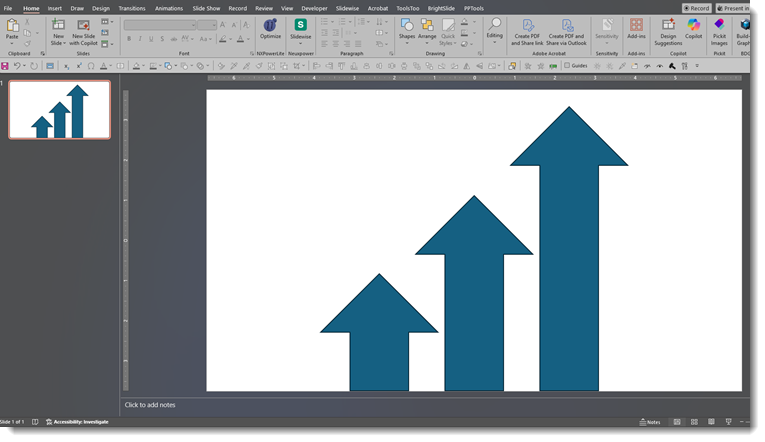
With the static arrow layout set, we can move on to create the video version. Find a video that is larger than the area the 3 arrows occupy.
- For the best visual effect, a seamlessly looping video is best.
- PowerPoint has a good selection of videos by going to INSERT > VIDEOS > STOCK VIDEOS.
- Or use your website of choice (our team used Adobe Stock for our video selection).
Embed the video onto a separate, new slide.
On the arrows slide, select the arrows and MERGE so they are a single shape:
1-3: Select all 3 arrows
4: Go to the “Shape Format” tab
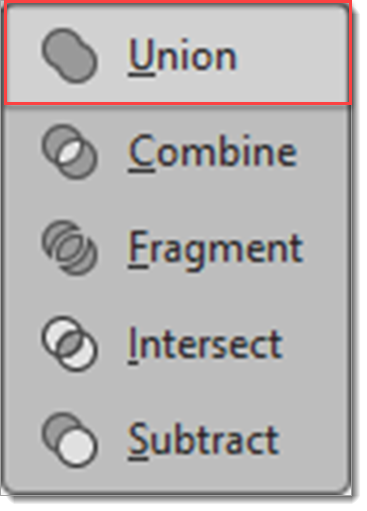
5: Select “Union” from the Merge Shapes dropdown menu
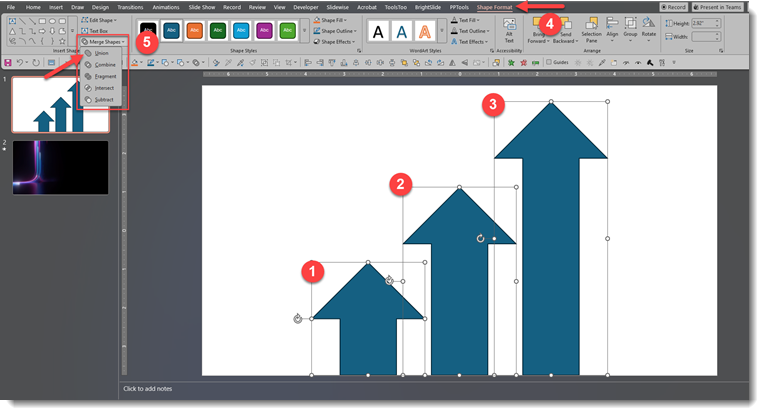
This will combine the arrows into a single vector shape – this is a crucial step for the next part.
Next, copy the new single shape of 3 arrows and paste it onto the video slide.
TIP: Hide the original 3-arrow slide to keep it for later use, because in the next step, we are going to “destroy” the arrows, so they are no longer arrow shapes.
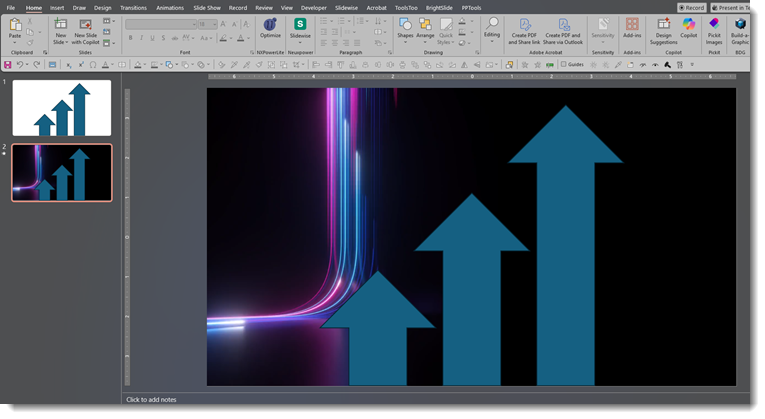
On your video slide, select the video FIRST. Then shift + click to select the arrow’s shape.
NOTE: The order of this selection is very important.
Go to the MERGE SHAPES again (select > Shape Format tab > Merge Shapes> Union). This time, select the INTERSECT tool.
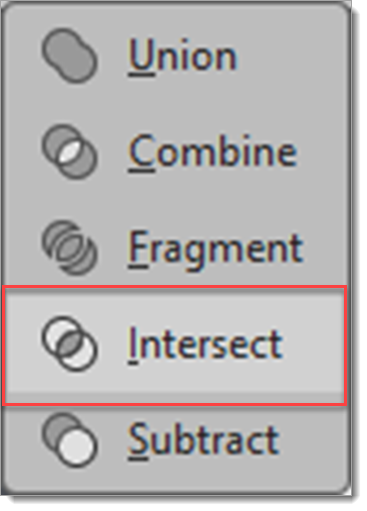
This crops the video into the arrow shape! The result is a video that plays inside a custom video shape – all created in PowerPoint!! The standard PowerPoint video playback functions are still used to set the video to play and loop, AND you can use PowerPoint’s crop function to size and position the video within the arrow shape. Talk about cool presentation design!

Now, you can copy and paste these custom video shapes into any presentation!
Jake @ TLC Creative Services