
What is the PowerPoint Media Bar?
After a conversation with a PowerPoint user, I was looking at this past blog post from March 2016, Use The PowerPoint Video Playback Bar. While all of the info there is still accurate, it’s time for a refresher and a few updated tips!
Every video and audio file embedded on a slide has a pop-up media playback bar seen while editing the slide, and when presenting.

Where the media bar displays depends on where it is viewed; either slide edit view or presenting. When editing a slide, clicking on the video (or audio speaker icon) displays the playback media bar BELOW the video. In this view, the media playback bar is opaque (covering any slide content under it).
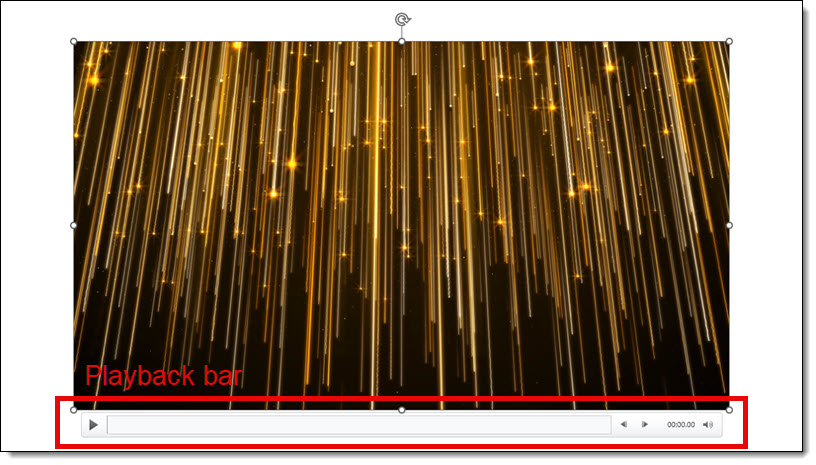
When presenting and moving the mouse over the video, the playback media bar displays OVER the bottom of the video. In this view, the media playback bar is semitransparent, allowing the video under it to still be seen.
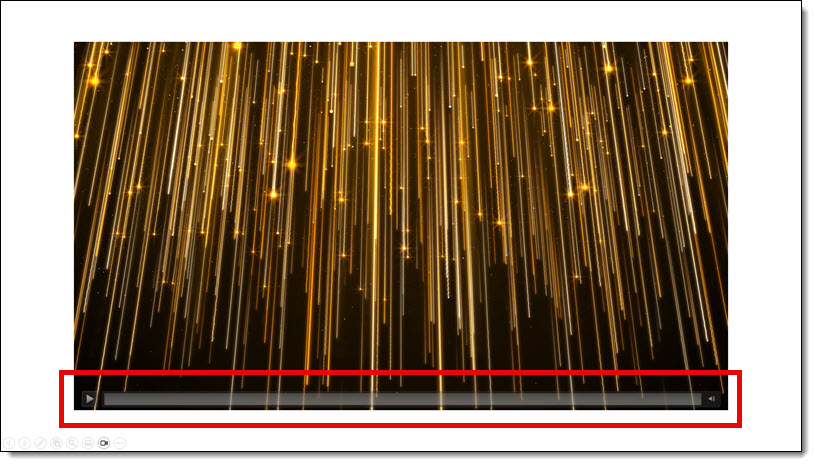
The playback media bar has 3 playback control options:
1. Play / Pause the video (or audio)
2. See the playback progress, plus click anywhere on the timeline to jump to that position, or click-and-drag to “scrub” through the video forward or back
3. Volume Control

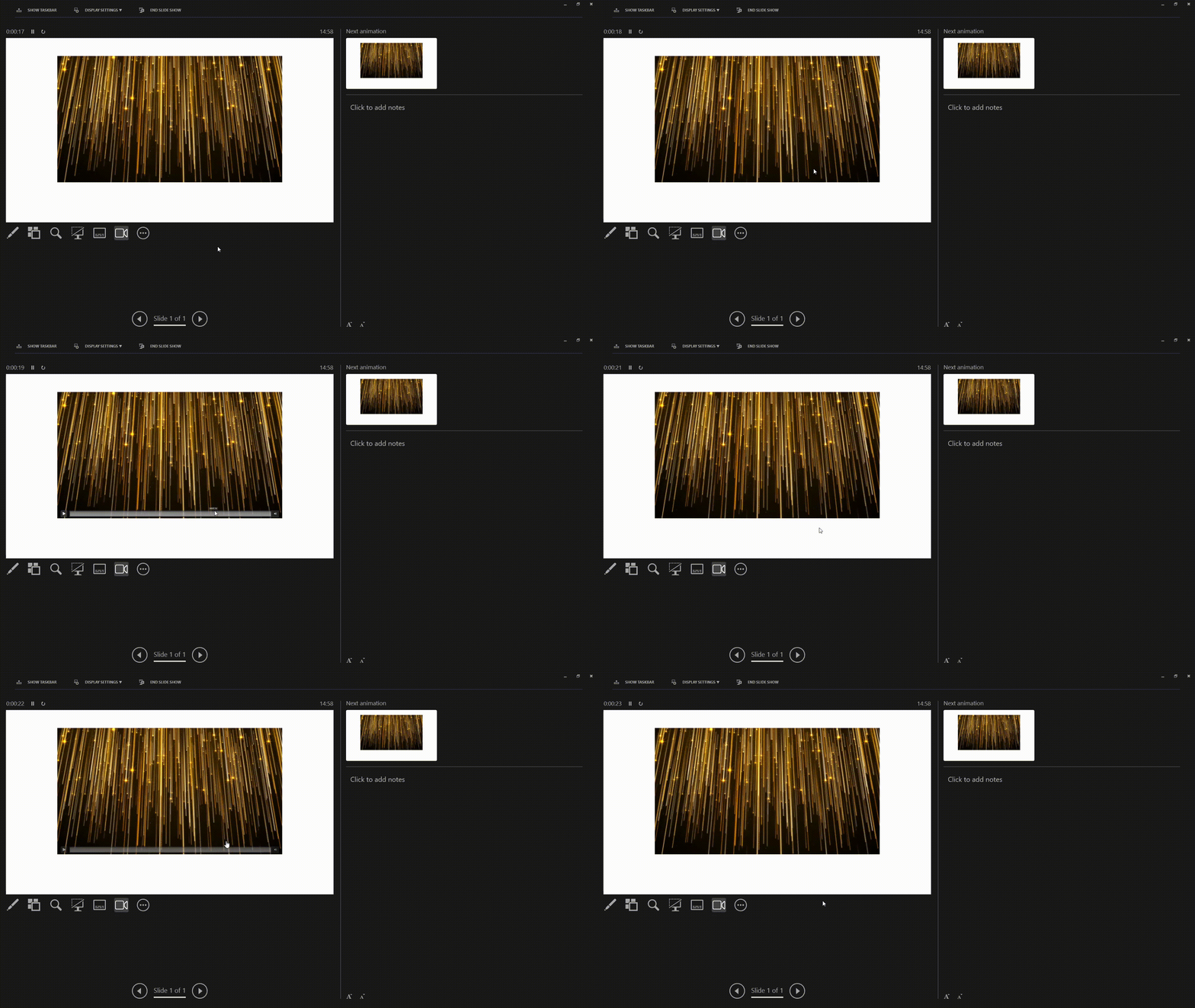
One of the really exciting updates to PowerPoint since the 2016 blog post is that we can interact with media in Presenter View, without the audience seeing our mouse onscreen! As example, this animated GIF shows a sample presentation’s Presenter View. Moving the mouse over the video, on the Presenter View screen – not the audience slide screen, the media playback bar displays and the presenter can interact with it in any way needed (NOTE: while the mouse is not seen by the audience, the media bar is seen on the slideshow – which is a disappointment to me).
Check back for the next post, where I am covering some “Power Tips for PowerPoint’s Playback Media Bar”!
Troy @ TLC Creative Services