Ever tried to use an Adobe font in PowerPoint, and wondered why it’s not showing up? Or handed off a PowerPoint file to a designer, and the fonts look totally off when they convert it to InDesign? We see this situation often with people who use both Adobe and Microsoft products. Here’s the deal (and a hack to fix!)…
Quick answer:
- Yes, Adobe CC fonts can be used in PowerPoint and other Microsoft apps (with a simple hack).
- No, there is no equivalent hack to make Adobe apps recognize all Microsoft-only fonts. However, many Microsoft fonts are already installed on your system and work fine inside Adobe apps.
Part 1: Using Adobe CC Fonts in PowerPoint (“The Hack”)
1. Download and install the Adobe Creative Cloud desktop app (if you don’t have an Adobe Creative Cloud account, you can create and use the free account version).
2. In the Adobe Creative Cloud desktop app, find and click the Fonts section, either in the top right nav bar or in the “Stock & Marketplace” section under Fonts.

3. From within the Adobe Creative Cloud app (or by visiting fonts.adobe.com in a browser), search for the font you want to use in PowerPoint.
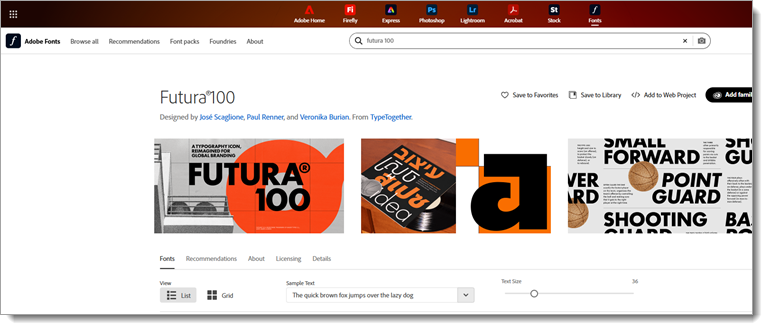
4. Select the font and click “Add to Fonts”, and the font will sync to your PC through the Adobe CC app. Upon adding it, you will get a pop-up to manage your fonts in the CC app.

5. Use these steps to ensure the fonts are set for use across all apps:
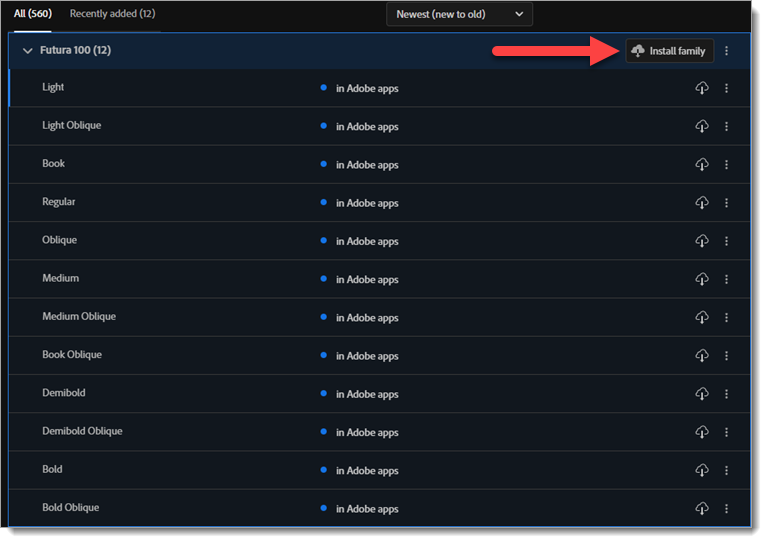
- Open the fonts page in the Adobe Creative Cloud app, and you should see the font you just added at the top.
- Click the “Install Family” button to allow the new font to be used in other apps like PowerPoint.
- Once it installs, instead of seeing “in Adobe apps”, it will now say “in Adobe & other local apps”, and the font is good to go!
6. If PowerPoint was open, be sure to close and restart it since custom fonts (non-MS and non-Google web) only load when the PowerPoint app launches. After starting (or restarting) PowerPoint, use the font selector dropdown, and you should see your Adobe font listed!
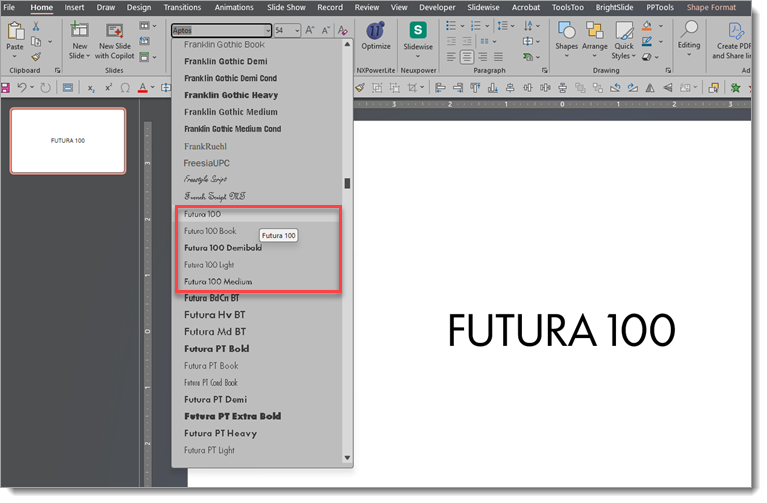
Success!! Newly installed fonts should appear in the dropdown menu in PowerPoint. Adobe CC fonts remain on the computer for 20-30 days from the last time the Adobe CC desktop app was online. As long as Adobe CC “checks in” periodically, the fonts stay active and available to all apps – Adobe and Microsoft.
Note 1: The Adobe fonts you install are only available on that computer. To use the presentation on any other device, follow the same process to install the same fonts for PowerPoint to use.
Note 2: Adobe CC fonts cannot be embedded in a PowerPoint file. Plus, TLC Creative does not recommend PowerPoint’s embedded font option because it has too many failure points.
TLC’s Best Practices
For presentations built in PowerPoint, we default to Microsoft Cloud fonts whenever possible. They are cloud-based, require no installation, and most importantly, avoid font-substitution issues. When a client or brand requires specific Adobe CC fonts, we use the steps above to keep design files and presentations matching.
In conclusion, getting Adobe CC and Microsoft fonts to play nice is doable. Use the Adobe CC desktop app hack to bring Adobe fonts into PowerPoint. It is a bit of a setup process upfront, but the option is available.
Wondering if Adobe will recognize Microsoft fonts? We’ll talk about that in our next post.
Jake @ TLC