Adobe Stock Images are Free!
TLC Creative Services has maintained an Adobe Stock (https://stock.adobe.com) subscription for our design team for several years. Yes, it is a budget expense, but the freedom when designing of not having any issue with getting high-quality, royalty free images for design projects has been worth the expense.
Well this is something new that I observed just this week – and I am not certain how I feel about it…
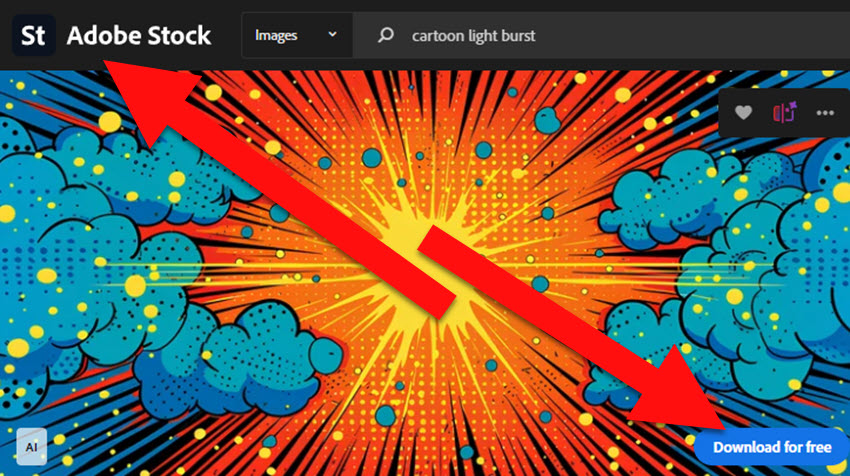
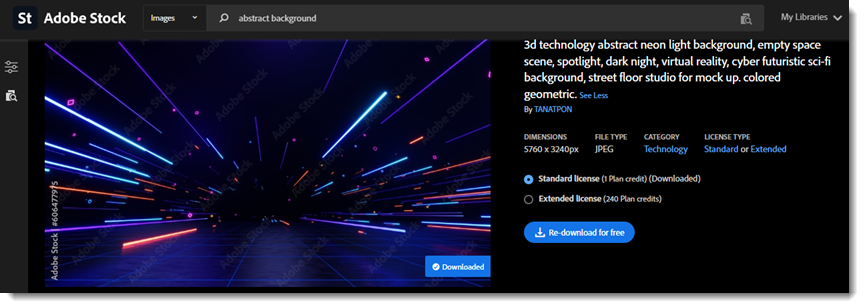
Adobe Stock has had a limited number of “standard” images available for free, to anyone that has a free Adobe Creative Cloud account. But this week as I am searching for images the “Download for free” label has been on upwards of 50% of the images! Good for everyone, but kind of makes me wonder what TLC Creative is paying for as we rarely used the monthly credits (which do not roll over to the next month’s allotment).
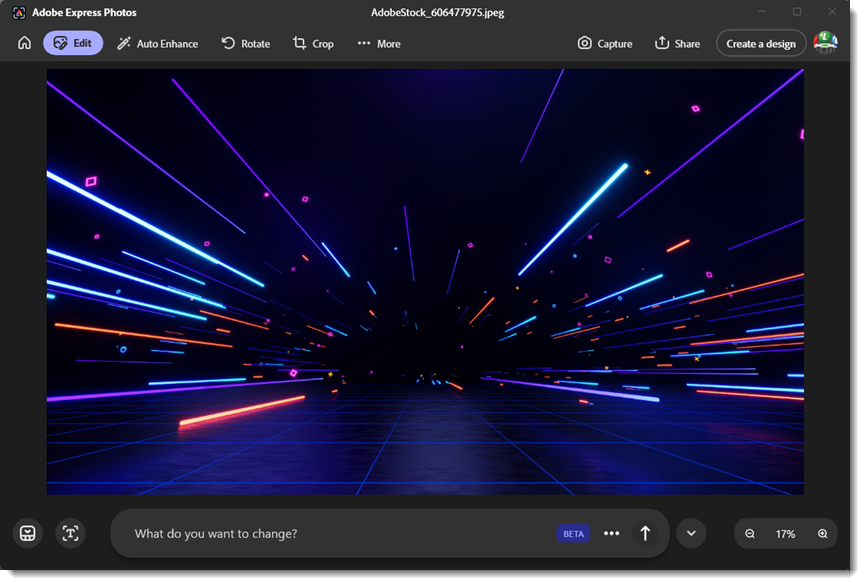
I am going to look into what changes Adobe has made to their image offerings – my assumption is their push to expand the Adobe Express app use included a significant increase in free assets. So if you need art assets for a presentation, or any design project, Adobe Stock appears to have more (lots more!) available for free!
-Troy @ TLC