
PowerPoint “Paste Special” Tip – Fix Angled/Rotated Images
Imagine you’ve rotated a photo 30 degrees, using PowerPoint’s ability to rotate any shape, image or text box. It now fits the slide design better – YAY! But the image needs to now be cropped, and the cropping a rotated image is not going to allow the image to be cropped…

When you select Crop, you’ll notice that:
- The crop handles follow the image’s original orientation.
- Cropping can feel awkward and imprecise.
- It’s difficult to crop exactly what you see on the slide.
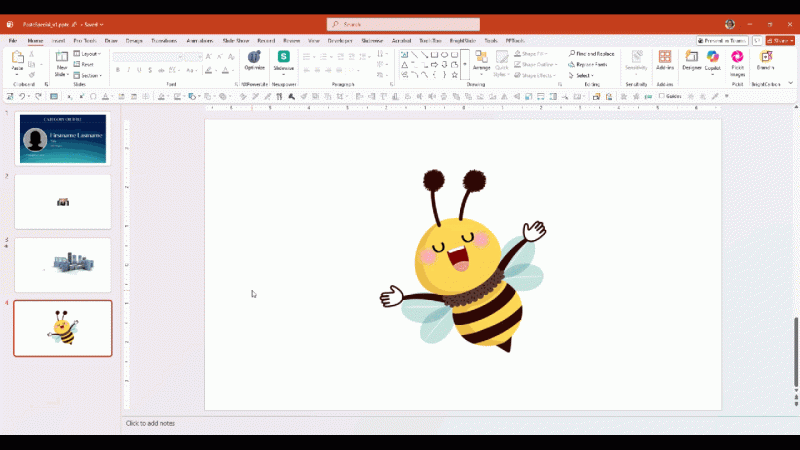
This happens because PowerPoint stores the rotation as an attribute of the image instead of creating a new, rotated image. So, let’s use Paste Special to add a new version of image, that is on the 90-degree axis (eg. straight) and crop the image!
- Select the rotated image
- Copy (CTRL + C)
- Delete the original (or hide it via selection tool)
- Use Paste Special > Picture (PNG) (or the Paste Special > PNG Quick Access Toolbar button)
- The result is the same image (now in a .PNG format) is on the slide and ready to crop!
Now when you select Crop:
- The crop handles align with the image as you see it.
- Cropping feels natural.
- Easier to make precise adjustments.
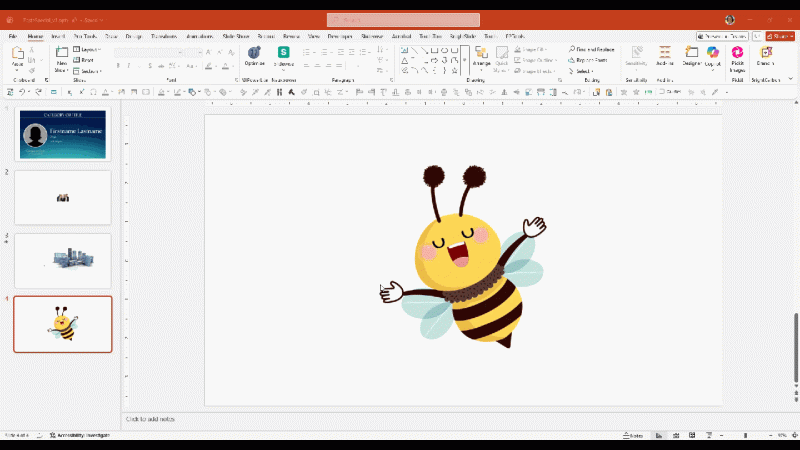
The picture hasn’t changed visually, the only thing changed is the way PowerPoint treats it.
TIP: Make this a 1-click formatting option. If you haven’t already added Paste Special – PNG to your QAT (Quick Access Toolbar), check out the on how to add this super helpful shortcut to your PowerPoint setup. This of course is if you are working in PowerPoint Windows desktop app. See the July 16, 2026 post, PowerPoint “Paste Special” Tip – Make it a QAT Button.
-Troy and the TLC Creative presentation design team