
Stop Adobe Express From Automatically Opening Downloaded Images
If you are suddenly experiencing (and most likely being frustrated) downloaded images automatically opening in Adobe Express – you are not alone!

My first frustration was – why is Adobe Express installed on my computer, I did not install it! Yes I have Adobe Creative Cloud and have several Adobe apps installed. But Adobe Express is not an app I clicked to have installed. My assumption is that a recent Adobe update silently included this as a companion app – argh!
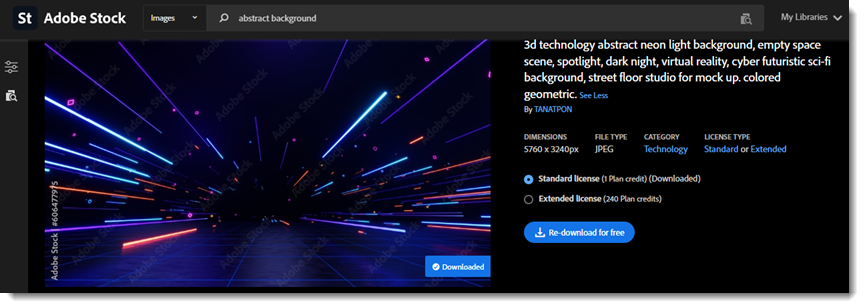
So here is what I am talking about. I have found this image on our Adobe Stock account and downloaded it. Note: Adobe Stock is not the reason, or connector – any downloaded image, from any web resource, is going to trigger this new “helpfulness”.
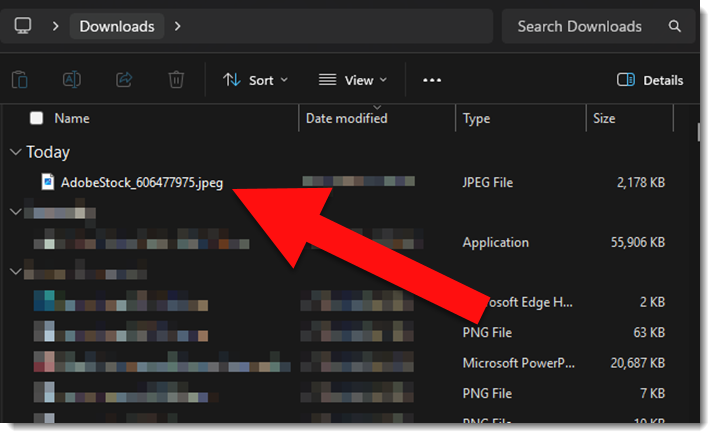
To confirm, the image is my downloads folder:
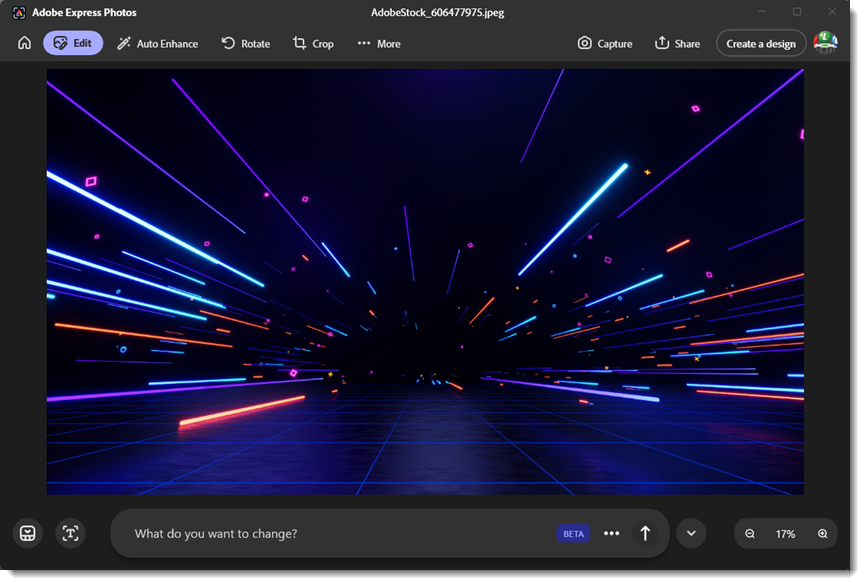
But after downloading, the Adobe Express app launches and displays the downloaded image. Apparently Adobe feels they know a better workflow and feel they should change my workflow to working on this image in their app – argh!!
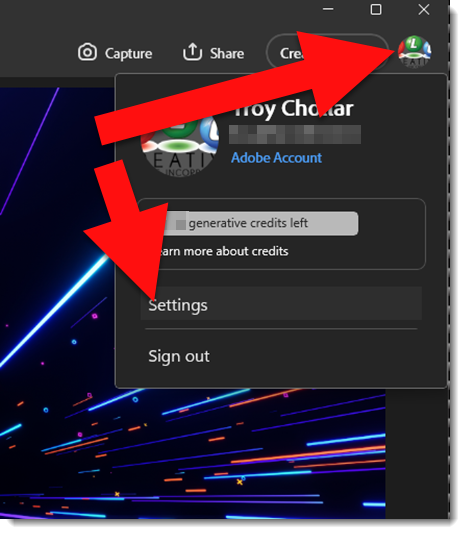
The only good news is, this is easy to turn off! In Adobe Express, click the account icon in the upper right and then Settings.
There are surprising few settings options. Turn off the “Images Downloaded from the Web” option.
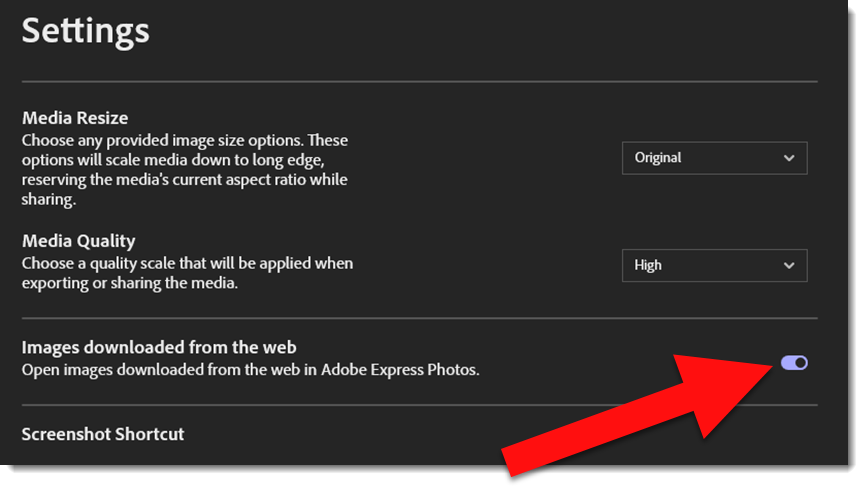
Done. Adobe Express will no longer launch and open each image you downloaded (BTW, I was downloading 20+ icons for a presentation project from The Noun Project – and the constant interruption of Adobe Express opening each image is what set me off on figuring out how to turn of the unwanted behavior!).
Perhaps I will do a future post on Adobe Express’s capabilities as it does offer some good image editing features – and a paid Adobe Creative Cloud account is not needed to install and use it, although there are many limitations in the free version.
-Troy @ TLC