The PowerPoint® Blog

I work with PowerPoint on a daily basis and I am very honored to be a Microsoft PowerPoint MVP. We have a talented team of presentation designers at TLC Creative Services and ThePowerPointBlog is our area to highlight PowerPoint tips, tricks, examples and tutorials. Enjoy! Troy Chollar

New Auto Layout Designer

Another new feature of PowerPoint 2016, only available to subscription users, is DESIGNER, which is an automatic layout tool. Here is an example of how it works.

  1. Start with a blank slide – on a Microsoft supplied template (I am using the standard white background new presentation)
    Designer 1
  2. I entered some text in the title placeholder and used the Insert Image option for the content placeholder
    Designer 2
  3. Go to the DESIGN tab and click the new DESIGN IDEAS button
    Designer 3
  4. The right action pane opens the DESIGN IDEAS interface, click LET’S GO
    Designer 4
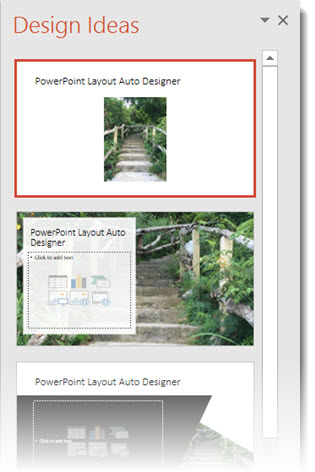
  5. The Design Ideas pane displays a number of layout options
    Designer 5
  6. Scroll through the options, select any to see and use, these layouts (and several others) were automatically created with a simple click
    Designer 6

Fantastic feature for both the designer and non-designer! But at this stage there are a few downsides to the new DESIGNER tool.

  • The biggest downside is if you do not have PowerPoint 2016, and a subscription version (eg. Office 365), Designer is not available in PowerPoint.
  • The biggest limitation is that it will only work with Microsoft supplied templates. Open the DESIGN tool on a custom template and get the message below.
  • If you do not use layout placeholders (eg. add your own text boxes and insert images not through a placeholder insert image icon), and you get the message below.

Designer 7

Overall, a great idea and smooth implementation. But because TLC virtually never uses a Microsoft template (or theme), this feature has very limited use for us – but I am hopeful Designer will continue to expand its capabilities.


-Troy @ TLC
By |2016-08-10T08:41:53-07:00February 5th, 2016|PowerPoint, Software/Add-Ins|

MORPH Now Available in PowerPoint 2016!

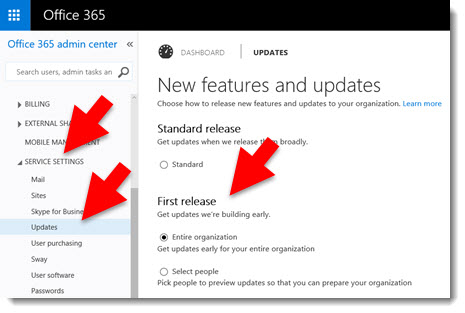
Office 365 subscription users have a new feature in PowerPoint called Morph, which was automatically added* (and you may not even know it is there). There is a long list of animation requests, but this feature is a slide transition that creates animation visuals, all without looking at the animation tab. Here is an example animation that took less than 3 minutes to create.

Morph Demo:

[KGVID]https://thepowerpointblog.com/wp-content/uploads/2016/02/unnamed-file-2.mp4[/KGVID]

The process is easy. If you have used Mac Keynote’s Magic Move, the concept is similar – but PowerPoint’s Morph has a few distinctions. Slide setup is easy. For this sample, I added an arrow to the first slide, duplicated that slide and moved the arrow to a new position. Then, I duplicated that slide and re-positioned the arrow, flipped it, and recolored it. Finally, I duplicated the slide 1 last time and added in a collection of additional arrows. No animation.

Morph 1

After designing the 4 slides, it just needed to have a few slide transitions. To find Morph, go to the slide transition tab and look for the new transition option.
Morph 2

(1.) Slide 1 = Fade slide transition

(2.) Slide 2 = Morph slide transition

(3.) Slide 3 = Morph slide transition

(4.) Slide 4 = Wipe from Right slide transition

Again, all of this motion is achieved with no animation!

Morph 3

Download this Sample Animation.

*Morph is available as of this post to Office 365 subscription users that has opted in for the Insiders Program (basically Microsoft’s Beta release program).

-Troy @ TLC
By |2019-10-31T22:16:49-07:00February 3rd, 2016|PowerPoint|

Office 2016 Subscription or Not?

office 2016

Microsoft has released Office 2016, but saying “PowerPoint 2016” can mean several things…

I am sure the goal for Microsoft is to make things simple, so using one name for all platforms made sense – on paper.

Here are a few of the variations:

  • Office 2016 Windows Desktop
  • Office 2016 Mac
  • Office 2016 subscription (Office 365)
  • Office 2016 perpetual license (purchased)

Which are you using? Which is best? How do we let someone helping with troubleshooting know what variation is being used? All important because every variation has slightly different features, limitations, bugs, etc.

The biggest decision is Subscription or Perpetual License (I make this assumption, because if you use a Windows computer you are going to get the Windows version, and if you use a Mac you are going to get the Mac version – I am not saying which platform is best). There are some disadvantages to each option. But there is one advantage to the subscription option that makes it, for me, the better option.

Office365 Logo

Microsoft and Adobe (Creative Cloud) are now offering feature improvements and additions to only their subscription versions. So, if you purchase Office 2016, that is the feature set you will have. Microsoft will continue to update it with security and compatibility items, but new or improved features are not going to show up in a perpetual license version. Very quickly PowerPoint 2016 perpetual and PowerPoint 2016 subscription are going to be very different applications. And I can confidently say, the PowerPoint development team has more exciting features cued up for the next year than we have seen in the past (big number) years.

The next post demo’s one of the new subscription only features!

-Troy @ TLC
By |2016-08-10T08:42:16-07:00February 1st, 2016|PowerPoint|

UltraWide Projections

Corporate meetings have continued to expand the use of super wide screens and projections.

TLC Creative Services has worked on several design templates for events throughout the year where the standard 16×9 PowerPoint leads the design. Once the design is approved, we move into creating the UltraWide template using PowerPoint. The layout of Ultrawide projections can be 40ft high to 250ft wide!

These events are a group effort; we work closely with the AV production team to know the technical specs before developing the UltraWide template. For this particular show, we had two widths built in, the active pixel (visible to audience) and full pixel width (for the slide/computer sizing). We also had IMAG (Image Magnification) or live camera of the presenter. PowerPoint doesn’t control IMAG, but it is important to plan the design to visually fit.

Ultrawide projections 1

Here’s a video to show an example.

[KGVID]https://thepowerpointblog.com/wp-content/uploads/2016/01/unnamed-file-2.mp4[/KGVID]

-Troy @ TLC
By |2019-10-31T22:18:00-07:00January 28th, 2016|PowerPoint|

PowerPoint Document Portfolio Sample

Adobe InDesign is our preferred layout application for print design projects. But it is not a widely used application in Office environments. Microsoft Word can be difficult to work with in documents that need to be flexible with content layouts. Design project requests for a “PowerPoint Document,” a PowerPoint file designed specifically for PDF or laser print output (not slide shows), continue to grow. And applying our formal print design background helps these documents stand out from “standard” Word and PowerPoint styling and be a visually “professional” print design piece.

PowerPoint Document

This single sided print piece (client content removed) is an example of a PowerPoint Document design project.

  • Letter size page (8.5×11″)
  • Portrait orientation
  • Clean, easy to read and professional print layout (content flow, smaller font sizes, alignment, etc.)
  • Off-slide indicators of editable text areas end user can modify
  • Customize PowerPoint template attributes to help maintain corporate branding guides (customized color scheme, default fonts, default shape attributes, etc.)

-Troy @ TLC
 

By |2016-08-10T08:43:32-07:00January 27th, 2016|Portfolio, PowerPoint|

iPhone Hotspot Fix for Windows 10

With continuous travel, I use my iPhone Hotspot option to get my laptop online quite often – it is often faster than the hotel or airport WiFi and keeps me from paying ridiculous $20/day internet fees. Recently, something went awry and the connection would not connect – very frustrating. I tested with 3 different Windows 10 computers, all 3 did not connect. Then, I tested with an iPad, which connected fine. So I identified that the phone Hotspot works and it was not one specific computer, so it had to be with the iPhone setup.

iphone hotspot 3

After doing some online research and more testing, I solved the issue. Windows 10 does not allow any special characters in the phone name. In my case, the phone name was “Troy’s iPhone.” As soon as I removed the apostrophe (special character), every computer was able connect to the iPhone Hotspot. My phone is now simply named “Troy.”

iphone hotspot 4

To change an iPhone name, go to SETTINGS > GENERAL > ABOUT > NAME (this does not affect iTunes account in recognizing iPhone).

iphone hotspot 5

– Troy @ TLC

By |2016-08-10T08:43:51-07:00January 25th, 2016|Resource/Misc|

Engaging Guest Speakers

We design great speaker support presentations. But it is not always about the (great) graphics. Sometimes the most engaging presentations are just a presenter on stage presenting.

Guest speakers 1

Corporate meetings have guest speakers. Being the Presentation expert behind the curtain means we get a VIP seat to see and hear many of today’s engaging speakers, bands and entertainers. In 2015, General Colin Powell stands out as a memorable presenter, not for any presentation graphics, but just for being a fantastic and engaging speaker. This is Gen. Powell’s only slide and my view of the stage. It was a great hour of presentation!

– Troy @ TLC

By |2016-08-10T08:44:15-07:00January 22nd, 2016|Personal|

Presentations that Curve

PowerPoint does not have anything to do with the physical curve of the presentation. Instead, the curve is done by all the great AV crews that we have the opportunity to work with. The 16×9 presentations are nicely designed, but have no special setup.

new-curve-img2

The Ultrawide background is a custom PowerPoint template setup to match the projection pixel count with images and content strategically designed so as not to interfere with standard 16×9 slides and IMAG areas. TLC Creative Services plans with production companies in advance to ensure all layers are coordinated. These are the presentation design projects that our team really enjoys!

new-curve-img

– Troy @ TLC

By |2016-08-10T08:44:35-07:00January 20th, 2016|Portfolio, PowerPoint|

Motion GFX for a Custom Podium

As a design project for an awards show, TLC Creative was asked to develop a video loop to play on a custom podium that has a 16×9 monitor in portrait – very cool! We story-boarded the visual concept and motion effects (using PowerPoint as the storyboard canvas), then after client approval we moved into Photoshop, Illustrator and video editing (Premiere and After Effects), using elements from two provided event collateral pieces and a lot of creativity. The final piece was designed to coordinate with the event theme, have subtle motion that would not be distracting, work with the staging and seamlessly loop for the duration of the event. The full loop was several minutes, here is a 30 second clip of the animation.


– Troy @ TLC

By |2025-04-02T13:06:26-07:00January 18th, 2016|Portfolio|
Go to Top