I work with PowerPoint on a daily basis and I am very honored to be a Microsoft PowerPoint MVP. We have a talented team of presentation designers at TLC Creative Services and ThePowerPointBlog is our area to highlight PowerPoint tips, tricks, examples and tutorials. Enjoy! Troy Chollar
Distorted Images – How to Fix
There has been an increase in requests for help with distorted images. I believe a big reason is the shift from 4×3 to 16×9, and images becoming stretched when the page setup is changed.
Here is the TLC image that has been inserted onto a 4×3 slide.
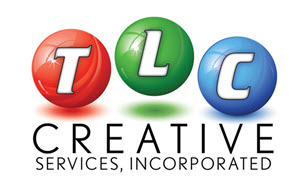
When I change the page setup from 4×3 to 16×9, images distort and the TLC logo looks like this:

Note: With PowerPoint 2013, there are some really great aspect ratio conversion options built in, and for PPT 2007/2010 users, there are some very helpful 3rd party add-ins that make the aspect ratio conversion much easier. All are created to help you from starting on the left and getting the image on the right:

To restore any inserted image to its original aspect ratio:
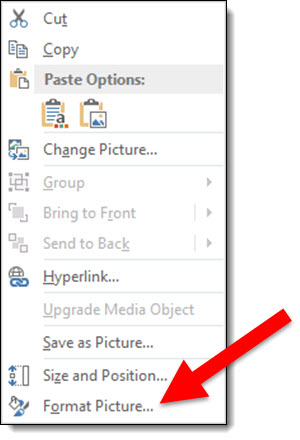
1. Right-click the image and select FORMAT PICTURE
2. From the Format Picture Dialog, go to the SIZE AND PROPERTIES tab
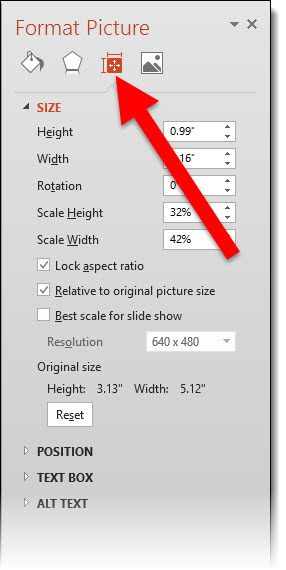
3. Click the RESET button
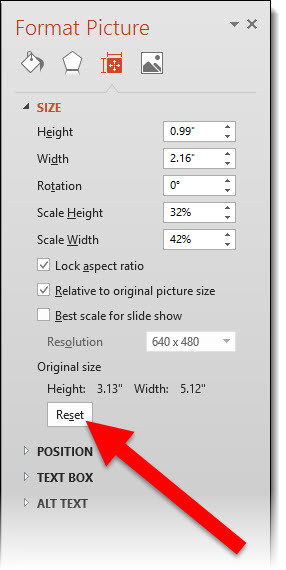
The image will reset to the original inserted size (which also means all effects – shadow, bevel, brightness are removed). Resize the image to fit the slide content area for images that look proportionally correct!
– Troy @ TLC












 The 5th Annual Outstanding Presentations Workshop begins September 9th. PowerPoint MVP, Ellen Finkelstein, has gathered another great line up of presentation experts this year. The series focus is on how to sharpen PowerPoint skills, clearly communicate the message, design powerful slides, and much more. I definitely endorse this as one of the most economical and easy ways of getting quality presentation information (and I was honored to be a presenter in past workshops).