I work with PowerPoint on a daily basis and I am very honored to be a Microsoft PowerPoint MVP. We have a talented team of presentation designers at TLC Creative Services and ThePowerPointBlog is our area to highlight PowerPoint tips, tricks, examples and tutorials. Enjoy! Troy Chollar
PowerPoint 2016 and the QAT (it doesn’t fit!)
I have been moving TLC Creative Services to Windows 10 and Office 2016 in small groups. The new OS and updated version of Office are stable and provide a great work environment (with a lot of customization of settings to be what I want!). One item I have not been able to figure out a solution for is how PowerPoint 2016 displays the QAT.
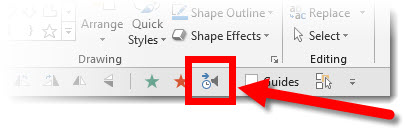
Here is my QAT with Office 2013 (captured last month) with PowerPoint full screen on a 1920×1080 resolution. There are 37 quick access buttons to make my design time more efficient. Note: The last button is close to the middle of the PowerPoint ribbon.

Now here is the exact same QAT, on the exact same resolution monitor and full screen app. The only change is a move to PowerPoint 2016. Note: The last button on my QAT is not visible, the QAT buttons are incredibly spread apart and now span the entire ribbon width – and the last few buttons do not even fit, they are cut off!

I do not have a solution (yet). I did think of the Touch Mode that adjusts the interface, but it does not affect the QAT, just the ribbon buttons. I will report back if (when) I find a QAT display solution.
– Troy @ TLC