The PowerPoint® Blog

I work with PowerPoint on a daily basis and I am very honored to be a Microsoft PowerPoint MVP. We have a talented team of presentation designers at TLC Creative Services and ThePowerPointBlog is our area to highlight PowerPoint tips, tricks, examples and tutorials. Enjoy! Troy Chollar

Image + PowerPoint Graphic for Complete Slide Message

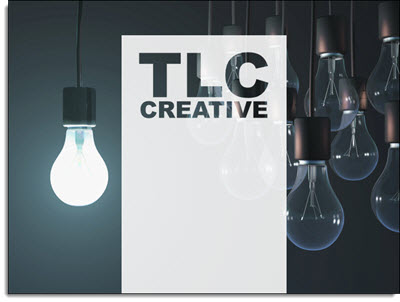
This is a slide from a recent project that I think is a good demonstration of seamlessly integrating PowerPoint content and graphics with photos. We developed from a script, so no design was done before our design team created the presentation – but I can easily see something like this being the “standard” PowerPoint slide:

CloudData1

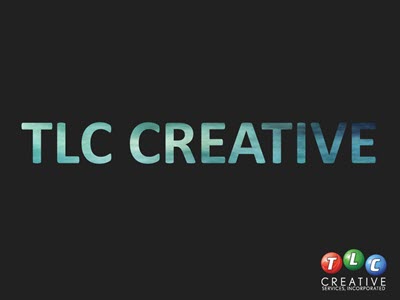
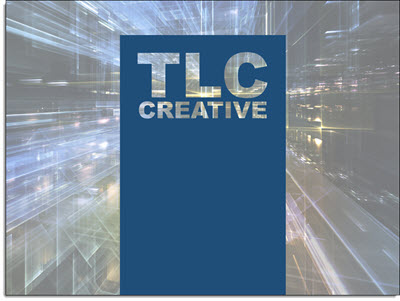
Here is the TLC Creative Services slide for the presentation:

Complete Slide Message 2

Here is the development process for the complete slide message:

1. Review script, understand message, outline needed slide content to support message.

2. Research images, or develop image. For this slide we used this stock image:

CloudData3

3. Develop a cloud graphic in PowerPoint to animate and carry the message.

4. Use a combination of PowerPoint shapes and custom shapes that will become our PowerPoint cloud:

CloudData4

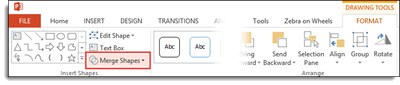
5. Turn all of the shapes into a single cloud using the MERGE SHAPES tool:

CloudData5

5. Adjust the color and fill/outline options:

CloudData6

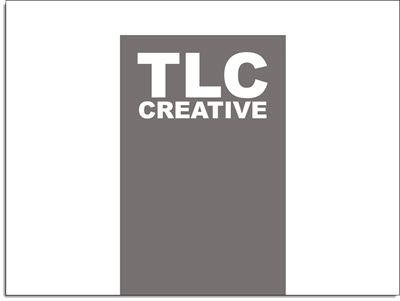
6. Add the text (direct in the cloud shape):

CloudData7

7. Final step is to add an animated entrance effect:

CloudData8

Download the final slide here: CloudData

– Troy @ TLC

By |2016-08-10T09:16:06-07:00December 8th, 2014|Personal, Resource/Misc|

Pixar Cars Template

Pixar properties are fun projects! For this new marketing template for the Cars franchise, we were asked to develop a PowerPoint template that made use of a Chrome chevron/triangle, lots of McQueen’s metallic red paint, a McQueen character and the Disney Pixar Cars logo. Along with custom bullets (in the shape of bolts and rivets), this is the final template styling.

Pixar-Cars_template

Note: This post is only to highlight the design work of TLC, we cannot provide this template to anyone (sorry).


– Troy  @ TLC
By |2016-08-10T09:16:56-07:00December 3rd, 2014|Portfolio, Templates/Assets|

Thanksgiving 2014 Free PowerPoint Template

Staff designer, Michelle, created this fun Thanksgiving themed template for TLC to post this year. The template is 16×9 and has the full array of PowerPoint options and layouts preset, and this great animated Theme layout.

Thanksgiving_Template

Download template: TLC_Thanksgiving_2014_template


– Troy @ TLC

By |2025-04-02T12:50:17-07:00November 24th, 2014|Templates/Assets|

Fall Time Employee Recognition Slides

For a recent employee update presentation that TLC designed for one of our clients, we created a seasonal Fall Time themed set of slides for their employee recognition. Using PowerPoint 2013 and the ability to layer content on top of video, embed video, and custom motion path animations to develop these wonderful slides.

– Troy @ TLC

By |2025-04-02T12:45:42-07:00November 21st, 2014|Portfolio, PowerPoint|

Providing More Than Just Slide Beautification

Here is a graphic supplied by the client for a recent presentation design project . Quick – what is wrong?

numbers-1


In developing ideas for a new way to show this information we noted the pie chart numbers add up to greater than 100% (108.4%). We let our client know of this and received a great soundbyte “Wow, you guys actually look at the content you are working with!”

Yes, TLC is very picky about the aesthetics (color scheme, alignment, consistency) AND the message.


– Troy @ TLC

By |2016-08-10T09:19:16-07:00November 10th, 2014|Portfolio, PowerPoint, Resource/Misc|

Building Project (Bucharest)

This is not about PowerPoint, or a project I have worked on, but it is about presentation. This is a massive video project that is truly amazing (not so much for it story telling, but just technology and scope).

[original video no longer available from source]

– Troy @ TLC

By |2016-08-10T09:19:39-07:00November 7th, 2014|Resource/Misc|

Create Puzzle Pieces in PowerPoint

PowerPoint 2010 introduced the Merge Shapes toolset (trust me, it was hidden, but there). In PowerPoint 2013, the Merge Shapes toolset is much more accessible and refined. Here is an example we developed creating a much requested graphic element – puzzle pieces (download link below).


Here are the 4 puzzle pieces.

puzzle pieces-1

All are PowerPoint shapes


Here is a 4 step process to create your own:

1. Add 4 squares AND 4 small circles, so there are 8 shapes on the slide. COPY the 4 circles.

puzzle pieces-4

Select all shapes and subtract the circles from the squares to get these 4 shapes.

puzzle pieces-5

Paste in the 4 circles, so there are 8 shapes on the slide again.

puzzle pieces-6

Select all 8 shapes and use the Merge Shapes tool to unite the circles to adjacent squares to create the 4 puzzle pieces.

puzzle pieces-7

Each puzzle piece is a separate PowerPoint shape.

puzzle pieces-2

Each puzzle piece is a separate PowerPoint shape that can be resized, animated and recolored directly in PowerPoint.

puzzle pieces-9


Download a slide with the 4 puzzle pieces: PowerPoint_Puzzle_Pieces


– Troy @ TLC


By |2016-08-10T09:20:05-07:00November 6th, 2014|Resource/Misc, Tutorial|
Go to Top