The PowerPoint® Blog

I work with PowerPoint on a daily basis and I am very honored to be a Microsoft PowerPoint MVP. We have a talented team of presentation designers at TLC Creative Services and ThePowerPointBlog is our area to highlight PowerPoint tips, tricks, examples and tutorials. Enjoy! Troy Chollar

Veterans Day Salute By TLC

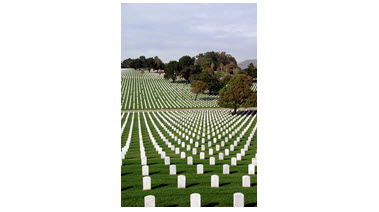
As a salute to everyone in the U.S. military for everything you do, and sacrifice – here is a tribute created in PowerPoint:

1. Great video loop from videoblocks.com

2. Image from istockphoto

3. Same image after some development work in Photoshop and saved as a .png with transparency

4. Image from istockphoto

5. Same image after resizing and development work in Photoshop, saved as a .png with transparency

Assemble all in PowerPoint 2010, animate and export as a video
[youtube src=”https://youtube.com/embed/heUG1f5yBKg?rel=0″]

Troy @ TLC

By |2016-08-16T08:57:59-07:00November 14th, 2012|Personal, Portfolio|

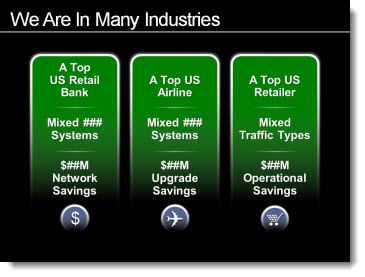
Global Expansion as a Visual

For this speaker support presentation, the global adoption of the discussed medical procedure was the point being presented. This strong visual was developed (and animated) to show the global reach of the procedure.

– Troy @ TLC

By |2016-08-16T08:58:18-07:00November 12th, 2012|Portfolio|

Visual Layout for “Business Development” Slide

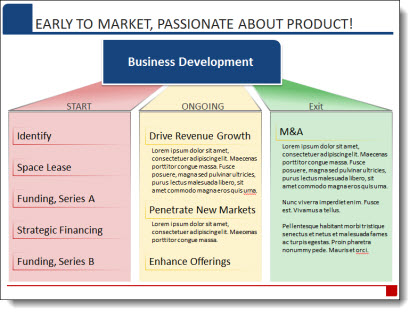
We strive to minimize bullet lists, simplify text and make presentation content as visual as possible. Of course, the first step is discovering how the presentation will be used (speaker support, knowledge reporting, handouts, etc.). For a recent presentation, there was a lot of data that needed to be included, but the request was to also minimize the use of bullet lists (always a great sign when the presenter understands the need to help the audience capture the slide content!).

For this slide, an overview of the Business Development phases of the company, we minimized the text and categorized it. Then a visual layout was created to clearly show the 3 phases, label the phases and finally add the detail text into each phase. The end result is here, and it was a lot easier for the audience to remember than a slide full of bullets!

– Troy @ TLC

By |2016-08-16T08:58:36-07:00November 10th, 2012|Portfolio|

Template Inspired By Logo

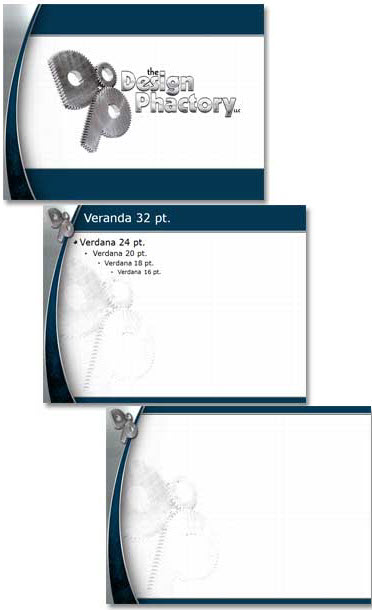
TLC Creative Services has the opportunity to work on PowerPoint templates for companies in many industries, events, brands and shows. The diversity makes the design interesting for us and this template was for a small niche company with a distinct logo. In addition to assuring all template options were customized (font size-color-style, line spacing, custom bullets, custom color scheme, etc.), we focus on designs that create a coordinated look. I really like the visual beauty of this template that Jennifer worked on.

– Troy @ TLC

By |2016-08-16T08:59:00-07:00November 8th, 2012|Portfolio|

PowerPoint + Photoshop = Visually Dynamic Slides

For a recent project, the presenter described the first mover advantage of Kodak when they developed the first digital camera (and then the fate of not acting on that advantage). Rather than a bullet list of facts, dates and details, we provided a 3 slide sequence to visually support the presenter.

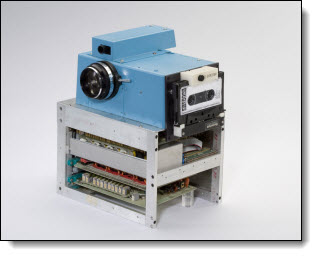
After developing the slide concept, the first task was researching and finding a high enough resolution image of the first Kodak digital camera (and the “camera” is pretty cool):

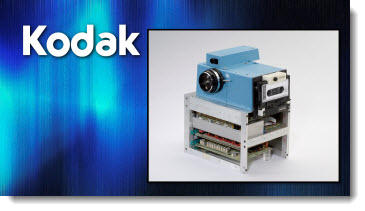
Using the image as is, we could have developed a slide like this: Insert .jpg, add outline and drop shadow, insert company logo (as a scalable .emf vector graphic of course).

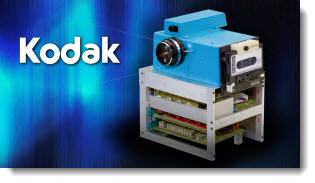
Instead, we spent 40 minutes in Photoshop dropping out the background and saving out the optimized .png image with transparency. The inserted image has a PowerPoint drop shadow a some gradient accent lines emerging from the camera lens.

The result is a great image that works with any template background and visually pops.

– Troy @ TLC

By |2016-08-16T08:59:34-07:00November 5th, 2012|Portfolio|

Welcome to November!

November, the 11th month of the year. We have almost made it to the end of another great year! TLC Creative Services has had a great year, which is evident by the diversity of projects we have worked on. For this month, starting Monday, the blog will be a collection of portfolio highlights and projects from this year.

Have a great weekend and see you Monday!

– Troy @ TLC

By |2016-08-16T09:00:04-07:00November 2nd, 2012|Personal|

Pumpkins Everywhere!

We had a great group over to the house for our annual Pumpkin Carving party on Sunday! Lots of food, great conversations and a bit of competition… Over 40 pumpkins were judged in 5 categories. My family included Harry Potter-Ron-and spiders, a glowing camp fire with s’mores, The Avengers, a Ballerina and Larry & Bob from Veggie Tales.

Hope you have a great Halloween and start to fall!

– Troy @ TLC

By |2016-08-16T09:01:05-07:00October 29th, 2012|Personal|

QR Codes For Your Presentation

A “QR” Code is a “Quick Response” Code. Think of them as UPC, or SKU, codes on steroids.

The QR code is a great way to allow an audience to quickly capture your contact information, website, or your department’s page on the company intranet. And, using a QR code is free! Plus, virtually every online capable smartphone has free QR code reading applications. To use, just launch the app, take a picture of the QR code and it will automatically open a webpage.

At TLC Creative Services’ PowerPoint training programs, I open the session with a list of resources, one being a QR code to this blog. At the end of the training, my “Thank you” slide includes a QR code that goes to the TLCCreative.com contact page. Both are much quicker and easier than everyone scrambling for a pen to write down the info (and everyone has their phone out reading email, texting and probably checking the score of the game already).

There are many websites that let you create your own QR code for free. For this tutorial, I am using BeQRious.

What sets this site apart from many other free QR code generators is the numerous types of QR codes you can generate, but also the tracking and managing of your QR codes and data. Plus, generating a code is simple.

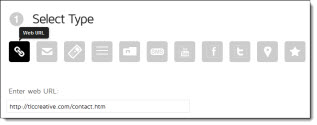
1. Select the type of code you want to generate: choose from web URL, email, phone, text, vCard, SMS, YouTube video, Facebook profile, Twitter profile, map, or graphical. Enter the information into the text box.

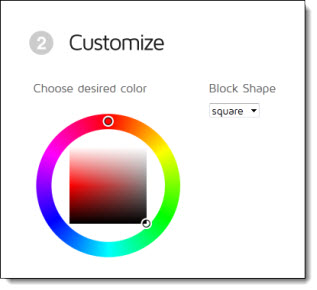
2. Customize the color of the code (QR codes do not need to be black and white, just high contrast).

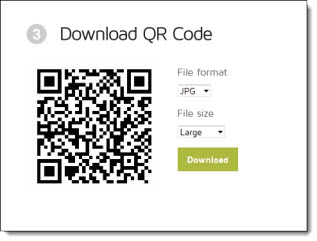
3. Download the QR code as a JPG, PNG, GIF, or PDF. And this site lets you choose how large you want your file size to be. The PDF option is great because you get your code as a fully scale-able vector image that can be made as large or small as you’d like, without losing any quality. At TLC Creative Services, we open the PDF in Adobe Illustrator and export as a .emf to have a vector (ie. scalable) graphic for PowerPoint. Or export as a .png is another good option for use on PowerPoint slides.

4. You can then insert your new QR code into your presentations to make it easy for your audience to connect with you.

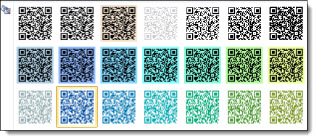
5. Within PowerPoint (using 2007 and above), use the Picture Color feature to change the QR Code to any of the template colors. As long as there is contrast between the QR code and the background, it will work.

– Troy @ TLC

By |2016-08-16T09:01:22-07:00October 26th, 2012|Tutorial|
Go to Top