The PowerPoint® Blog

I work with PowerPoint on a daily basis and I am very honored to be a Microsoft PowerPoint MVP. We have a talented team of presentation designers at TLC Creative Services and ThePowerPointBlog is our area to highlight PowerPoint tips, tricks, examples and tutorials. Enjoy! Troy Chollar

Theme or Source – Your Choice

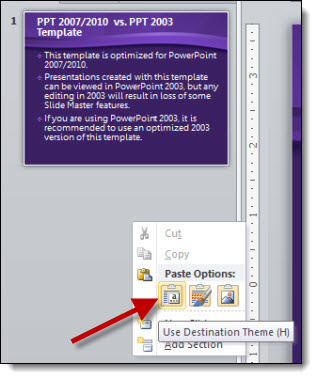
When moving slides from one presentation to another, the slide formatting (based on the master slides) is your choice – if you use the Paste Dialog.

1. From any presentation, copy the slides either in the left pane or slide sorter.

2. Go to the presentation where the slides are to be added and paste them in.

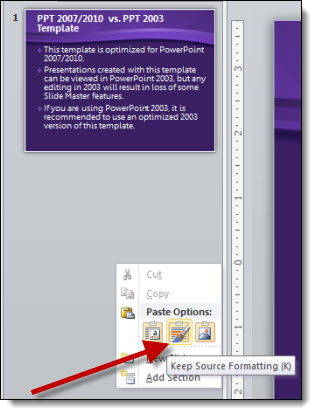
3. To paste, click where new slides are to be added and right-click. From the pop-up dialog, under “Paste Options” select “Use Destination Theme.”

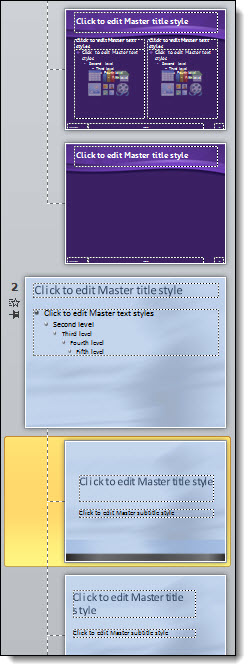
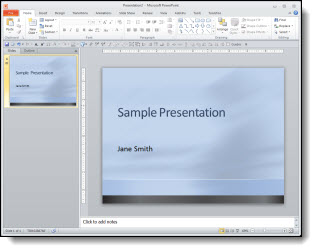
4. The pasted slides will take on the formatting from the master slide set in the presentation:

5. Or you can choose “Keep Source Formatting:”

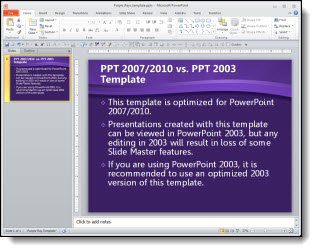
6. With “Source Formatting” the new slides retain their orginal master slide and formatting:

The choice is yours!

– Troy @ TLC

By |2016-08-16T09:39:54-07:00January 8th, 2012|Tutorial|

Creating the % Number Gradient Style

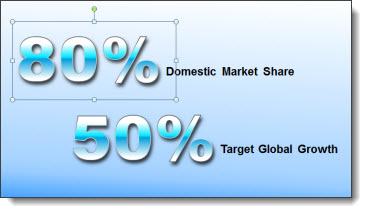
Here is the example slide from the previous post (download link below).

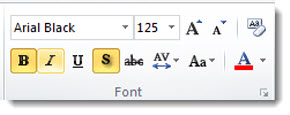
Here is a quick how-to on creating the custom text style. The “regular” text is Arial, 24 pt, bolded. The stylized text is Arial Black, 125 pt, bolded, drop-shadow, outline and gradient fill (so think BIG)

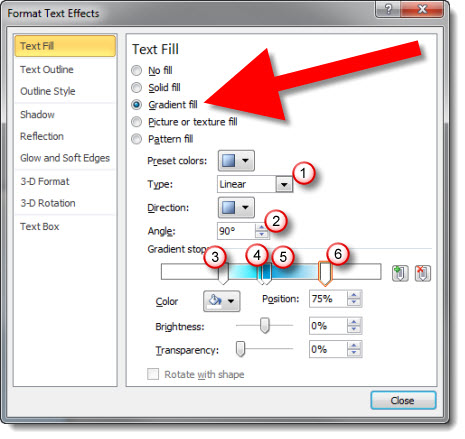
To create the gradient fill:
1. Type = Linear (= one direction)
2. Angle = 90 degree (= top to bottom)
3. Gradient Stop 1 = white, position 28%, transparency 05 (solid)
4. Gradient Stop 2 = bright cyan, position 46%, transparency 05 (solid)
5. Gradient Stop 3 = muted blue, position 48% (very close to the other blue), transparency 05 (solid)
6. Gradient Stop 4 = white, position 75%, transparency 05 (solid)

To see this gradient in PowerPoint (2010 is my recommendation for gradients (over 2007)), download here. (43K)

– Troy @ TLC

By |2016-08-16T09:40:12-07:00January 5th, 2012|Tutorial|

Really Nice 3D Icons Created in PPT

Here is the end result:

This great 3D icon was developed entirely in PowerPoint 2010. Using standard shapes, 3D Perspective and the Shape Combine tools.

Here are steps to create:

1. Insert the tear drop shape from the shape menu.

2. Rotate the shape until the point is pointing down.

3. Change the color to a gray, and remove the outline.

4. Insert an oval shape, holding down shift to make it a perfect circle. Holding ctrl, it will expand from the center and place in middle of the tear drop shape.

5. Remove the outline from the circle, if there is one.

6. Select both shapes and group.

7. For the 3D rotation, we will need the group selected.

8. Select “off axis 2 left.”

9. For the 3D effects, we only need the tear drop shape selected.

10. Height: 19.5 pt, width 0 pt, depth 5 pt, material special effect >> soft edge, lighting >> three point, angle 190.

11. Now you have a 3D tear drop shape.

By |2016-08-16T09:42:00-07:00December 13th, 2011|Tutorial|

Opening “Stinger” Video

Design requests are always diverse and some things can still be developed more dynamically in video editing vs. PPT. TLC Creative Services did slide makeovers for all the presentations at this meeting, but I spent some time in the video edit suite to develop this quick animation to kick off one of the meeting segments.
[youtube src=”https://www.youtube.com/embed/buUOoE7jucc?rel=0″]

– Troy @ TLC

By |2016-08-16T09:42:53-07:00December 6th, 2011|Portfolio, Resource/Misc|

Showsite Setup in 30 Seconds

This is a fun video I created that shows a mid-size show being loaded in (setup) I was the graphics/PowerPoint designer and operator on (thanks to Paul Chrisope of Video Resources for sharing the photos).
[youtube src=”https://www.youtube.com/embed/5Y7mAk4x5ZE?rel=0″]
Check out the next post were I show how the video was created with PPT.
– Troy @ TLC

By |2016-08-16T09:43:17-07:00November 8th, 2011|Resource/Misc|

Desert Code Camp 2011

If you can head to Arizona this week, this Saturday, November 5 is the Desert Code Camp event. This is the first year it is offering an MS Office specific track – thanks for several Microsoft MVPs, including my friend Kathy Jacobs (OneNote MVP and former PPT MVP). The event is in Chandler, Arizona.

Get the details here.

– Troy @ TLC

By |2016-08-16T09:45:44-07:00November 2nd, 2011|Resource/Misc|

PPT Halloween Pumpkin

Using the Shape Combine/Subtract/Union tools TLC Creative designer, Jennifer, developed this great pumpkin entirely from standard PPT shapes.
[youtube src=”https://www.youtube.com/embed/yiD1hSN3cdM?rel=0″]

The development was basically 30 steps, which we captured as individual slides to create the video directly from PPT.

Here is what the slide looks like, which you can download here (47K) .

– Troy @ TLC

By |2016-08-16T09:46:40-07:00October 31st, 2011|Portfolio, Tutorial|

Halloween Themed PowerPoint Template

Wanda, one of our talented TLC Creative designers, developed this great Halloween themed template we are sharing with everyone.

The template is native to PPT 2010, 16×9 aspect ratio and features several layouts including a great animated title slide (Note: All elements on the title slide from the background to the cauldron and hat were created in PowerPoint).
[youtube src=”https://www.youtube.com/embed/pcN6Gtf4UuM?rel=0″]
Download the full template here:

– Troy @ TLC
By |2016-08-16T09:46:58-07:00October 28th, 2011|Templates/Assets|
Go to Top