The PowerPoint® Blog

I work with PowerPoint on a daily basis and I am very honored to be a Microsoft PowerPoint MVP. We have a talented team of presentation designers at TLC Creative Services and ThePowerPointBlog is our area to highlight PowerPoint tips, tricks, examples and tutorials. Enjoy! Troy Chollar

How Long Can An Animation Be?

So how long of an animation can be added to something in PowerPoint? Not what is practical, but what is possible.

The answer is 59 minutes, 59 seconds and 99 thousands of a second. But how you set this up depends on the version of PowerPoint you are using.
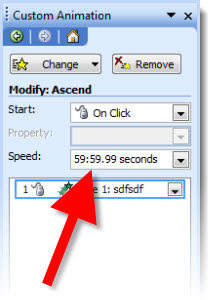
PPT 2003 and 2007:
1. Add any animation (Entrance, Exit, Emphasis, Motion Path) to element.

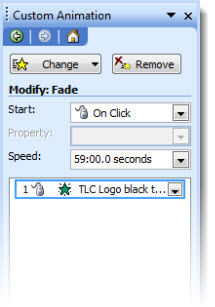
2. Open the animation settings dialog and input 59.
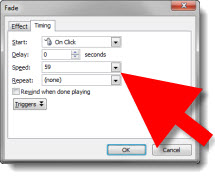
3. “59” defaults to 59 seconds.
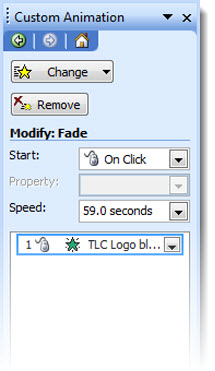
4. Open the animation settings dialog and input 59:00.
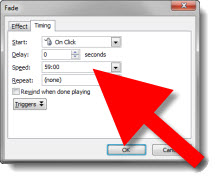
5. Now the animation will occur over the next 59 minutes.
PPT 2010:
With PPT 2010 there were many tweaks to the animation UI, not all for the better…

1. Add any animation (Entrance, Exit, Emphasis, Motion Path) to element.

2. Open the animation settings dialog and input 59.

3. “59” defaults to 59 seconds.
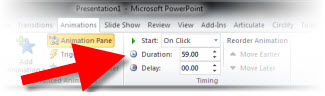
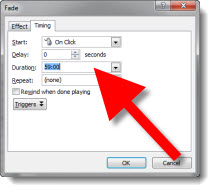
4. Open the animation settings dialog and input 59:00. Click “Okay” and the time is highlighted waiting for a valid value to be entered (no hint that 59:00 is not valid or what is valid, you just get no action when you click the Okay button).
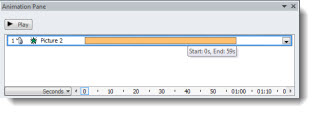
5. Open the animation pane and select the same element. It is a bit tedious, but click and drag the timeline as long as you want the animation to occur. Note: You can drag the timeline as far past 1 hour as desired.
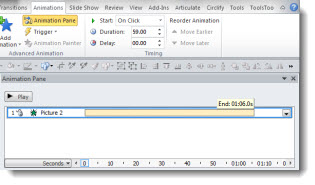
6. Even though you extended the timeline to 1 hour, 1 minute or 5 hours, it will snap back to its maximum 59:59:99.
– Troy @ TLC
By |2016-08-16T09:49:13-07:00October 19th, 2011|Tutorial|

Showsite “One Man Office”

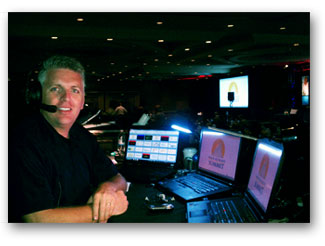
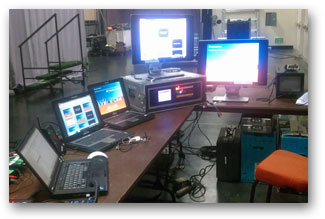
A few weeks ago, I was the lone tech backstage (producer, audio, etc. all front of house). So I handled the graphics computers, video playback and switching (Don’t worry I gave myself “Go” commands to assure everyone stayed in sync).

– Troy @ TLC

By |2016-08-16T09:49:43-07:00October 17th, 2011|Personal|

Showsite “Office”

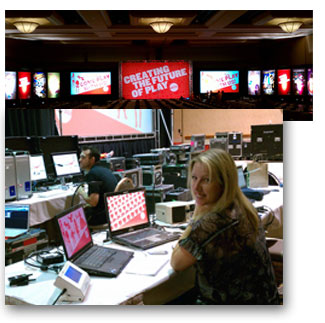
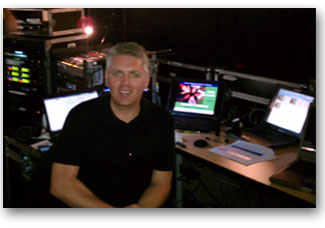
This was a great meeting. Dynamic and animated presentations with minimal “bullets.” Also, I was working the week with Lori in Las Vegas as we each headed up the graphics for different divisions presenting at the same meeting. Here is the staging and Lori backstage (plus, we escaped for a few Vegas shows).

– Troy @ TLC

By |2016-08-16T09:50:23-07:00October 13th, 2011|Personal|

Custom Gradient Fill for Big Numbers

For this slide (see previous post for more info on it), I wanted the numbers to be a visual focal point. I also wanted to keep them as editable PPT text. By mixing the stylized text with more standard text, a nice slide layout was developed. The big number text was created by:

1. Make it big (this text is 125pt).

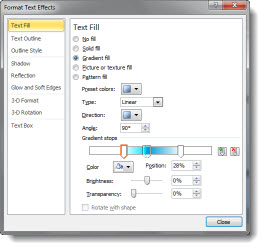
2. Give it a gradient fill – using colors that coordinate with the template color scheme.

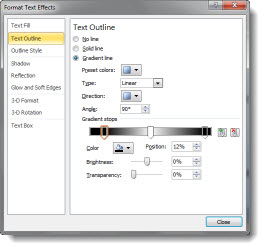
3. Add a subtle outline (stroke) to the text to help it contrast for legibility.

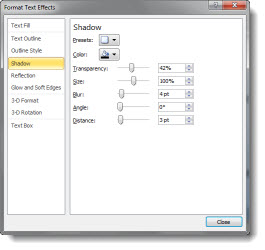
4. Add a drop shadow.

The sample slide can be downloaded here.

– Troy @ TLC

By |2016-08-16T09:51:16-07:00October 7th, 2011|Personal, Portfolio, Templates/Assets|

Big Numbers Are the Key Concept

One of the greatest things I hear is something like this “Just make the slides have the key concepts I am talking about.” To me, that means the presenter:
– Knows their talk
– Is a confident presenter
– Will not be reading the slide to the audience
– And has given me freedom to design visual slides (yeah!)

This is a sample slide from a recent presentation TLC Creative Services developed (Note: Corporate template and much of the content adjusted for the sample slide). This minimal content slide reinforced the presenters point, did not distract the audience from the presenter and provided much more memorable speaker support than a list of bulleted text with all the details (that the presenter provided during the talk).

– Troy @ TLC

By |2016-08-16T09:51:45-07:00October 5th, 2011|Personal, Portfolio|

Review: PowerPoint To Go Free Templates

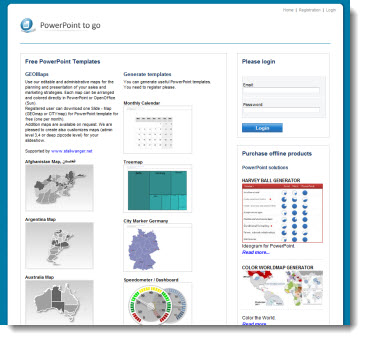
PowerPoint To Go (PPT-to-go.de) is a company based in Germany and offers a collection of PowerPoint templates that are free. The main categories are maps and nice looking 3D shapes in colorful layouts.

Unfortunately, we were not too impressed with the site. To access the free templates you must go through a registration process – for 1 template per month. While registering, the site timed out twice with a fatal error on the server being reported. It took four log in attempts before successfully accessing the downloads page. So the online experience was far from smooth.

The template downloaded is a .ppt (PPT 2003) and on our systems it opened with a corrupt file warning.

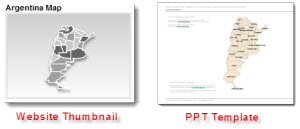
The thumbnail image on the download page was very different (and visually better) than the actual slide:

I had expected to see a full PowerPoint template with all of the master slide formatting preset. There is minimal template formatting in place and it is actually more jumbled than the MS default (and uses the German language dictionary).

Many of the thumbnails look great and I would recommend using just the content (map, 3D pyramid, etc.) by importing into your template and not using the PowerPoint to Go file as a template.

– Troy @ TLC

By |2016-08-16T09:53:03-07:00September 30th, 2011|Personal, Resource/Misc, Templates/Assets|
Go to Top