The PowerPoint® Blog

I work with PowerPoint on a daily basis and I am very honored to be a Microsoft PowerPoint MVP. We have a talented team of presentation designers at TLC Creative Services and ThePowerPointBlog is our area to highlight PowerPoint tips, tricks, examples and tutorials. Enjoy! Troy Chollar

Full Screen Online Presentations

If you are presenting through an online application, a good tip for Internet Explorer is knowing how to go to the Full Screen view.

Here is my sample presentation in an Internet Explorer window. It has all of the unneeded toolbars, URL and controls:
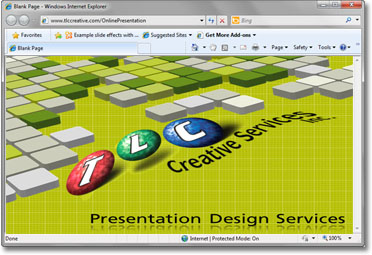
If I click the F11 key, Internet Explorer expands to the full screen and hides the toolbars:

Just move the mouse to the top of the screen to have the toolbars pop back. With the toolbar visible, click the Restore icon in the upper right to exit full screen view.

– Troy @ TLC

By |2016-08-16T10:21:36-07:00April 8th, 2011|Tutorial|

Defining “Cloud” Computing

Every tech company has turned its attention to “cloud” computing. This includes cloud computing, cloud services, and cloud applications. And Microsoft is doing a lot with the “cloud” and the new PowerPoint, Excel, Word and OneNote Web Apps and the upcoming Office 365.

Here is one of the best definitions of “Cloud Computing” I have heard:
“Purchasing the amount of bandwidth needed vs. purchasing the full service or application.”

So TLC Creative Services is not looking to purchase servers (to store and access project files) any longer, but looking to use an online accessible server and just pay for the amount of file storage and bandwidth needed. We are also moving to more cloud services and cloud applications for presentation design and presentation.

– Troy @ TLC

By |2016-08-16T10:21:56-07:00April 6th, 2011|Resource/Misc|

Use Windows P for Setting Dual Monitors

If you use a laptop for presentation, you are probably hunting for the FN+F8 key combination or other manufacturer shortcut to change the display mode. If you use a desktop for presentations you are most likely delving into the graphics card functions to find the display options.

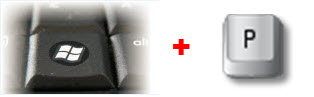
But if you have Windows 7 (laptop or desktop), skip all the hunting and just click the Windows key + P.

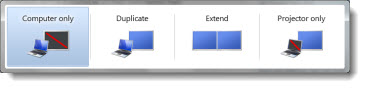
Win+P brings up a dialog that makes it easy to switch to Mirrored or Extended Desktop for presentations.

– Troy @ TLC

By |2016-08-16T10:22:28-07:00April 4th, 2011|Tutorial|

Use Windows 7 Presentation Setting Before Every Presentation

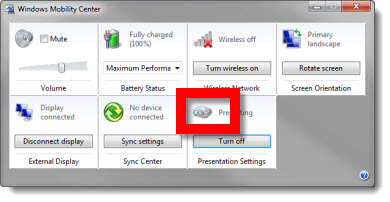
If you present with PowerPoint and use Windows 7, you need to be familiar with the PRESENTATION SETTINGS option. To access, open the MOBILITY CENTER (see 03/22/11 post) by clicking the Windows + X keys. Then click projector icon.

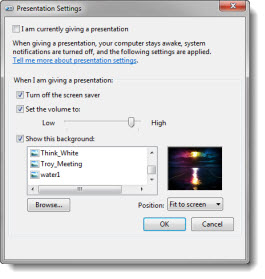
In the PRESENTATION SETTINGS dialog in the “WHEN I AM GIVING A PRESENTATION” section be sure:

1. The TURN OFF THE SCREEN SAVER option is active.
2. The SET VOLUME option is active (I set volume to 90%). This option overrides the mute control.
3. I size the event theme graphic to the monitor resolution and set that image as the desktop background when presenting. For that “just in case” situation, so if all fails the audience sees something related to the event (I have seen kids, puppies, girlfriends, vacation pictures, etc. show up on screen – all not good options).

Note: At the top the I AM CURRENTLY GIVING A PRESENTATION option is also turned on and off through the Mobility Center.
– Troy @ TLC

By |2016-08-16T10:23:25-07:00March 24th, 2011|Resource/Misc, Tutorial|

Use Windows 7 Mobility Center Before Every Presentation

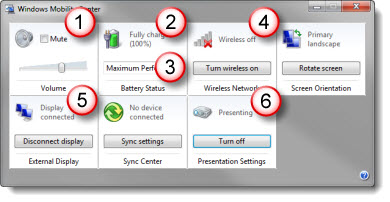
Windows 7 is great – running on virtually every computer here. There are a number of hidden features that are very important to presenters. The WINDOWS MOBILITY CENTER is one of them.

To open the Mobility Center, hold down the Windows key and the X key

I use this as a quick check for:
1. Confirm computer volume
2. Confirm plugged into to power (not on battery)
3. Confirm Maximum Performance power setting (vs. battery saving low power option)
4. Wireless network turned off
5. Computer sees an external display/projector
6. Presentation Settings are active (covered in next post)

Everything seen here can be accessed separately, but this is an easy 1-stop view of them all.

– Troy @ TLC

By |2016-08-16T10:23:46-07:00March 22nd, 2011|Resource/Misc, Tutorial|

Open PhotoShop File as Flat Composite

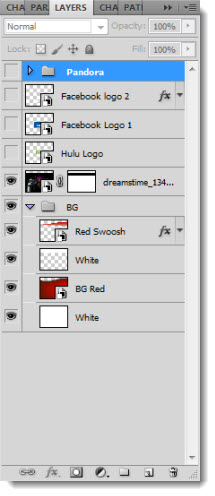
Unfortunately, in general, Microsoft does not work well with layered Photoshop (.psd) files. This includes Windows Explorer previewing them or PowerPoint being able to insert them. I do a lot of work in Photoshop, so I have a lot of Photoshop files for each presentation project. Sometimes, it is a time trap waiting for Photoshop to open the files just to identify if it is a needed file for the presentation. This is especially true when I receive 1-2-30GB files from a graphic department. It takes even a fast computer some time to process a 30GB file with upwards of 50 layers.

Here is a quick way to open, view and identify what those large files are.

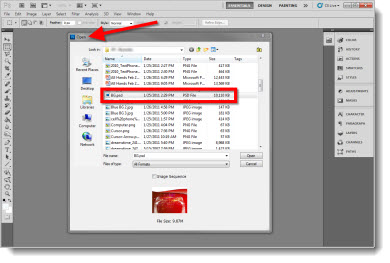
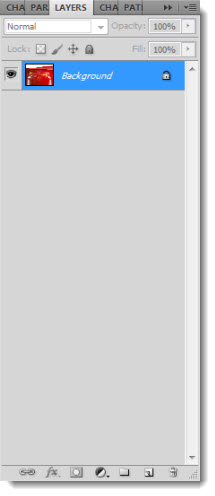
1. In Photoshop, go to FILE>>OPEN and select the .psd file

2. If the OPEN button is clicked, the full file opens, including all of the layers

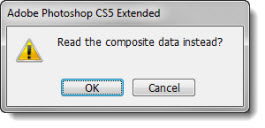
3. But if the SHIFT and ALT keys are held down, then the OPEN button the file opens as a flattened composite image

The advantage is the file, any size, opens instantly. The disadvantage is if layers are turned off they are not visible. I generally create a small .jpg with the same file name for easy reference in Windows explorer.

– Troy @ TLC

By |2016-08-16T10:24:25-07:00March 16th, 2011|Tutorial|

Microsoft MVP Summit

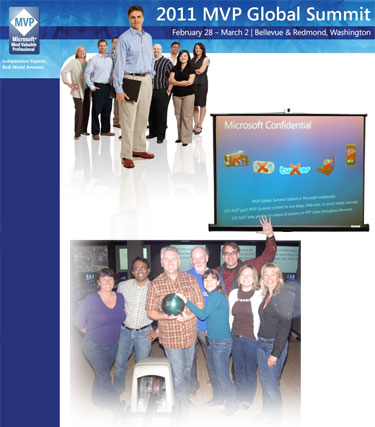
I arrived in (rainy) Seattle over the weekend and have been having a great week at the Microsoft 2011 MVP Summit and spending lots of time with the MS PowerPoint development team.

– Troy @ TLC

By |2016-08-16T10:24:47-07:00March 2nd, 2011|Personal|

Hanging Out with the Green Lantern

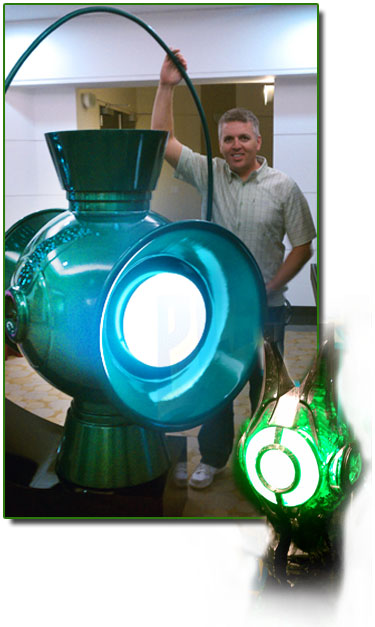
This June is the release of The Green Lantern movie. For a recent meeting, I did have the opportunity to hang out with real Green Lantern – the lantern used in the movie, not the actor. Still very cool. (The small one, not the super-sized promo version).

– Troy @ TLC

By |2016-08-16T10:25:32-07:00February 26th, 2011|Personal|
Go to Top