The PowerPoint® Blog

I work with PowerPoint on a daily basis and I am very honored to be a Microsoft PowerPoint MVP. We have a talented team of presentation designers at TLC Creative Services and ThePowerPointBlog is our area to highlight PowerPoint tips, tricks, examples and tutorials. Enjoy! Troy Chollar

How To Fix The Gap in Text Reflections

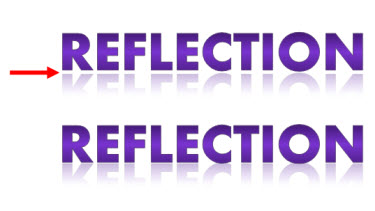
Selective use of the reflection tool for text can make slide layouts very dynamic. But why does the upper text have a gap and the lower text does not?

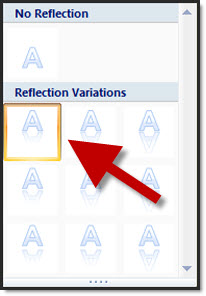
There are 3 preset gap options, but both samples here have the same setting (zero gap).

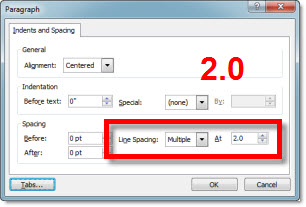
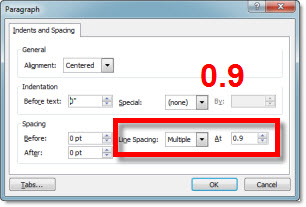
The answer is the line spacing is different. The larger the line spacing the larger the reflection gap – even when set to zero gap option. The top sample has a line spacing of 2.0, which creates a gap:

The lower text is setup with a .95 line spacing (note: 1.0, or single spacing, is the zero point for refections):

– Troy @ TLC

By |2016-08-16T11:47:30-07:00April 15th, 2010|Tutorial|

Roll Call on Microsoft Office 2010 Blogs

If you are viewing this post, you may have some of these other blogs already bookmarked. Here is a list (aka ‘Roll Call’) of blogs by Microsoft teams:
Microsoft Access 2010 Team Blog
Microsoft Excel 2010 Team Blog
Microsoft Office 2010 Engineering
PowerPivot Team Blog
Microsoft Outlook 2010 Team blog
Microsoft PowerPoint Team Blog
Microsoft Word 2010 Team Blog
Office Web Apps
Microsoft Project Team Blog
Microsoft Publisher 2010 Team Blog
Microsoft SharePoint Team Blog
SharePoint Workspace Team Blog
SharePoint Designer Team Blog
SharePoint for End Users Blog
PerformancePoint Services
Microsoft Visio 2010 Team Blog
Microsoft InfoPath Team Blog
OneNote
The Office Blog

By |2016-08-16T11:49:44-07:00April 13th, 2010|Resource/Misc|

Buy Office 2007 Today and Get Office 2010 Tomorrow – Free!

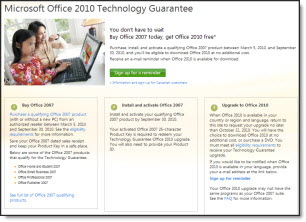
Microsoft announced a program last month that allows you to purchase Office 2007 (full version, not upgrade) and be eligible to download and register Office 2010 when it is available this June for Free. Details are at the Microsoft Technology Guarantee page:

Office 2010 Technology Guarantee – is the following:
• Purchase Office 2007, or a new PC with Office 2007, and activate it between March 5, 2010 and September 30, 2010.
• Have, or create a Windows Live ID.
• Redeem your Tech Guarantee before October 31, 2010.
• The Office 2010 Technology Guarantee will be fulfilled online, via download, at no additional cost.

– Troy @ TLC

By |2016-08-16T11:50:24-07:00April 11th, 2010|Resource/Misc|

PowerPointMaps.com

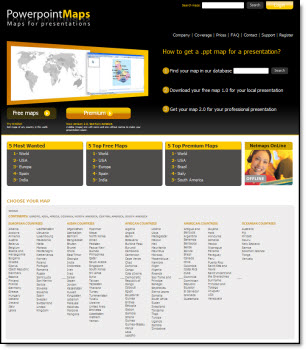
This is another option for adding a map to a presentation. Reviewing the PowerPointMaps.com website virtually every country/region is represented.

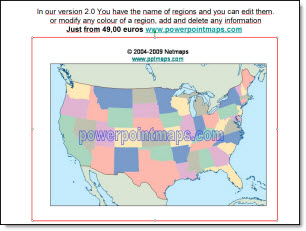
The site offers 2 types of downloads; free and premium. To download a free version you need to register first. I downloaded a few free maps to review the quality. Unfortunately the free version is unusable as it is a flat .jpg image with the website name watermarked across the middle. Here is one of my free map download of the United States, which has an ad for the premium version with a .jpg of the map (I added the red outline to highlight the .jpg)

The premium maps are vector based with each state/region as separate elements which is very usable. Each premium map is 49euros (approx. $66 U.S.) and is definitely a premium price. You can search for “map” to find reviews of other options.

– Troy @ TLC

By |2016-08-16T11:51:10-07:00April 9th, 2010|Resource/Misc|

Free PPT Templates at templateswise.com

Templateswise.com has a variety PowerPoint templates that are all easily previewed and free.

The template designs I viewed are professional and fresh designs. Each has a variety of slide background options. My sample has 4 background options.

But the templates are not true templates. There is a big difference between a nice slide and a full featured template that has master slide formatting, custom color scheme, and more. The files downloaded do not have any master slide formatting…

One nice feature is the download includes the .pot and large 1600x1200px .jpg’s of each background.

Also, the templates I downloaded are PowerPoint 2003 .pot files.

– Troy @ TLC

By |2016-08-16T11:54:10-07:00April 5th, 2010|Resource/Misc|

5Th Grade Book Reports – with PowerPoint

One of ThePowerPointBlog viewers sent me a link to this story.

My daughter is in 4th grade and has used PowerPoint for several school assignments. Here students in Iowa needed to a read a book and write a book report. All standard school stuff. But their book report had to be created as a PowerPoint presentation!

Read the full story here.

– Troy @ TLC

By |2016-08-16T11:55:01-07:00March 30th, 2010|Resource/Misc|

Animate Visual Dividers

Using the previous post’s sample, here is how I set up the animation on the slide.

Here is the sample slide:

Here is the Animation Pane for the slide:

1. Text Box = Entrance animation – Expand – On-click (for each level) – Fast
2. Divider Lines = Entrance animation – Fade – With Previous – Fast
3. Drag 1st lines animation under 2nd line (2nd animation). So it fades in as the 2nd line of text expands.

Done!

The animated sample slide can be downloaded here (47K ).

– Troy @ TLC

By |2016-08-16T11:55:25-07:00March 28th, 2010|Tutorial|

Gradient Visual Dividers

Lots of slides have a few main points, like this example:

I like to add a simple divider line as a visual break between each line. And I create it in PowerPoint using a simple gradient fill. So my sample slide looks like this:

To create the divider line, start with added a basic rectangle – no outline and the fill color you want.

Then change to a Gradient Fill.

Creating the feathered edge is a bit tricky:
1. Type = Linear
2. Angle = 0
3. Stop 1: position = 0, color = your pick, transparency = 0
4. Stop 2: position = 50, color = your pick, transparency = 100
5. Stop 3: position = 100, color = your pick, transparency = 100
** Delete any additional stops (only want 3)

Last, adjust the rectangle height to be smallest possible.

Done!

– Troy @ TLC

By |2016-09-16T08:55:31-07:00March 26th, 2010|Tutorial|

3D Star Sample

For a recent project I needed some eye catching callouts/starbursts. I created a series of 3D stars and overlayed text boxes with the key phrases (New, Now, Available, etc.). It was a quick solution that looked really nice.

I started with a simple Star autoshape.

Adjustments to several tabs of the Format Shape box was all that was needed to create the visual.

One of the tricky adjustments is changing the perspective to have a left facing star and a right facing star. Only 2 tabs are needed. The Shadow tab, adjusting the Angle and the 3D Rotation tab. Compare the numbers on the Rotation tab.

You can download a slide with these 3D stars on it here (33k ).

– Troy @ TLC

By |2016-08-16T11:56:19-07:00March 24th, 2010|Portfolio, Tutorial|
Go to Top