The PowerPoint® Blog

I work with PowerPoint on a daily basis and I am very honored to be a Microsoft PowerPoint MVP. We have a talented team of presentation designers at TLC Creative Services and ThePowerPointBlog is our area to highlight PowerPoint tips, tricks, examples and tutorials. Enjoy! Troy Chollar

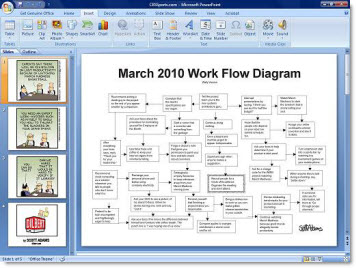
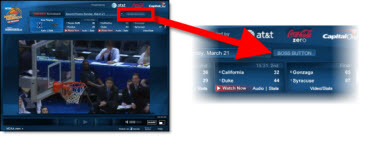
Dilbert March Madness PowerPoint ‘Boss Button’

PowerPoint is a ubiquitous office application and I think you know you’ve arrived when cartoon character Dilbert references it. This one is worth checking out!

This goes beyond a cartoon and is actually a full screen image of a ‘dilbert’ PowerPoint presentation designed to hide your March Madness (basketball) viewing. It is activated with the “Boss Button” on the NCAA.com video player.

– Troy @ TLC

By |2016-08-16T11:56:54-07:00March 22nd, 2010|Resource/Misc|

Zoom and Pan Animation Sample (Hockey)

Living in Southern California, Hockey is not really a focus for me. But with the excitement of the Winter Olympics hockey match up I was inspired to create this animation example. A popular animation effect used in recently (especially in commercials) is a zoom and pan where the background stays in place and key elements slowly lift and move to create depth and motion from a static image. The effect is not difficult in video or PowerPoint, it just requires a lot of prep work.

Here is my original image:

In Photoshop I dropped out the background and saved it as a .png:

I also created a background only version in Photoshop, where I ‘erased’ our hockey player from the image:

Then in PowerPoint I inserted 2 images; the hockey player and the blank background. Then applied the zoom and pan animation (grow/shrink 120% and motion path) to the hockey player image.

The result is a subtle motion to the slide that adds a nice polish and depth to what would be just a standard slide. Download the sample slide here (1.14MB ).

– Troy @ TLC

By |2025-01-02T13:35:51-08:00March 20th, 2010|Tutorial|

NewsMap for Presentation ‘Statistic’ Graphics

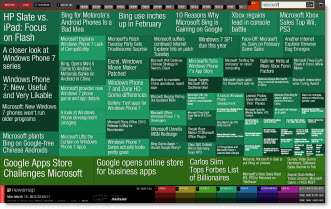
I recently made use of NewsMap for some great visual images to visually show the trends being talked about by the presenter. NewsMap is actually an old web based application that has had some big improvements recently.

NewsMap visually shows any topic from the Google News aggregator in a treemap. The treemap shows the topic in bands and sized boxes that show patterns in news the reporting at that moment.

Of note – the newsmap images change quickly as the news changes. So my sample Newsmap of “Microsoft” will have a different layout when you create it for the same topic.

– Troy @ TLC

By |2016-08-16T11:58:17-07:00March 16th, 2010|Resource/Misc|

Google DocVerse

DocVerse is a company Google purchased last week that aims at making its online Google Apps more appealing to MS Office users. DocVerse is ironically a startup founded by two former Microsoft key employees.

Colaboration (having multiple people work on a document seamlessly) and cloud computing are what 2010 is going to be all about. DocVerse is an add-in to Office 2007/2010 that adds great colloboration tools to PowerPoint, Word and Excel. While they are really good, starting in June these features are going to be a part of the upcoming Office 2010.

Google is all about cloud computing and while DocVerse does not add any new features to its apps directly, what is does do is allow MS Office users to upload their MS documents into the Google cloud and work with them, colloborate on them and enter the Google app world without changing them from the MS format. It seems to me, this is acknowledgement that every company, even Google, needs to integrate working with MS document. And second, the full featured desktop application is still superior to cloud based versions.

– Troy @ TLC

By |2016-08-16T11:58:38-07:00March 14th, 2010|Resource/Misc|

Slide Redesign

In the original slide there was a nice graphic and the layout was clean and balanced. It did not have bullet points for the text, a small graphic or many other common layout issues.

For the presentation makeover a series of colored and slightly beveled shapes were used throughout. Keeping consistency the text was highlighted on the circle, the demographic image on a rounded corner rectangle and the two connected with the gradient (triangle).

– Troy @ TLC

By |2016-08-16T11:59:00-07:00March 12th, 2010|Portfolio|

Customize an Image With Recolor

The recolor feature (FORMAT >> RECOLOR) can customize an image, saving a trip to Photoshop. For this presentation I needed to use the same content in 3 color coded sections. Once the funnel image was optimized and saved from Photoshop as a .png with no background I was able to do the rest in PowerPoint. Here is my original, simple greyscale funnel.

And here the funnel on 3 slides – no grey.

The funnel image used the custom color recolor:

The bars use a 2 color gradient fill with just color 1 adjusted (color 2 = white and 100% transparent).

Download the sample presentation to see the recolor tool in use (129K). Note: if your browser changes downloaded file to”.zip” rename to “.pptx”.

– Troy @ TLC

By |2016-08-16T11:59:17-07:00March 10th, 2010|Portfolio, Tutorial|

Color Swatch Add-In (for Templates)

If you develop PowerPoint templates, this new add-in from OfficeTips (PowerPoint MVP Shyam Pillai) is a MUST HAVE. Adding a custom color scheme is a tedious process that is now super easy, just fill in the swatches with the colors needed for the template, click apply, done!

Install the free ‘Color Swatch’ add-in (PPT 2007, 2010) and it adds these 2 options to the ribbon:

Click ‘Create Swatch Slide’ and this slide is added to the presentation:

Simply change the fill color to all boxes as needed for the template custom color scheme. Here I have created a blue/green color pallette (leaving the first 4 boxes the same):

With the colors set click ‘Apply Swatches to Color Theme’ and give the color scheme a name (which will show up in DESIGN >> COLORS):

When applied the RGB value for each color swatch is updated automatically!

But wait, there’s more!

Here is a standard color pallette. It shows theme colors, MS standard colors, and additional options:

Maybe you have seen a corporate template another section called ‘Custom Colors’. PPT can pin additional colors to a theme, but up until now it involved xml coding with no visual interface to get these often needed colors into the template. Now it is as easy as applying a fill color to some boxes!

Here I have updated the Swatch slide with 3 custom colors. I have also named them (Yellow, Red, Moss).

Now when I look at the color pallette I have a new row of colors. And the Custom Color row travels with the presentation:

And the tooltip shows the color names assigned:

WOW!! This is a really, really incredible (and if you don’t develop templates, trust me, this is incredible!). Here is the info and download page.

– Troy @ TLC

By |2016-09-16T08:57:26-07:00March 8th, 2010|Tutorial|

Application Mockup with PPT

PowerPoint is a great tool for creating and manipulating mock-ups. And PPT 2007’s drawing and style tools make it possible to complete entire projects without needing outside resources. As example, this application interface mockup was done completely with PowerPoint (eg. no photoshop, illustrator, or other external application).

The full project walked through several usage scenarios and was setup with trigger animations to allow the presenter to interact with the application to demonstrate the information flow.

– Troy @ TLC

By |2016-09-16T08:57:49-07:00March 6th, 2010|Portfolio|
Go to Top