The PowerPoint® Blog

I work with PowerPoint on a daily basis and I am very honored to be a Microsoft PowerPoint MVP. We have a talented team of presentation designers at TLC Creative Services and ThePowerPointBlog is our area to highlight PowerPoint tips, tricks, examples and tutorials. Enjoy! Troy Chollar

Software to Convert PowerPoint to Flash

Received this email after the Streaming Media series posted:
“Hi. I am looking for software to convert PowerPoint presentations to Flash. What do you recommend? I tried Articulate and Camtasia. Only Camtasia converted everything in the original ppt slides. But the file was very large. The other programs left out font characters, loused up the audio, had other problems (but made a smaller file). Any help appreciated. Thanks.”

Thought I would share my reply:
You have tried two of my choices for software, so you’re on the right track. The main thing is you have two different approaches and you need to determine which is what you need:
1. Convert to a movie (Camtasia).
2. Convert to vector based images (Articulate).
A movie file will be much larger than a vector based flash file. Creating a movie is a bit tricky, as you can literally have the same movie output at 700MB or 23MB depending on size, bit rate, format and many other variable (as I just did today using Camtasia for a client webcast).

Here are two additional software choices that I have in my arsenal, not to say any one is better than the other.
1. Wildform Presenter Pro – The most difficult of all these programs to master, but it can produce some of the most effective vector based conversions of any program, being able to truly convert all animation effects.
2. Presenter Pro – Very, very similar to Articulate.

The advantage of converting to a movie is that what you see on your computer is captured. This includes custom fonts, bullets, animations, etc. This is why Camtasia captured everything as designed. The downside is it plays straight through (it is a movie) and is a larger (sometimes extremely large) file.

The advantage of converting to a true vector based Flash format is that the file size is tiny, the file can be resized without much quality issues, and it can pause at each slide easily. Downside is fonts need to be outlined, or they will default, custom bullets will not work, etc.

There are at least 10-20 applications out there, but these 4 really are the cream-of-the-crop and will give you the best results. Depending on the project determines which one I use, so keep experimenting with the software and different formats.

– Troy @ TLC
By |2016-11-17T15:26:50-08:00December 27th, 2006|PowerPoint, Resource/Misc|

Christmas Themed Template

Merry Christmas!!!

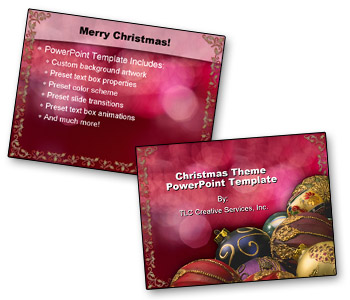
This is a great time of year – first, I have opportunity to focus on design work from my office (eg. I’m not traveling to corporate shows every week) and I also get to enjoy my kids’ excitement for the holidays! As way of saying Merry Christmas to all, please download this custom PowerPoint template I designed specifically for all who visit ThePowerPointBlog.

This is one features an elegant Christmas theme. As with all PowerPoint templates I develop this one features:
– Theme specific backgrounds developed in Photoshop
– Text boxes have preset position, font style, font size, font color, line spacing and bullets
– Preset entrance animations for text boxes
– Preset slide transitions
– File properties and header/footer information preset
– Presentation color scheme, customized to coordinate with background artwork

Click here to download (approx. 800k)

– Troy @ TLC

By |2016-11-17T15:26:27-08:00December 25th, 2006|PowerPoint|

Oh the Places You’ll Go (#1)

One of the great things about corporate shows is traveling to exciting places. I discovered this at an event in Dallas, TX at the Anatole resort. On the grounds they have a big section of the Berlin Wall for all to see!

– Troy @ TLC

By |2016-11-17T15:26:07-08:00December 24th, 2006|Personal|

Little Treats (#2)

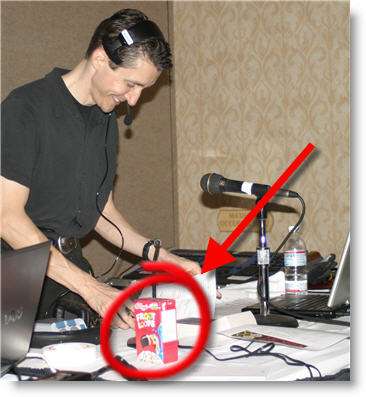
When working a long show, with long hours, sometimes having a little snack is just what you need. Here Steve Hodges, show coordinator extraordinaire, has bravely left his little treats sitting out for all to see (and take).

– Troy @ TLC

By |2016-11-17T15:25:34-08:00December 23rd, 2006|Personal|

Instant Giftstore – iPod Vending Machine (#3)

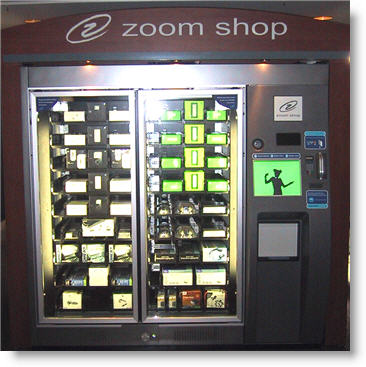
‘Tis the season where shopping is often an experience to be avoided. But here is the perfect solution! I took this photo at the convention center in Atlanta. Insert your credit card and have an iPod (shuffle, mini, video, etc.) drop out of the slot! No lines or crowds. It also made instant purchase available for docking stations, power supplies, headphones, PSPs and more.

– Troy @ TLC

By |2016-11-17T15:25:06-08:00December 22nd, 2006|Personal|

It’s All About The Gadgets (#4)

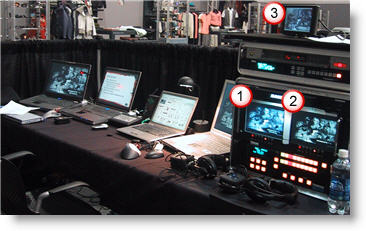
Even the straight forward shows need some nifty gadgets. In addition to having multiple sources (one set of computers for widescreen projection, second set for coordinated graphics on plasma displays throughout room). Note the three preview monitors that give me a heads up on what is being sent, and going to be sent – including the very cool 6” high-resolution widescreen display (#3).

– Troy @ TLC

By |2016-11-17T15:24:38-08:00December 21st, 2006|Personal|

It’s All About The Chair (#5)

It is the holiday time, so I have compiled a fun “5 Holiday Treats” series. And here is #5:

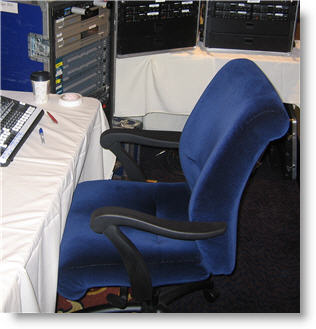
Running corporate presentations means sitting in ballrooms, convention centers, conference rooms and basically any place that is generally uncomfortable. As a matter of personal preservation, it often comes down to what chair you are going to be stuck sitting in for the next several days.

At this particular show I managed a very comfortable seat! Hey, maybe all ballrooms are not that uncomfortable.

– Troy @ TLC

By |2016-11-17T15:24:18-08:00December 20th, 2006|Personal|

Multiple Bandwidth (Streaming vs. Standard Server)

Not all streaming media is created equal. The most advanced streaming media formats are a two-part strategy; first the streaming media is created in multiple versions, second it uses a special streaming media server.

The advantage of multiple bandwidth media is that a viewer with a slow connection gets a lower-quality movie. A viewer with a high speed connection gets a higher quality, larger bandwidth movie. The simple explanation is the movie has several versions all contained in a single file. The streaming media server has the ability to determine the speed of the connection of the viewer and shows them the file that is optimum for their connection.

A Streaming Server is designed specifically for streaming media. It runs specialized software that allows it to “see” the viewer’s connection speed, work through most firewalls, handle large simultaneous connections, implement DRM (Digital Rights Management) and stream without downloading. The last point is the “magic”, it literally plays the streaming media directly from server not the (progressive) downloaded file.

A (standard) Web server is not designed for streaming media, but it is the most common server and tons of streaming media is hosted on it. It streams using a method called progressive downloading. The file is downloaded to the computer’s browser cache and can only play what has been downloaded. Seeking, or jumping, ahead does not work until the entire file is downloaded. Playback is also more likely to be interrupted by periods of buffering (when the player is not receiving the file fast enough) and playback can be affected by the number of people trying to view it at the same time.

Note: A multiple bandwidth file can be hosted on a web server, but because a web server cannot recognize the various speeds built into the file it simply plays the highest bandwidth option (which is most likley poor playback quality as most viewers will not be able to support the super high bandwidth version). It’s like putting a square peg in a round hole – a bad idea…

– Troy @ TLC

By |2016-11-17T15:23:46-08:00December 19th, 2006|PowerPoint, Resource/Misc|

High Bandwidth Media on Lower Bandwidth Connections

In the Bandwidth Math posts, the formulas figured how a movie would play if it was just sent directly to the computer playing in real-time. To play a movie of any decent size and audio quality you would need a pretty fast connection. Fortunately we have ways to get around that!

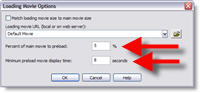
1. Buffer a portion of the movie before playback begins with a PreLoader. People are patient for a short time. So without stretching that patience, let their computer buffer a portion of the movie, so as it plays, the next sections download. This could allow a high bandwidth movie, that according to the formula would need a 1.1 Mbps connection, to play smoothly on a 768 Kbps connection – because even though it is not downloading fast enough for the connection, we gave it a head start which allows it to outrun the viewer’s connection speed.

Most software makes this very easy. Here is Camtasia’s Preloader options:

2. Self-Paced Presentations have a built-in PreLoader effect. When the presentation pauses between slides, the person is busy reading the content on the slide AND their computer is busy downloading even more of the movie!

3. Break into a series of smaller linked movies. The smaller the file size (even if it has a large playback area) the faster it will play. So if the 20 minute presentation with 10 slides at 320×240 is a 50 MB file, it is geared towards High Bandwidth viewers. But if it is broken into 10 (seamlessly) linked movies that are roughly 2 MB each, now the same movie and playback size is viewable by much lower bandwidth connections.

4. Lower the Audio quality. If your presentation has music in the background, it does not need to be high fidelity stereo quality. Same goes for sound effects and speaker narrations. This will make the file size smaller. Encode it as:
– Mono vs Stereo.
– .MP3 vs .Wav
– 8 bit vs 16 or 24 bit
– 22,050 or 44,100 Hz vs 96,000 Hz

These are just a few tips. Look through all of the options offered with the software you are using to develop the streaming media and take the time to experiment with them by creating multiple versions.

– Troy @ TLC

By |2016-11-17T15:23:26-08:00December 18th, 2006|PowerPoint, Resource/Misc|

What is a “Key Frame”

A movie is a series of images played rapidly to create movement. Remember webcasts are all about throwing away unneeded data. The Key Frame is a critical component in what the file size will be.

Video software takes the original movie and compresses it. The Key Frame compression process only keeps the changes from one frame to another. So if you have a PowerPoint slide on Frame 1 and the only difference in Frame 2 is the mouse moves, Frame 2 will only consist of the part that shows the mouse movement.

With compression there are two types of frames:
1. Key Frame: the entire frame
2. Delta Frame: only has the area that changed

Key Frames
Within video software is the option to change the Key Frame Rate. The fewer Key Frames you use the smaller the file size. Here are two examples:
1. For PowerPoint content, where little changes from frame-to-frame, use a high Key Frame Rate (10-80).
2. For live video, where the constant motion has lots of change from frame-to-frame, use a low Key Frame Rate (1-12).

Frames Per Second and Key Frame Rate
Within video software the Frames Per Second (fps) can be adjusted. We need to consider the fps when setting the Key Frame Rate. We need to really consider how much changes from frame-to-frame how often. Here are to examples:
1. If encoding at 30 fps and the Key Frame Rate is 80, a new Key Frame will occur very quick – about every 2.5 seconds.
2. If encoding at 5 fps and the Key Frame Rate is still set at 80, the Key Frames are nearly 40 seconds apart.

– Troy @ TLC

By |2016-11-17T15:23:04-08:00December 18th, 2006|PowerPoint, Resource/Misc|
Go to Top